

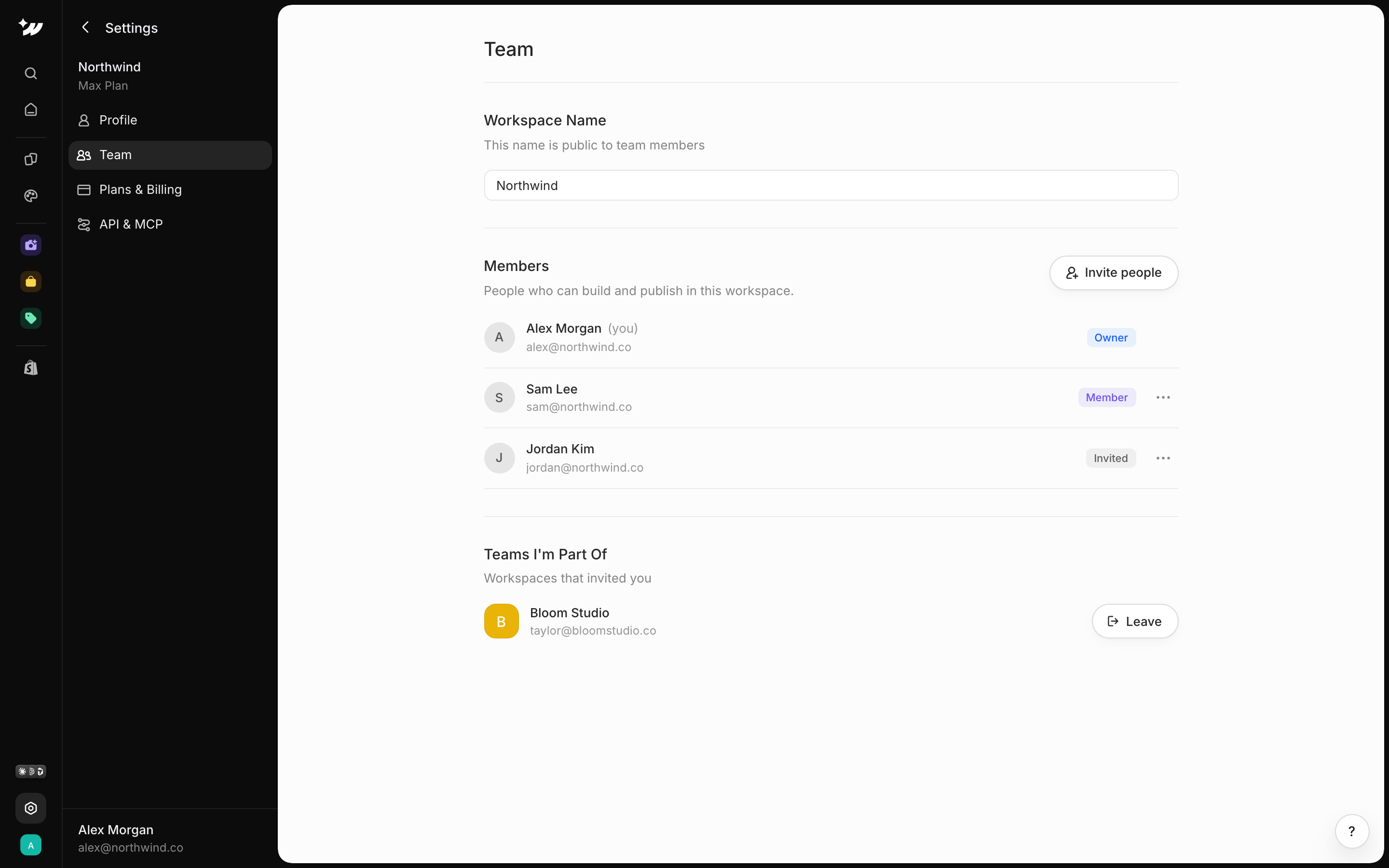
Invite people
1
Open Team
Go to Settings > Team. Here you can also edit the Workspace Name.
2
Invite
Click Invite people and enter their email.
3
Send
Click Send invite.
Roles
Members can’t manage billing, members or API keys, and can’t buy credits. They use the workspace’s credits.
To remove someone, click Remove from workspace.
Join a workspace
Open the invite link. You see Join followed by the workspace name.Switch workspaces
Use the workspace menu at the bottom of the left sidebar. When you are in someone else’s workspace, Settings shows a notice with Switch to my workspace.Leave a workspace
Click Leave workspace. You lose access to its pages, brand kits and stores right away. The owner can invite you again.Credits are shared. Anything a member does with AI uses the workspace owner’s credits.
Related

Sharing and comments
Share pages and leave feedback.

Manage subscription
Owner-only billing.

Credits
How shared credits work.