

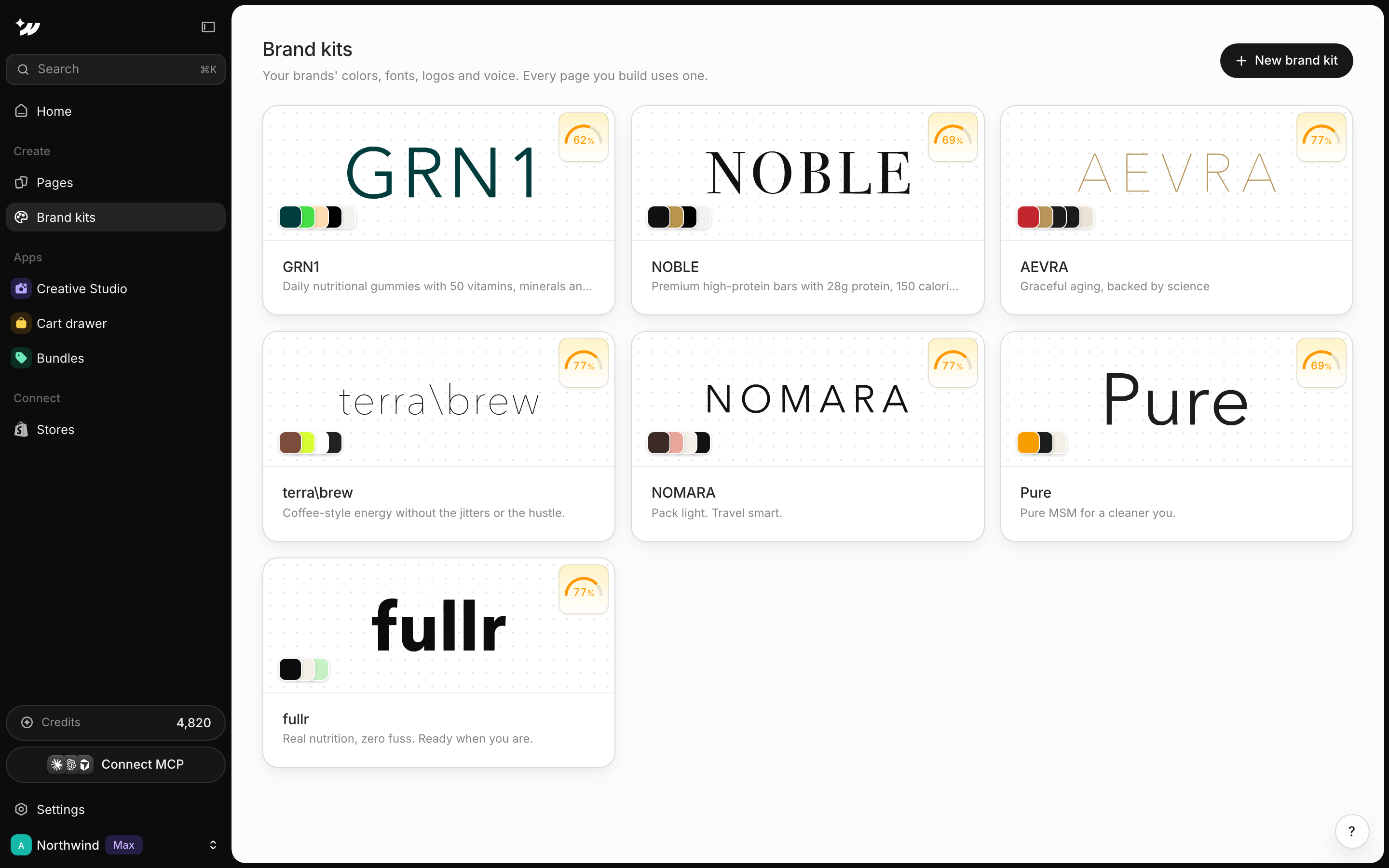
Create a brand kit
1
Open Brand kits
Go to Brand kits and click New brand kit.
2
Fill it in or ask AI
Set your design and context by hand, or use the AI bar to generate it.
3
Save
Click Save. Changes stay a draft until you save. Cancel discards them.
Generate or copy a brand with AI
The AI bar at the top of the Brand kit window reads “Ask AI to edit your brand kit, or paste a link to copy a brand…”. Describe what you want, or paste a link to copy colors, fonts and copy from a site. You can paste up to 3 links; the first one gives the design. Paid fonts are swapped for the closest Google Font. Voice input works too. Each AI edit costs 1 credit.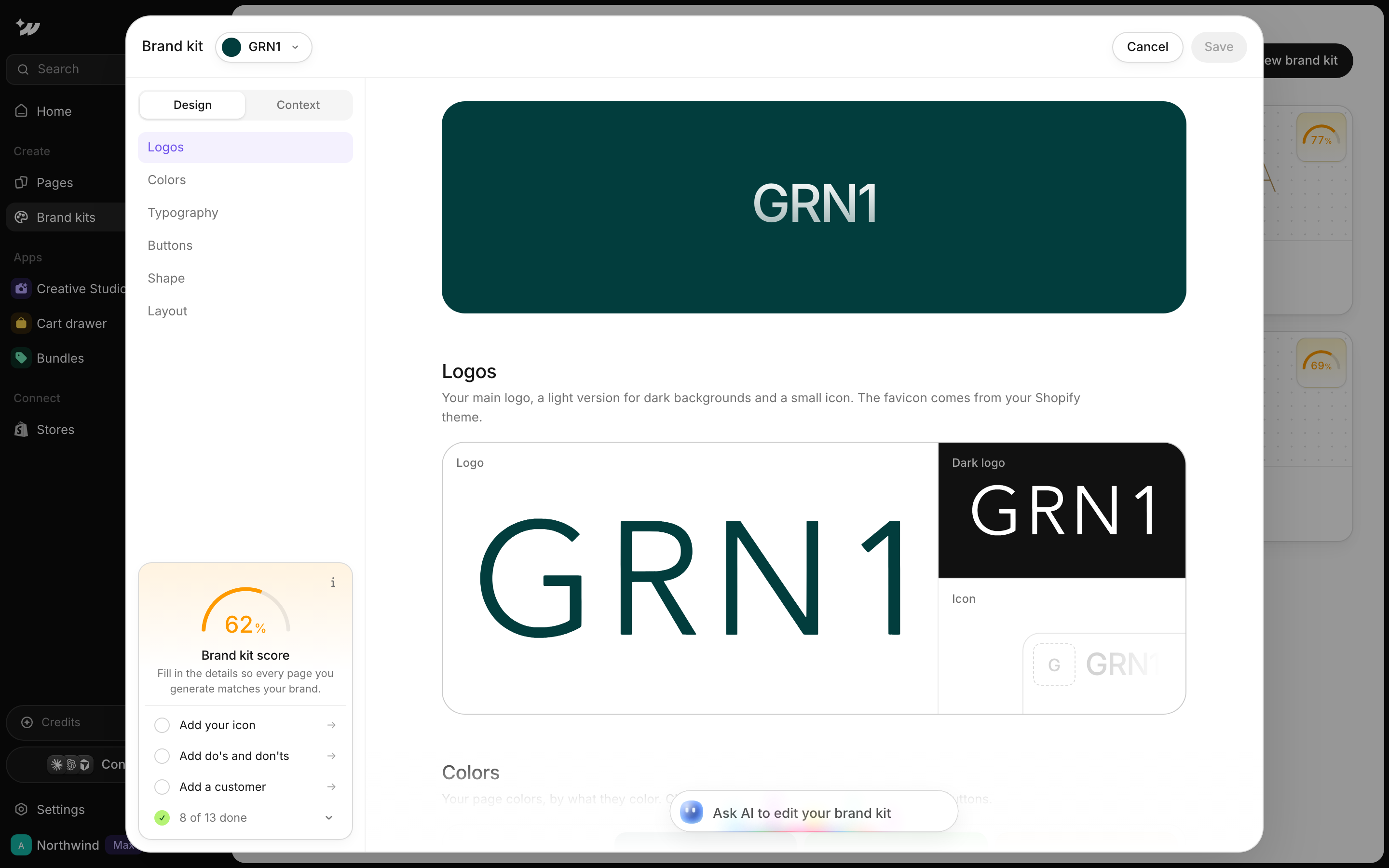
Set your design
The Design tab has these sections: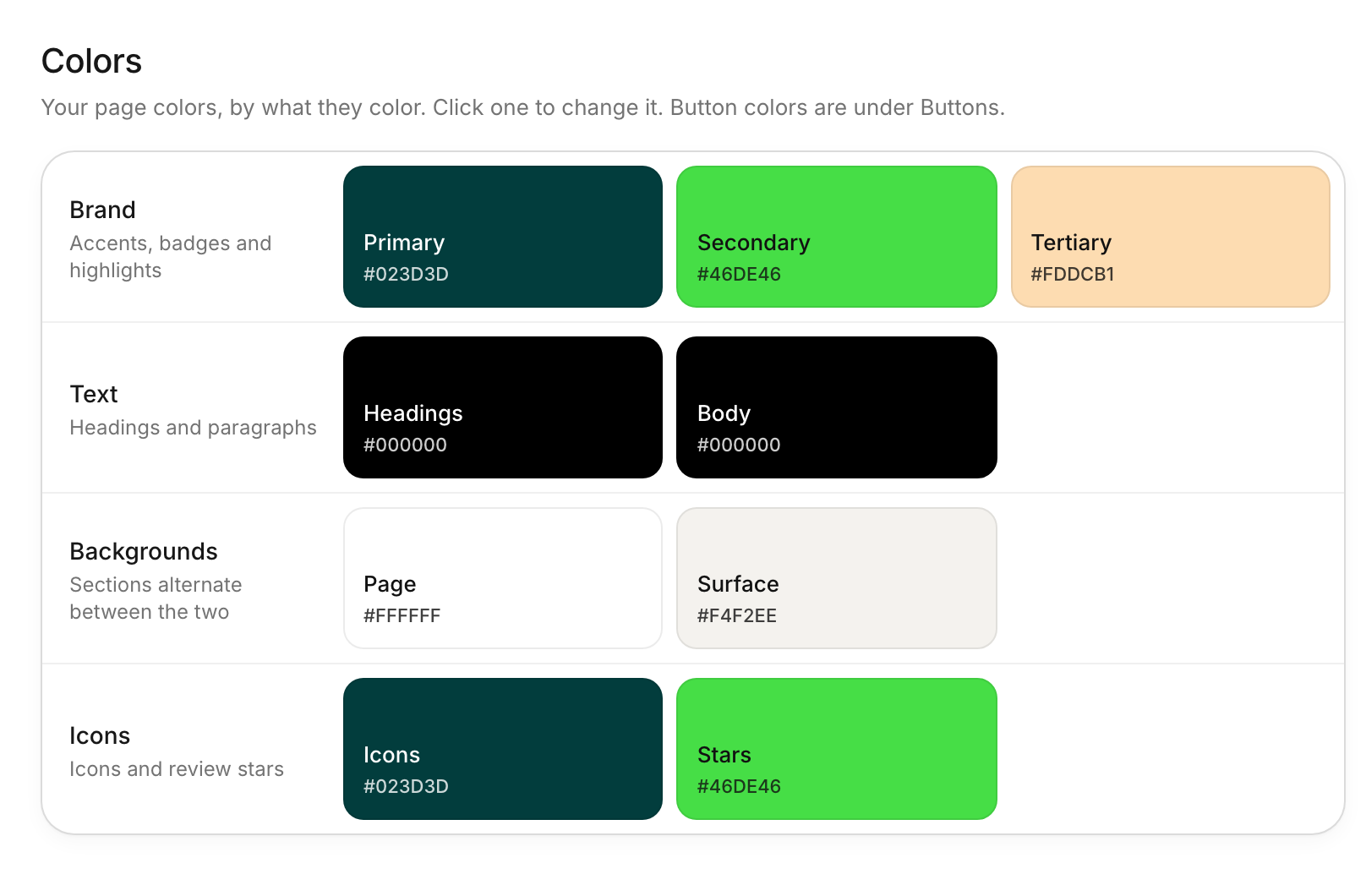
Add context
The Context tab tells the AI about your business: Brand, Voice, Customers, Your ads, Competitors, Brand images and UGC videos. The more you add, the better your pages read.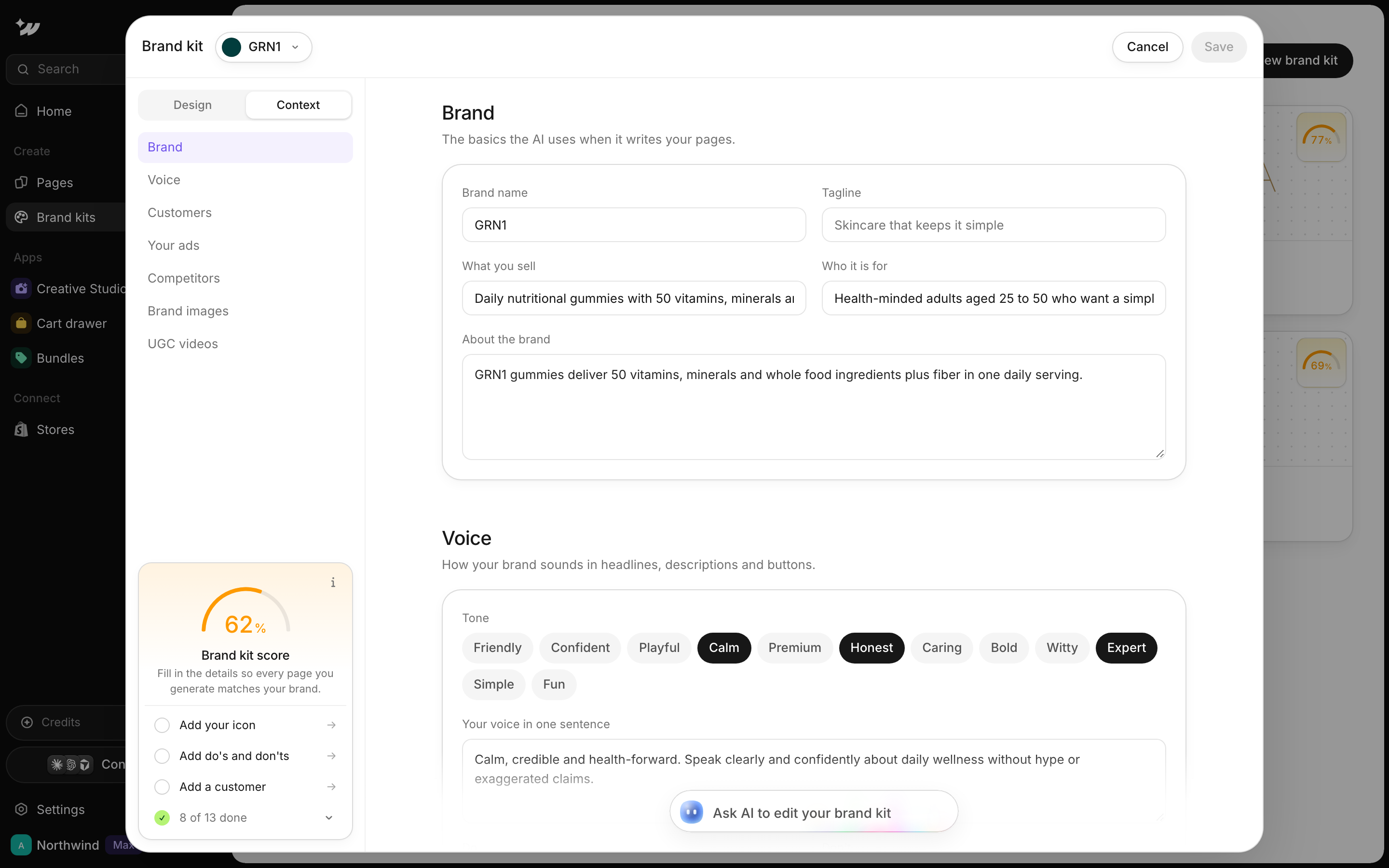
Start from an inspiration preset
Inspiration presets are visually inspired by a brand, without using its fonts, logos or assets. Presets are read-only. Click Clone this brand style to save your own copy. No logo is carried over.Use a kit on a page
- From home: click Brand kit in the prompt box and pick a kit or preset. Use Search brand kits… to find one, or click New brand kit.
- In the builder: click the palette icon in the top bar to open the same Brand kit window.


