

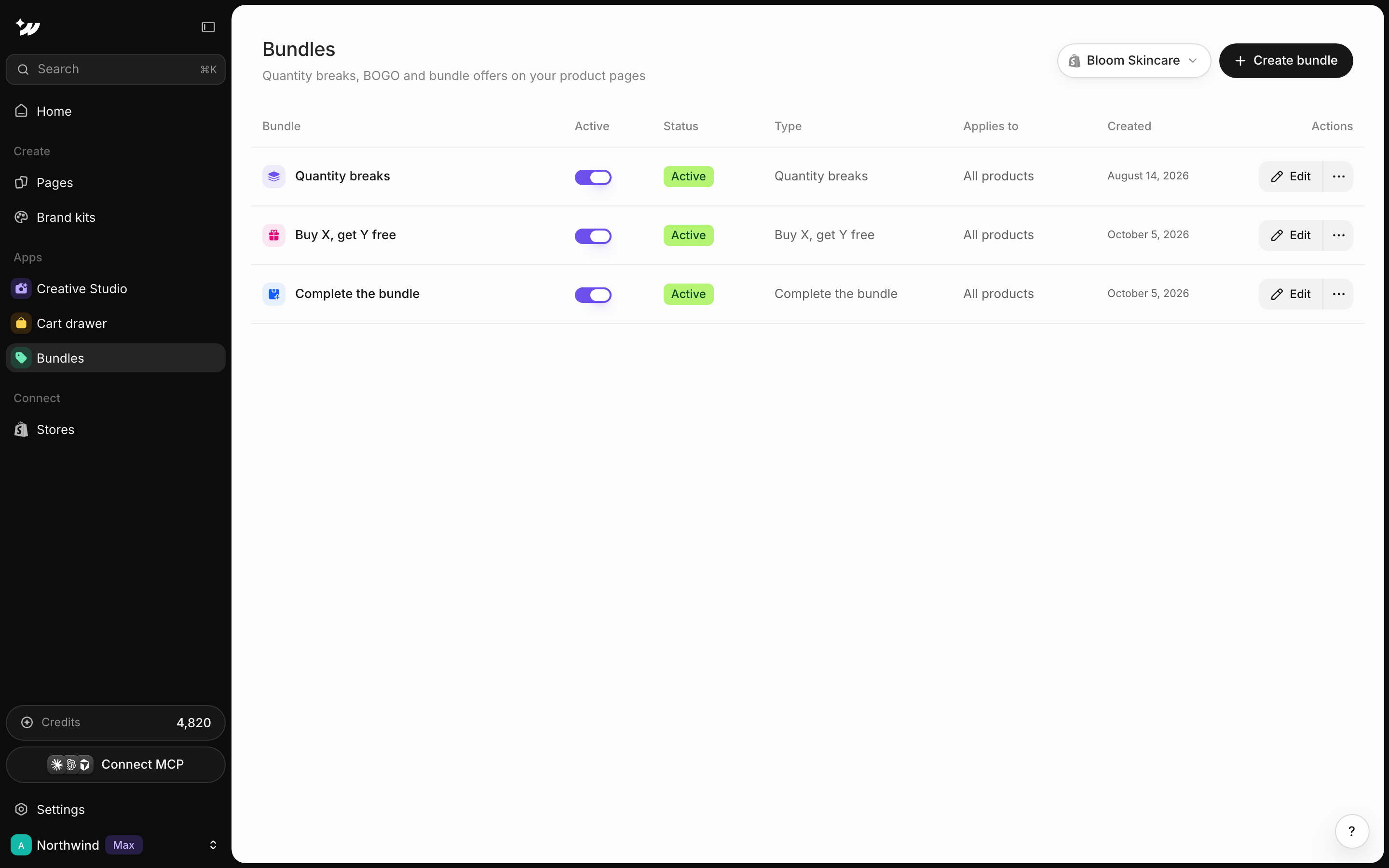
Create a bundle
1
Open Bundles
In EcomWize, click Bundles in the left sidebar (under Apps).
2
Start a deal
Click Create a bundle and pick a type.
3
Set it up
Choose which products it applies to, edit the options and styling, then save.
Choose a bundle type
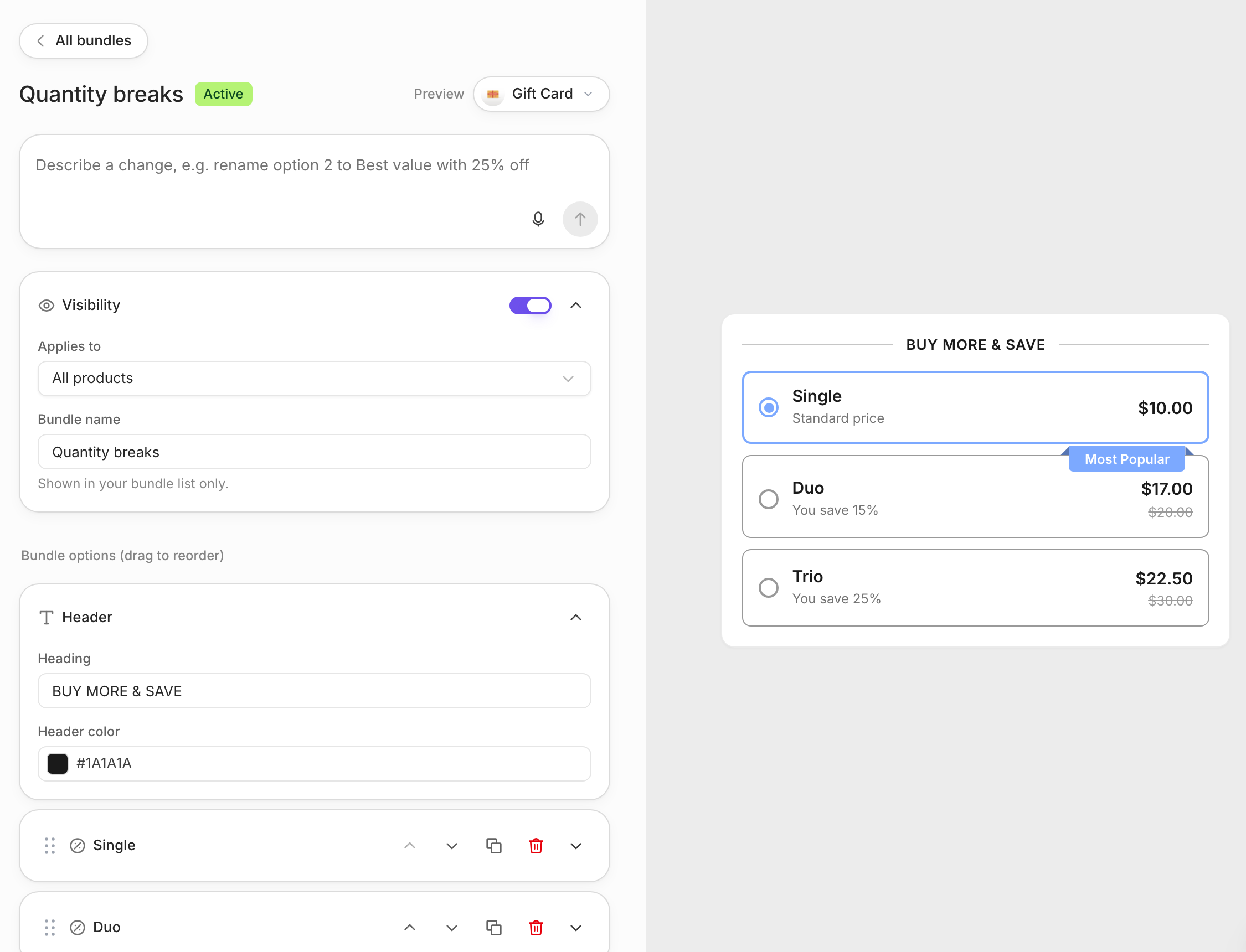
Bundle settings
- Visibility: turn the deal on or off.
- Applies to: All products, Specific products or Specific collection.
- Bundle name: up to 30 characters. Only you see it.
- Heading: shown above the options. The default is “BUY MORE & SAVE”.
- Options: each has a title, subtext (for example
You save {{saved_percentage}}), selected by default, image and badges. - Gifts: a free product or free shipping.
- Discount name: shown at cart and checkout.
- Variant picker, fonts and colors.
Show bundles on your theme
On your theme’s product page, add the app block EcomWize Bundles. The app embed must be on. The first enabled deal that matches the product shows.Show bundles on EcomWize pages
Buy boxes on your EcomWize pages show your bundle. In the builder, select the buy box and open the EcomWize bundle panel. Set Bundle to Automatic or a specific deal. Click Manage bundles to edit your deals.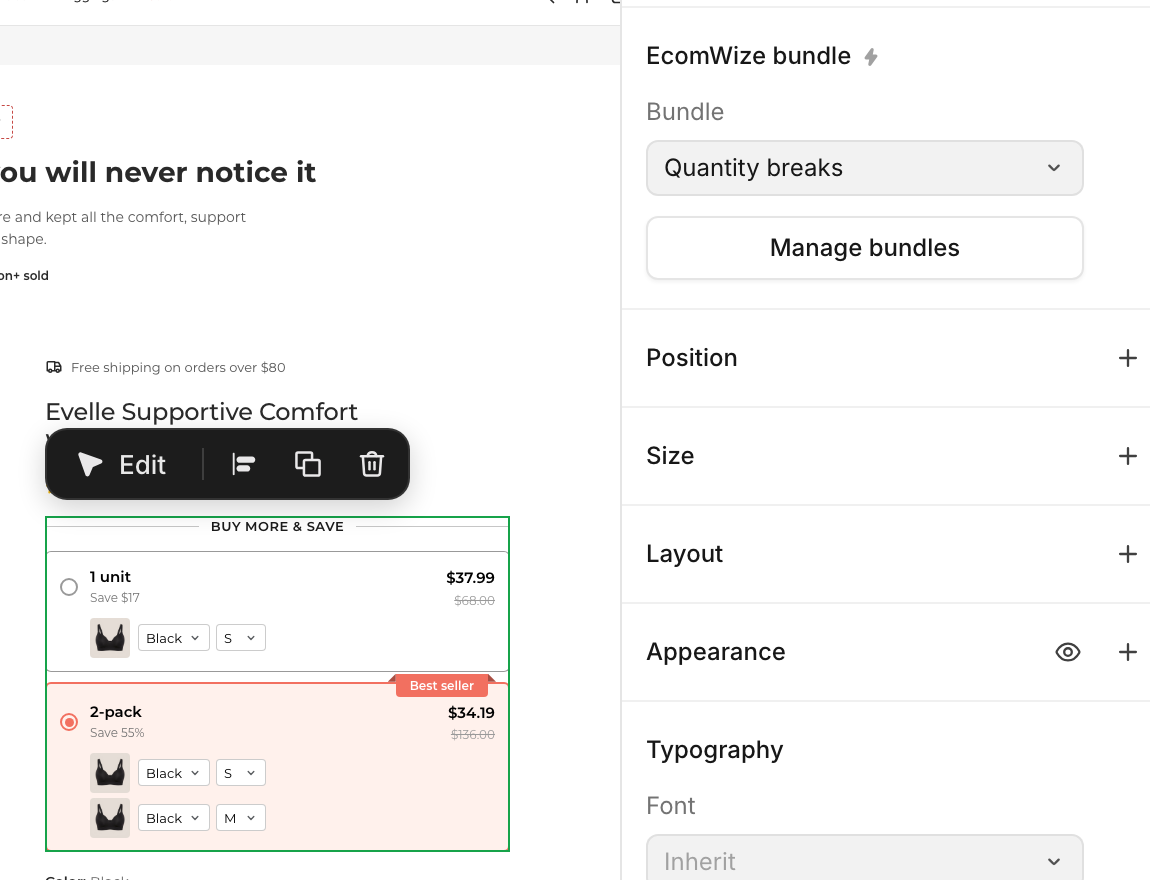
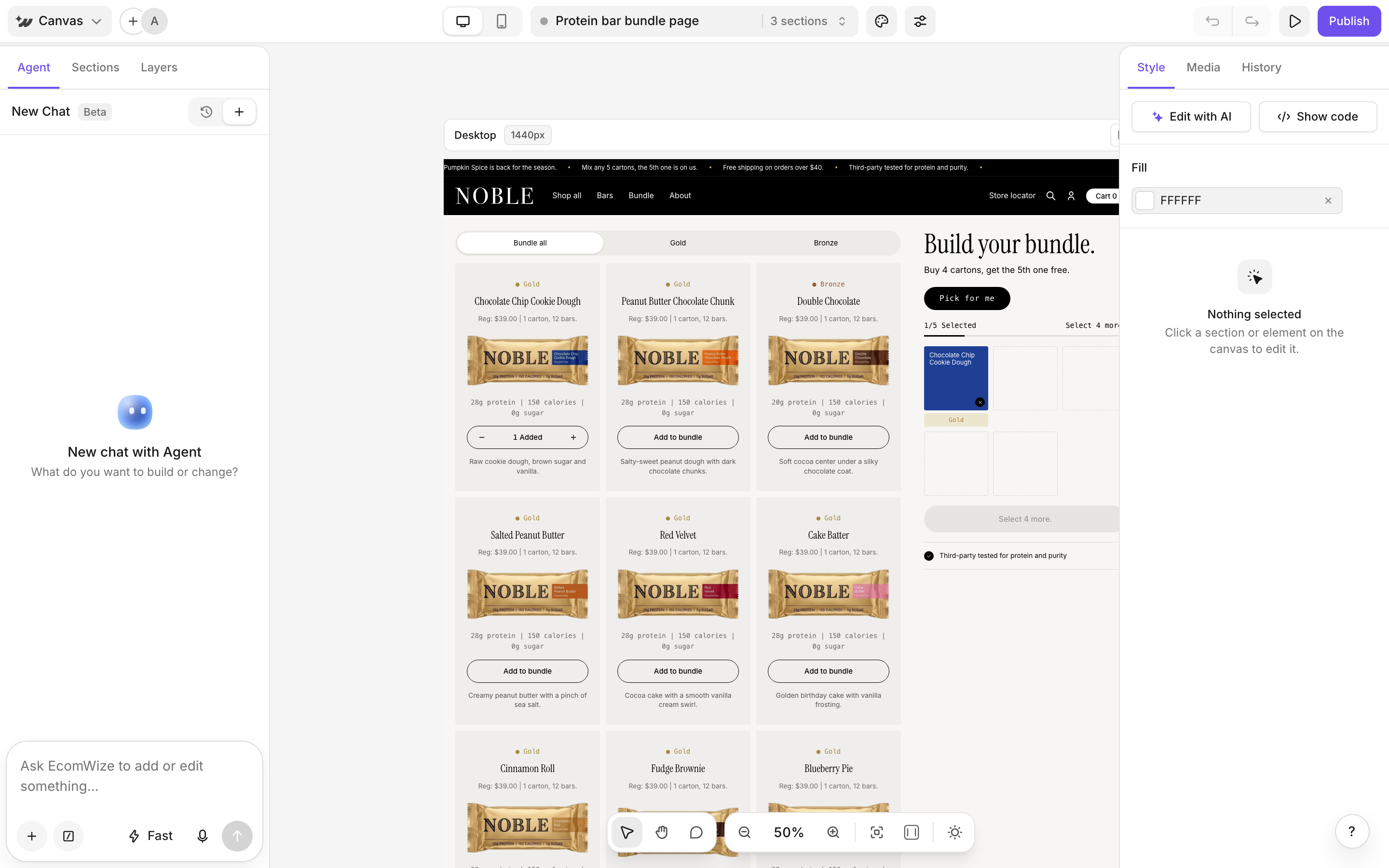
Add a mix-and-match bundle builder
A bundle builder lets shoppers pick their own items, with tiers by item count and one add to cart. Ask the AI agent to add one to your page. It reuses a matching deal or creates a new one.Limits
Plans
Bundles are included on Starter, Pro and Max.Related

Cart drawer
Rewards and upsells in the cart.

App embed
Required for bundles on your theme.

AI agent
Ask for a bundle builder.