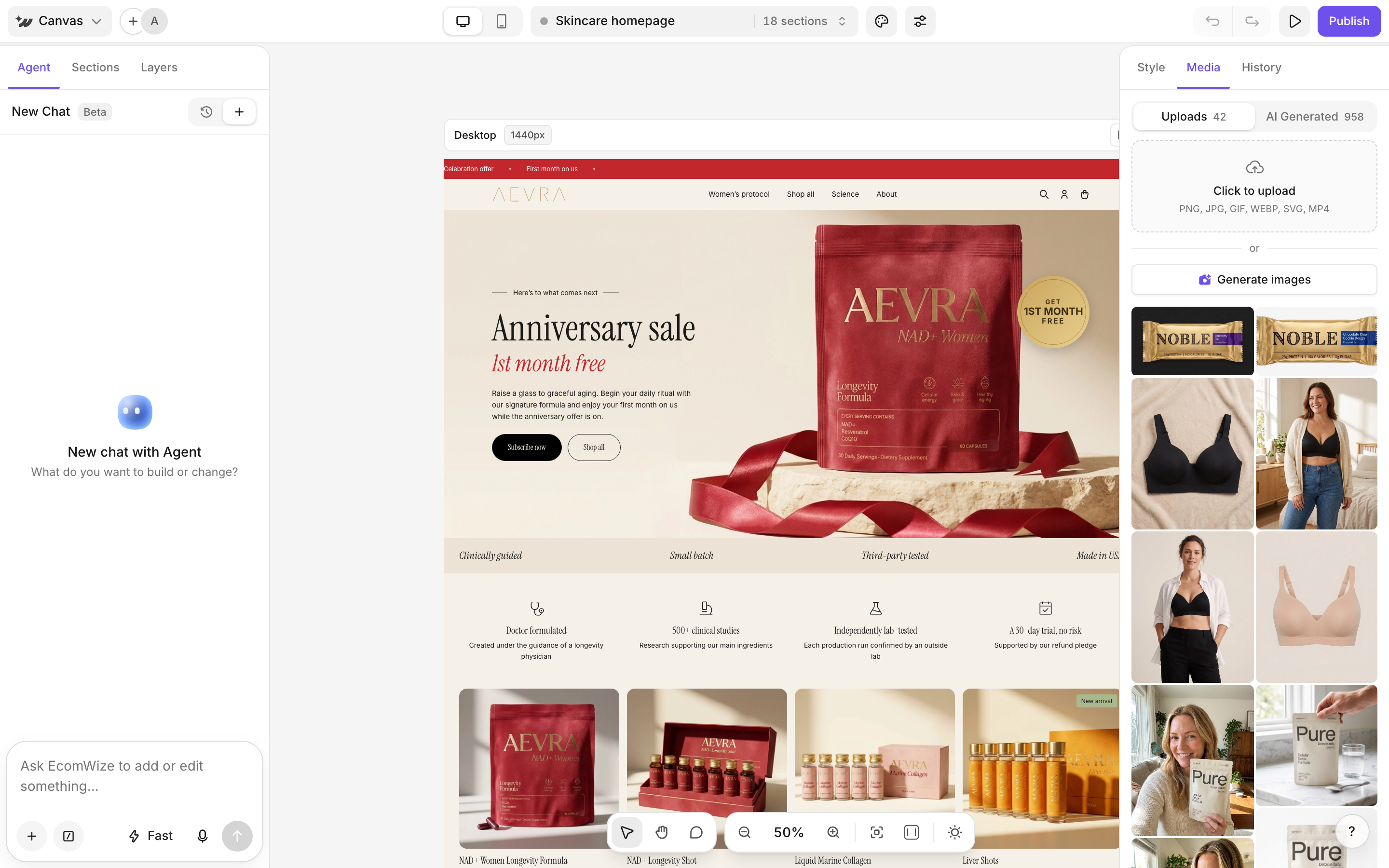
Click Generate images to open Creative Studio, where you can create new images. You can also ask the agent to generate and place an image for you (10 credits per image).
{"docsConfig":{"theme":"mint","$schema":"https://mintlify.com/docs.json","name":"EcomWize Help Center","colors":{"primary":"#6E51EC","light":"#FFFFFF","dark":"#171717"},"logo":{"light":"https://mintcdn.com/ecomwize/JsWC_FijBx-b2Uw0/logo/ecomwize-light.svg?fit=max\u0026auto=format\u0026n=JsWC_FijBx-b2Uw0\u0026q=85\u0026s=c6d1c4eb7eb59fcf49fd19cd4c85a068","dark":"https://mintcdn.com/ecomwize/JsWC_FijBx-b2Uw0/logo/ecomwize-dark.svg?fit=max\u0026auto=format\u0026n=JsWC_FijBx-b2Uw0\u0026q=85\u0026s=c4cb8da51e7c7e024ac1516c083d721c","href":"https://ecomwize.io"},"favicon":"https://mintcdn.com/ecomwize/JsWC_FijBx-b2Uw0/favicon.png?fit=max\u0026auto=format\u0026n=JsWC_FijBx-b2Uw0\u0026q=85\u0026s=617e069ac9c012d6e6a5368f587860a9","api":{"playground":{}},"navbar":{"links":[{"href":"mailto:[email protected]","label":"Support"}],"primary":{"type":"button","label":"Open EcomWize","href":"https://app.ecomwize.io"}},"footer":{"socials":{"x":"https://x.com/EcomWize","linkedin":"https://www.linkedin.com/company/ecomwize-io","youtube":"https://www.youtube.com/@EcomWize","website":"https://ecomwize.io"}},"fonts":{"family":"Inter"},"contextual":{"options":["copy","chatgpt","claude"],"display":"header"},"styling":{"latex":true},"navigation":{"global":{"anchors":[{"anchor":"Go to EcomWize","icon":"arrow-up-right-from-square","href":"https://app.ecomwize.io"},{"anchor":"Feature Requests","icon":"lightbulb","href":"https://ecomwize.featurebase.app"}]},"pages":[]}},"deployment":{"deploymentMetadataValue":{"subdomain":"ecomwize","hasAudioNarration":false,"actualSubdomain":"ecomwize","customDomains":["docs.ecomwize.io"],"gitSource":{"type":"github","owner":"ecomwize","repo":"docs","deployBranch":"main","contentDirectory":"","isPrivate":true,"mountPath":"","label":""},"chroma":{"liveDeploymentHistoryId":"6ae20758494007f25510650b","collectionId":"709b8901-110e-4f78-ae25-9782df02b557","schemaVersion":"v3","latestBuiltDeploymentHistoryId":"6ae20758494007f25510650b"},"feedback":{"thumbs":true},"entitlements":{},"buildId":"6ae20758494007f25510650b","clientVersion":"0.0.4006","searchFilterCounts":[{"language":"default","tag":"Guides","count":30},{"language":"default","tag":"MCP \u0026 API","count":9},{"language":"default","tag":"Builder","count":8},{"language":"default","tag":"Endpoints","count":5},{"language":"default","tag":"Create pages","count":5},{"language":"default","tag":"Get started","count":4},{"language":"default","tag":"Plans and billing","count":3},{"language":"default","tag":"Publish","count":3},{"language":"default","tag":"API","count":2},{"language":"default","tag":"Brand and images","count":2}]},"assistantConfig":{"enableAskAiButton":false,"enableStarterQuestions":false,"enableAskAiSearchBar":true},"basePath":"","hasChatPermissions":false,"hasWebMcpPermissions":false,"toggles":[{"name":"kill-isr","enabled":true,"variant":{"name":"disabled","enabled":false,"feature_enabled":true},"impressionData":false},{"name":"agent-mintlify-slack","enabled":true,"variant":{"name":"disabled","enabled":false,"feature_enabled":true},"impressionData":false},{"name":"editor-v7-file-tree","enabled":true,"variant":{"name":"disabled","enabled":false,"feature_enabled":true},"impressionData":false},{"name":"agent-integrations-settings","enabled":true,"variant":{"name":"disabled","enabled":false,"feature_enabled":true},"impressionData":false},{"name":"automations-pr-grouping","enabled":true,"variant":{"name":"disabled","enabled":false,"feature_enabled":true},"impressionData":false},{"name":"custom-prefix","enabled":true,"variant":{"name":"disabled","enabled":false,"feature_enabled":true},"impressionData":false},{"name":"analytics-v7","enabled":true,"variant":{"name":"disabled","enabled":false,"feature_enabled":true},"impressionData":false},{"name":"user-flows-analytics","enabled":true,"variant":{"name":"disabled","enabled":false,"feature_enabled":true},"impressionData":false},{"name":"no-publish-flow","enabled":true,"variant":{"name":"disabled","enabled":false,"feature_enabled":true},"impressionData":false},{"name":"workos-onboarding","enabled":true,"variant":{"name":"disabled","enabled":false,"feature_enabled":true},"impressionData":false},{"name":"llms-txt-v2","enabled":true,"variant":{"name":"disabled","enabled":false,"feature_enabled":true},"impressionData":false},{"name":"pause-universal-search-reconcile","enabled":true,"variant":{"name":"disabled","enabled":false,"feature_enabled":true},"impressionData":false},{"name":"snapshot-serving-live","enabled":true,"variant":{"name":"disabled","enabled":false,"feature_enabled":true},"impressionData":false},{"name":"stripTemperatureMiddleware","enabled":true,"variant":{"name":"disabled","enabled":false,"feature_enabled":true},"impressionData":false},{"name":"per-site-search-delta","enabled":true,"variant":{"name":"disabled","enabled":false,"feature_enabled":true},"impressionData":false},{"name":"support-platform-pylon-zendesk","enabled":true,"variant":{"name":"disabled","enabled":false,"feature_enabled":true},"impressionData":false},{"name":"snapshot-serving","enabled":true,"variant":{"name":"disabled","enabled":false,"feature_enabled":true},"impressionData":false},{"name":"instant-rollback","enabled":true,"variant":{"name":"disabled","enabled":false,"feature_enabled":true},"impressionData":false},{"name":"granular-notifications-server","enabled":true,"variant":{"name":"disabled","enabled":false,"feature_enabled":true},"impressionData":false},{"name":"granular-notifications","enabled":true,"variant":{"name":"disabled","enabled":false,"feature_enabled":true},"impressionData":false},{"name":"editor-private-page-search","enabled":true,"variant":{"name":"disabled","enabled":false,"feature_enabled":true},"impressionData":false},{"name":"automations-fable","enabled":true,"variant":{"name":"disabled","enabled":false,"feature_enabled":true},"impressionData":false},{"name":"fixed-ai-action-pricing","enabled":true,"variant":{"name":"disabled","enabled":false,"feature_enabled":true},"impressionData":false},{"name":"automation-resolve-merge-conflict","enabled":true,"variant":{"name":"disabled","enabled":false,"feature_enabled":true},"impressionData":false},{"name":"scoped-publishing","enabled":true,"variant":{"name":"disabled","enabled":false,"feature_enabled":true},"impressionData":false},{"name":"mintql","enabled":true,"variant":{"name":"disabled","enabled":false,"feature_enabled":true},"impressionData":false},{"name":"page-level-analytics","enabled":true,"variant":{"name":"disabled","enabled":false,"feature_enabled":true},"impressionData":false},{"name":"editor-version-history-v2","enabled":true,"variant":{"name":"disabled","enabled":false,"feature_enabled":true},"impressionData":false},{"name":"editor-nav-generations","enabled":true,"variant":{"name":"disabled","enabled":false,"feature_enabled":true},"impressionData":false},{"name":"billing-page-v2","enabled":true,"variant":{"name":"disabled","enabled":false,"feature_enabled":true},"impressionData":false},{"name":"workspace-projects","enabled":true,"variant":{"name":"disabled","enabled":false,"feature_enabled":true},"impressionData":false},{"name":"assistant-v5","enabled":true,"variant":{"name":"disabled","enabled":false,"feature_enabled":true},"impressionData":false},{"name":"byok-sep-25","enabled":true,"variant":{"name":"disabled","enabled":false,"feature_enabled":true},"impressionData":false},{"name":"fork-pr-previews","enabled":true,"variant":{"name":"disabled","enabled":false,"feature_enabled":true},"impressionData":false},{"name":"revalidation-jwt","enabled":true,"variant":{"name":"disabled","enabled":false,"feature_enabled":true},"impressionData":false},{"name":"vite-origin","enabled":true,"variant":{"name":"disabled","enabled":false,"feature_enabled":true},"impressionData":false},{"name":"editor-agent-model-picker","enabled":true,"variant":{"name":"disabled","enabled":false,"feature_enabled":true},"impressionData":false},{"name":"billing-updated-9-15","enabled":true,"variant":{"name":"disabled","enabled":false,"feature_enabled":true},"impressionData":false},{"name":"workos-sso-scim","enabled":true,"variant":{"name":"disabled","enabled":false,"feature_enabled":true},"impressionData":false},{"name":"hobby-abuse-scan","enabled":true,"variant":{"name":"disabled","enabled":false,"feature_enabled":true},"impressionData":false},{"name":"dashboard-inbox","enabled":true,"variant":{"name":"disabled","enabled":false,"feature_enabled":true},"impressionData":false},{"name":"workos-signup","enabled":true,"variant":{"name":"disabled","enabled":false,"feature_enabled":true},"impressionData":false},{"name":"workos-enabled","enabled":true,"variant":{"name":"disabled","enabled":false,"feature_enabled":true},"impressionData":false}],"googleFontsInlined":false},"customCss":[{"filePath":"style.css","content":"#navbar img{width:132px;height:auto}#page-title,#sidebar-group>h5,.card h2,.card h3,.eyebrow,h1,h2,h3,h4,h5,h6{font-weight:400!important}.card .prose,.card [data-component-part=card-content],[data-component-part=card-content] p{font-size:14px!important;line-height:1.5!important}"}],"page":{"pagePath":"builder/media","slug":"/builder/media","pageMetadata":{"title":"Upload and manage media","sidebarTitle":"Media","description":"Upload images and videos, reuse AI generated images, and create new ones in Creative Studio.","icon":"https://assets.ecomwize.io/docs/icons/image.svg","href":"/builder/media"},"description":{"compiledSource":"\"use strict\";\nconst {jsx: _jsx} = arguments[0];\nconst {useMDXComponents: _provideComponents} = arguments[0];\nfunction _createMdxContent(props) {\n const _components = {\n p: \"p\",\n ..._provideComponents(),\n ...props.components\n };\n return _jsx(_components.p, {\n children: \"Upload images and videos, reuse AI generated images, and create new ones in Creative Studio.\"\n });\n}\nfunction MDXContent(props = {}) {\n const {wrapper: MDXLayout} = {\n ..._provideComponents(),\n ...props.components\n };\n return MDXLayout ? _jsx(MDXLayout, {\n ...props,\n children: _jsx(_createMdxContent, {\n ...props\n })\n }) : _createMdxContent(props);\n}\nreturn {\n default: MDXContent\n};\n","frontmatter":{},"scope":{}},"pageType":"default","mdx":{"mdxSource":{"compiledSource":"\"use strict\";const{Fragment:_Fragment,jsx:_jsx,jsxs:_jsxs}=arguments[0];const{useMDXComponents:_provideComponents}=arguments[0];function _createMdxContent(props){const _components={a:`a`,p:`p`,strong:`strong`,tbody:`tbody`,td:`td`,th:`th`,thead:`thead`,tr:`tr`,..._provideComponents(),...props.components},{Card,CardGroup,Frame,Heading,OptimizedImage,Step,Steps,Table,Tip}=_components;if(!Card)_missingMdxReference(`Card`,true);if(!CardGroup)_missingMdxReference(`CardGroup`,true);if(!Frame)_missingMdxReference(`Frame`,true);if(!Heading)_missingMdxReference(`Heading`,true);if(!OptimizedImage)_missingMdxReference(`OptimizedImage`,true);if(!Step)_missingMdxReference(`Step`,true);if(!Steps)_missingMdxReference(`Steps`,true);if(!Table)_missingMdxReference(`Table`,true);if(!Tip)_missingMdxReference(`Tip`,true);return _jsxs(_Fragment,{children:[_jsxs(_components.p,{children:[`The `,_jsx(_components.strong,{children:`Media`}),` tab in the right panel holds every image and video you can use on your pages.`]}),`\n`,_jsx(Frame,{children:_jsx(OptimizedImage,{src:`https://assets.ecomwize.io/docs/shots/media-panel.png`,alt:`The Media tab with uploaded images`})}),`\n`,_jsx(Heading,{level:`2`,id:`upload-a-file`,children:`Upload a file`}),`\n`,_jsxs(_components.p,{children:[`In the right panel, click `,_jsx(_components.strong,{children:`Media`}),`, then `,_jsx(_components.strong,{children:`Click to upload`}),` or drag and drop files onto the panel.`]}),`\n`,_jsxs(Table,{children:[_jsx(_components.thead,{children:_jsxs(_components.tr,{children:[_jsx(_components.th,{children:`Type`}),_jsx(_components.th,{children:`Formats`}),_jsx(_components.th,{children:`Max size`})]})}),_jsxs(_components.tbody,{children:[_jsxs(_components.tr,{children:[_jsx(_components.td,{children:`Images`}),_jsx(_components.td,{children:`PNG, JPG, WEBP, SVG`}),_jsx(_components.td,{\"data-numeric\":`true`,children:`5MB`})]}),_jsxs(_components.tr,{children:[_jsx(_components.td,{children:`Video and GIF`}),_jsx(_components.td,{children:`MP4, GIF`}),_jsx(_components.td,{\"data-numeric\":`true`,children:`20MB`})]})]})]}),`\n`,_jsx(Tip,{children:`Compress large photos before you upload them. Smaller files load faster on your live page.`}),`\n`,_jsx(Heading,{level:`2`,id:`use-an-image-on-the-page`,children:`Use an image on the page`}),`\n`,_jsxs(Steps,{children:[_jsx(Step,{title:`Select the image`,children:`Click the image on the canvas you want to change.`}),_jsxs(Step,{title:`Open Media`,children:[`Click `,_jsx(_components.strong,{children:`Media`}),` in the image toolbar. The Media panel opens.`]}),_jsxs(Step,{title:`Pick a replacement`,children:[`Click an image in `,_jsx(_components.strong,{children:`Uploads`}),` or `,_jsx(_components.strong,{children:`AI Generated`}),` to replace the current one.`]})]}),`\n`,_jsxs(_components.p,{children:[`For section backgrounds, use the `,_jsx(_components.strong,{children:`Image/Video`}),` tab in the background color popover. See `,_jsx(_components.a,{href:`/builder/edit-on-canvas`,children:`Edit on the canvas`}),`.`]}),`\n`,_jsx(Heading,{level:`2`,id:`find-ai-generated-images`,children:`Find AI generated images`}),`\n`,_jsxs(_components.p,{children:[`The `,_jsx(_components.strong,{children:`AI Generated`}),` tab shows images made with AI, ready to reuse on any page.`]}),`\n`,_jsx(Heading,{level:`2`,id:`generate-new-images`,children:`Generate new images`}),`\n`,_jsxs(_components.p,{children:[`Click `,_jsx(_components.strong,{children:`Generate images`}),` to open `,_jsx(_components.a,{href:`/creative-studio/creative-studio`,children:`Creative Studio`}),`, where you can create new images. You can also ask the `,_jsx(_components.a,{href:`/builder/ai-agent`,children:`agent`}),` to generate and place an image for you (10 credits per image).`]}),`\n`,_jsx(Heading,{level:`2`,id:`related`,children:`Related`}),`\n`,_jsxs(CardGroup,{cols:2,children:[_jsx(Card,{title:`Creative Studio`,icon:`https://assets.ecomwize.io/docs/icons/palette.svg`,href:`/creative-studio/creative-studio`}),_jsx(Card,{title:`Edit on the canvas`,icon:`https://assets.ecomwize.io/docs/icons/pen-to-square.svg`,href:`/builder/edit-on-canvas`}),_jsx(Card,{title:`The AI agent`,icon:`https://assets.ecomwize.io/docs/icons/wand-magic-sparkles.svg`,href:`/builder/ai-agent`})]})]})}function MDXContent(props={}){const{wrapper:MDXLayout}={..._provideComponents(),...props.components};return MDXLayout?_jsx(MDXLayout,{...props,children:_jsx(_createMdxContent,{...props})}):_createMdxContent(props)}return{default:MDXContent};function _missingMdxReference(id,component){throw new Error(`Expected `+(component?`component`:`object`)+\" `\"+id+\"` to be defined: you likely forgot to import, pass, or provide it.\")}","frontmatter":{},"scope":{"config":{},"pageMetadata":{"title":"Upload and manage media","sidebarTitle":"Media","description":"Upload images and videos, reuse AI generated images, and create new ones in Creative Studio.","icon":"https://assets.ecomwize.io/docs/icons/image.svg","href":"/builder/media"}}},"mdxSourceWithNoJs":null},"mdxExtracts":{"tableOfContents":[{"title":"Upload a file","slug":"upload-a-file","depth":2,"children":[]},{"title":"Use an image on the page","slug":"use-an-image-on-the-page","depth":2,"children":[]},{"title":"Find AI generated images","slug":"find-ai-generated-images","depth":2,"children":[]},{"title":"Generate new images","slug":"generate-new-images","depth":2,"children":[]},{"title":"Related","slug":"related","depth":2,"children":[]}],"codeExamples":{}},"jsLinks":[],"subdomain":"ecomwize","siteName":"EcomWize Help Center","title":"Upload and manage media - EcomWize Help Center","navMaps":{"firstHrefInVersion":{},"firstHrefInLanguage":{}},"lastModified":"2026-10-28T14:32:05.790Z","originalFileLocation":"builder/media.mdx"},"headHtml":"\u003cscript data-mint-head>(function(){var d=document.documentElement,p=null;if(!p){try{p=localStorage.getItem(\"isDarkMode\")}catch(e){}if(p==='true')p='dark';else if(p==='false')p='light';if(p!=='light'\u0026\u0026p!=='dark'\u0026\u0026p!=='system')p=\"system\"}var r=p==='system'?(matchMedia(\"(prefers-color-scheme: dark)\").matches?'dark':'light'):p;d.classList.remove(r==='dark'?'light':'dark');d.classList.add(r);d.setAttribute(\"data-theme-preference\",p)})();\u003c/script>\u003cmeta data-mint-head name=\"description\" content=\"Upload images and videos, reuse AI generated images, and create new ones in Creative Studio.\">\u003cmeta data-mint-head name=\"application-name\" content=\"EcomWize Help Center\">\u003cmeta data-mint-head name=\"generator\" content=\"Mintlify\">\u003clink data-mint-head rel=\"icon\" type=\"image/png\" sizes=\"192x192\" href=\"/mintlify-assets/_mintlify/favicons/ecomwize/xp_js11rtnyO3wqS/_generated/favicon/android-chrome-192x192.png\" media=\"(prefers-color-scheme: light)\">\u003clink data-mint-head rel=\"apple-touch-icon\" type=\"image/png\" sizes=\"180x180\" href=\"/mintlify-assets/_mintlify/favicons/ecomwize/xp_js11rtnyO3wqS/_generated/favicon/apple-touch-icon.png\">\u003clink data-mint-head rel=\"icon\" type=\"image/png\" sizes=\"16x16\" href=\"/mintlify-assets/_mintlify/favicons/ecomwize/xp_js11rtnyO3wqS/_generated/favicon/favicon-16x16.png\" media=\"(prefers-color-scheme: light)\">\u003clink data-mint-head rel=\"icon\" type=\"image/png\" sizes=\"32x32\" href=\"/mintlify-assets/_mintlify/favicons/ecomwize/xp_js11rtnyO3wqS/_generated/favicon/favicon-32x32.png\" media=\"(prefers-color-scheme: light)\">\u003clink data-mint-head rel=\"shortcut icon\" type=\"image/x-icon\" href=\"/mintlify-assets/_mintlify/favicons/ecomwize/xp_js11rtnyO3wqS/_generated/favicon/favicon.ico\" media=\"(prefers-color-scheme: light)\">\u003clink data-mint-head rel=\"icon\" type=\"image/png\" sizes=\"192x192\" href=\"/mintlify-assets/_mintlify/favicons/ecomwize/xp_js11rtnyO3wqS/_generated/favicon-dark/android-chrome-192x192.png\" media=\"(prefers-color-scheme: dark)\">\u003clink data-mint-head rel=\"icon\" type=\"image/png\" sizes=\"16x16\" href=\"/mintlify-assets/_mintlify/favicons/ecomwize/xp_js11rtnyO3wqS/_generated/favicon-dark/favicon-16x16.png\" media=\"(prefers-color-scheme: dark)\">\u003clink data-mint-head rel=\"icon\" type=\"image/png\" sizes=\"32x32\" href=\"/mintlify-assets/_mintlify/favicons/ecomwize/xp_js11rtnyO3wqS/_generated/favicon-dark/favicon-32x32.png\" media=\"(prefers-color-scheme: dark)\">\u003clink data-mint-head rel=\"shortcut icon\" type=\"image/x-icon\" href=\"/mintlify-assets/_mintlify/favicons/ecomwize/xp_js11rtnyO3wqS/_generated/favicon-dark/favicon.ico\" media=\"(prefers-color-scheme: dark)\">\u003cmeta data-mint-head property=\"og:title\" content=\"Upload and manage media - EcomWize Help Center\">\u003cmeta data-mint-head property=\"og:description\" content=\"Upload images and videos, reuse AI generated images, and create new ones in Creative Studio.\">\u003cmeta data-mint-head property=\"og:site_name\" content=\"EcomWize Help Center\">\u003cmeta data-mint-head property=\"og:url\" content=\"https://docs.ecomwize.io/builder/media\">\u003cmeta data-mint-head property=\"og:type\" content=\"website\">\u003cmeta data-mint-head property=\"og:image\" content=\"https://ecomwize.mintlify.app/_mintlify/api/og/v2?division=Builder\u0026amp;title=Upload+and+manage+media\u0026amp;description=Upload+images+and+videos%2C+reuse+AI+generated+images%2C+and+create+new+ones+in+Creative+Studio.\u0026amp;theme=83d4b1b48725df4986b1c491\u0026amp;signature=fc23ffe537abd9e5cef6c233118b9024f900a7c04ed8fa266a71b620f301932c\">\u003cmeta data-mint-head property=\"og:image:width\" content=\"1200\">\u003cmeta data-mint-head property=\"og:image:height\" content=\"630\">\u003cmeta data-mint-head name=\"twitter:card\" content=\"summary_large_image\">\u003cmeta data-mint-head name=\"twitter:title\" content=\"Upload and manage media - EcomWize Help Center\">\u003cmeta data-mint-head name=\"twitter:description\" content=\"Upload images and videos, reuse AI generated images, and create new ones in Creative Studio.\">\u003cmeta data-mint-head name=\"twitter:image\" content=\"https://ecomwize.mintlify.app/_mintlify/api/og/v2?division=Builder\u0026amp;title=Upload+and+manage+media\u0026amp;description=Upload+images+and+videos%2C+reuse+AI+generated+images%2C+and+create+new+ones+in+Creative+Studio.\u0026amp;theme=83d4b1b48725df4986b1c491\u0026amp;signature=fc23ffe537abd9e5cef6c233118b9024f900a7c04ed8fa266a71b620f301932c\">\u003cmeta data-mint-head name=\"twitter:image:width\" content=\"1200\">\u003cmeta data-mint-head name=\"twitter:image:height\" content=\"630\">\u003cmeta data-mint-head name=\"msapplication-config\" content=\"/mintlify-assets/_mintlify/favicons/ecomwize/xp_js11rtnyO3wqS/_generated/favicon/browserconfig.xml\">\u003cmeta data-mint-head name=\"apple-mobile-web-app-title\" content=\"EcomWize Help Center\">\u003cmeta data-mint-head name=\"msapplication-TileColor\" content=\"#6E51EC\">\u003clink data-mint-head rel=\"canonical\" href=\"https://docs.ecomwize.io/builder/media\">\u003clink data-mint-head rel=\"alternate\" type=\"application/xml\" href=\"/sitemap.xml\">\u003clink data-mint-head rel=\"alternate\" type=\"text/markdown\" href=\"/builder/media.md\">\u003cscript data-mint-head type=\"application/ld+json\">{\"@context\":\"https://schema.org\",\"@graph\":[{\"@type\":\"Organization\",\"@id\":\"https://docs.ecomwize.io/#organization\",\"name\":\"EcomWize Help Center\",\"url\":\"https://docs.ecomwize.io\",\"logo\":{\"@type\":\"ImageObject\",\"url\":\"https://mintcdn.com/ecomwize/JsWC_FijBx-b2Uw0/logo/ecomwize-light.svg?fit=max\u0026auto=format\u0026n=JsWC_FijBx-b2Uw0\u0026q=85\u0026s=c6d1c4eb7eb59fcf49fd19cd4c85a068\"}},{\"@type\":\"WebSite\",\"@id\":\"https://docs.ecomwize.io#website\",\"name\":\"EcomWize Help Center\",\"url\":\"https://docs.ecomwize.io\",\"publisher\":{\"@id\":\"https://docs.ecomwize.io/#organization\"}},{\"@type\":\"WebPage\",\"@id\":\"https://docs.ecomwize.io/builder/media#webpage\",\"url\":\"https://docs.ecomwize.io/builder/media\",\"name\":\"Upload and manage media\",\"description\":\"Upload images and videos, reuse AI generated images, and create new ones in Creative Studio.\",\"dateModified\":\"2026-10-28T14:32:05.790Z\",\"isPartOf\":{\"@id\":\"https://docs.ecomwize.io#website\"},\"breadcrumb\":{\"@id\":\"https://docs.ecomwize.io/builder/media#breadcrumb\"}},{\"@type\":\"BreadcrumbList\",\"@id\":\"https://docs.ecomwize.io/builder/media#breadcrumb\",\"itemListElement\":[{\"@type\":\"ListItem\",\"position\":1,\"name\":\"Builder\",\"item\":\"https://docs.ecomwize.io/builder/ai-agent\"},{\"@type\":\"ListItem\",\"position\":2,\"name\":\"Upload and manage media\",\"item\":\"https://docs.ecomwize.io/builder/media\"}]},{\"@type\":[\"Article\",\"TechArticle\"],\"@id\":\"https://docs.ecomwize.io/builder/media#article\",\"headline\":\"Upload and manage media\",\"name\":\"Upload and manage media\",\"description\":\"Upload images and videos, reuse AI generated images, and create new ones in Creative Studio.\",\"url\":\"https://docs.ecomwize.io/builder/media\",\"mainEntityOfPage\":{\"@id\":\"https://docs.ecomwize.io/builder/media#webpage\"},\"dateModified\":\"2026-10-28T14:32:05.790Z\",\"publisher\":{\"@id\":\"https://docs.ecomwize.io/#organization\"},\"isPartOf\":{\"@id\":\"https://docs.ecomwize.io#website\"}}]}\u003c/script>\u003cscript data-mint-head type=\"application/ld+json\">{\"@context\":\"https://schema.org\",\"@type\":\"WebSite\",\"name\":\"EcomWize Help Center\",\"creator\":{\"@type\":\"Organization\",\"name\":\"Mintlify\",\"url\":\"https://mintlify.com\"}}\u003c/script>","siteName":"EcomWize Help Center","nav":{"global":{"anchors":[{"anchor":"Go to EcomWize","icon":"arrow-up-right-from-square","href":"https://app.ecomwize.io"},{"anchor":"Feature Requests","icon":"lightbulb","href":"https://ecomwize.featurebase.app"}]},"tabs":[{"tab":"Guides","groups":[{"group":"Get started","pages":[{"title":"EcomWize Help Center","sidebarTitle":"Welcome","href":""},{"title":"Create your account","icon":"https://assets.ecomwize.io/docs/icons/user-plus.svg","href":"/getting-started/sign-up"},{"title":"Connect your Shopify store","icon":"https://assets.ecomwize.io/docs/icons/shopify.svg","href":"/getting-started/connect-shopify"},{"title":"Create your first page","icon":"https://assets.ecomwize.io/docs/icons/rocket.svg","href":"/getting-started/create-first-page"},{"title":"Tour the builder","icon":"https://assets.ecomwize.io/docs/icons/compass.svg","href":"/getting-started/builder-tour"}]},{"group":"Create pages","pages":[{"title":"Build a page with AI","sidebarTitle":"Build with AI","icon":"https://assets.ecomwize.io/docs/icons/wand-magic-sparkles.svg","href":"/create/build-with-ai"},{"title":"Start from a template","sidebarTitle":"Templates","icon":"https://assets.ecomwize.io/docs/icons/table-cells-large.svg","href":"/create/templates"},{"title":"Quiz pages","icon":"https://assets.ecomwize.io/docs/icons/clipboard-question.svg","href":"/create/quiz-pages"},{"title":"Build a complete store","sidebarTitle":"Complete store","icon":"https://assets.ecomwize.io/docs/icons/store.svg","href":"/create/complete-store"},{"title":"Manage your pages","sidebarTitle":"Manage pages","icon":"https://assets.ecomwize.io/docs/icons/file-lines.svg","href":"/create/manage-pages"}]},{"group":"Builder","pages":[{"title":"Edit your page with the AI agent","sidebarTitle":"AI agent","icon":"https://assets.ecomwize.io/docs/icons/wand-magic-sparkles.svg","href":"/builder/ai-agent"},{"title":"Edit on the canvas","icon":"https://assets.ecomwize.io/docs/icons/pen-to-square.svg","href":"/builder/edit-on-canvas"},{"title":"Add sections and manage layers","sidebarTitle":"Sections and layers","icon":"https://assets.ecomwize.io/docs/icons/layer-group.svg","href":"/builder/sections-and-layers"},{"title":"Style panel","description":"Set the page background and fine-tune size, layout, typography and colors of any element.","icon":"https://assets.ecomwize.io/docs/icons/sliders.svg","href":"/builder/style-panel"},{"title":"Upload and manage media","sidebarTitle":"Media","icon":"https://assets.ecomwize.io/docs/icons/image.svg","href":"/builder/media"},{"title":"Version history and undo","sidebarTitle":"History","description":"Save versions of your page, restore an earlier one, and undo or redo changes.","icon":"https://assets.ecomwize.io/docs/icons/clock-rotate-left.svg","href":"/builder/history"},{"title":"Edit section code","sidebarTitle":"Code editing","icon":"https://assets.ecomwize.io/docs/icons/code.svg","href":"/builder/code-editing"},{"title":"Keyboard shortcuts","icon":"https://assets.ecomwize.io/docs/icons/keyboard.svg","href":"/builder/keyboard-shortcuts"}]},{"group":"Brand and images","pages":[{"title":"Brand kits","icon":"https://assets.ecomwize.io/docs/icons/palette.svg","href":"/brand-kits/brand-kits"},{"title":"Creative Studio","icon":"https://assets.ecomwize.io/docs/icons/image.svg","href":"/creative-studio/creative-studio"}]},{"group":"Publish","pages":[{"title":"Publish your page to Shopify","sidebarTitle":"Publishing","icon":"https://assets.ecomwize.io/docs/icons/rocket.svg","href":"/publish/publishing"},{"title":"Page settings","icon":"https://assets.ecomwize.io/docs/icons/gear.svg","href":"/publish/page-settings"},{"title":"Turn on the app embed","icon":"https://assets.ecomwize.io/docs/icons/puzzle-piece.svg","href":"/publish/app-embed"}]},{"group":"Sell more","pages":[{"title":"Cart drawer","icon":"https://assets.ecomwize.io/docs/icons/cart-shopping.svg","href":"/sell/cart-drawer"},{"title":"Bundles","icon":"https://assets.ecomwize.io/docs/icons/layer-group.svg","href":"/sell/bundles"}]},{"group":"Teams","pages":[{"title":"Workspaces and team","icon":"https://assets.ecomwize.io/docs/icons/users.svg","href":"/team/workspaces"},{"title":"Share pages, collaborate and comment","sidebarTitle":"Sharing and comments","icon":"https://assets.ecomwize.io/docs/icons/users.svg","href":"/team/sharing-and-comments"}]},{"group":"Plans and billing","pages":[{"title":"Plans","icon":"https://assets.ecomwize.io/docs/icons/credit-card.svg","href":"/billing/plans"},{"title":"Credits","icon":"https://assets.ecomwize.io/docs/icons/coins.svg","href":"/billing/credits"},{"title":"Manage your subscription","icon":"https://assets.ecomwize.io/docs/icons/gear.svg","href":"/billing/manage-subscription"}]},{"group":"Help","pages":[{"title":"Troubleshooting","icon":"https://assets.ecomwize.io/docs/icons/wrench.svg","href":"/help/troubleshooting"}]}]},{"tab":"MCP \u0026 API","pages":[{"title":"MCP \u0026 API","href":"/integrations/mcp"}]}]},"title":"Upload and manage media - EcomWize Help Center","buildId":"dpl_2xiSHD9XEvLsPGPcfoMtkLTB3dy9","deploymentId":"dpl_2xiSHD9XEvLsPGPcfoMtkLTB3dy9","dynamics":["07c022d89b","a74be98ba7"],"chunks":["Frame-DYplxqhs.js","DynamicMarkdown-Cc6AuSHS.js","zoom-image-lightbox-BNnMwe0F.js","lightbox-handle-r17bVUz3.js"]}