

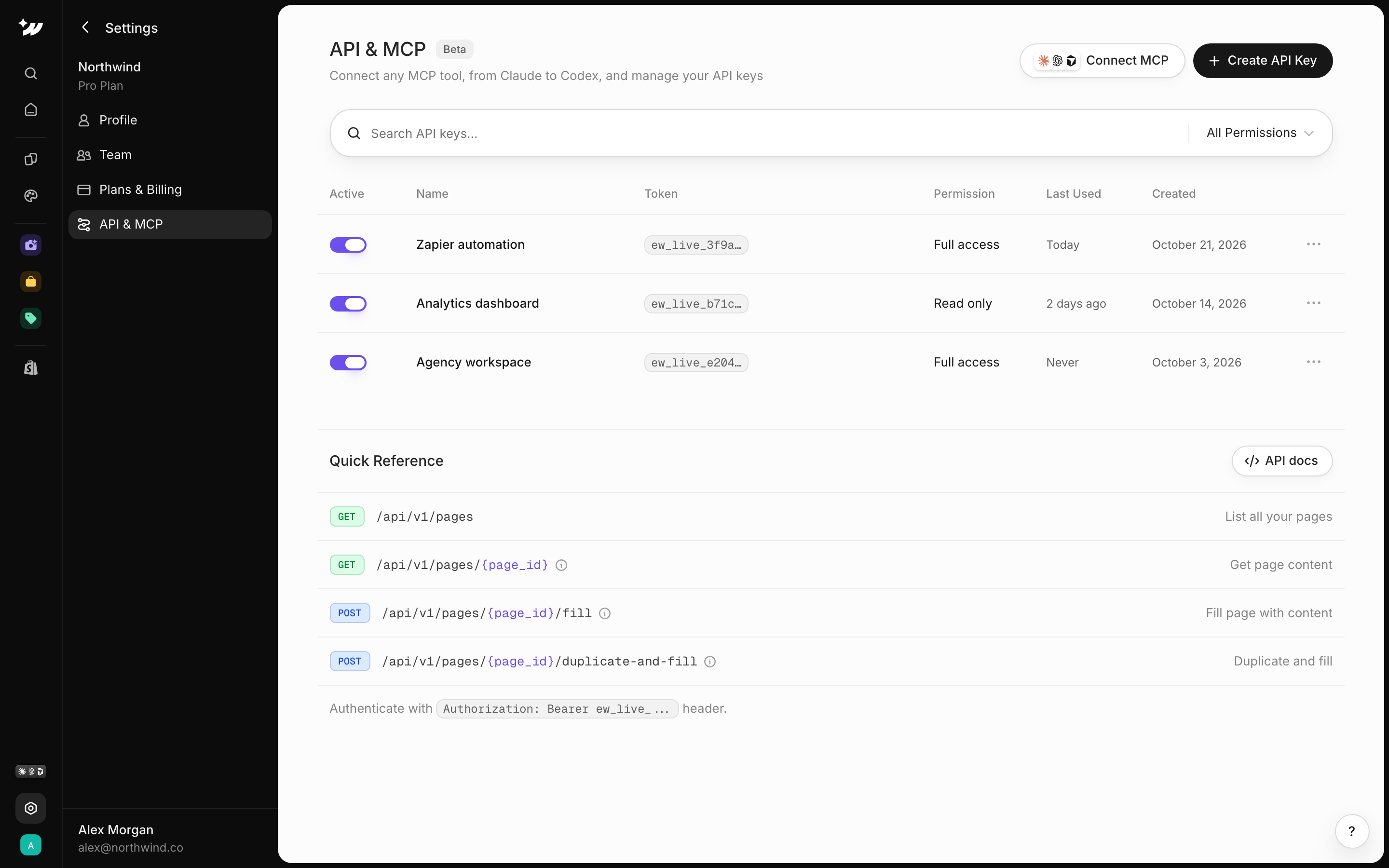
Connect a tool
Go to Settings > API & MCP and click Connect MCP. The server URL is: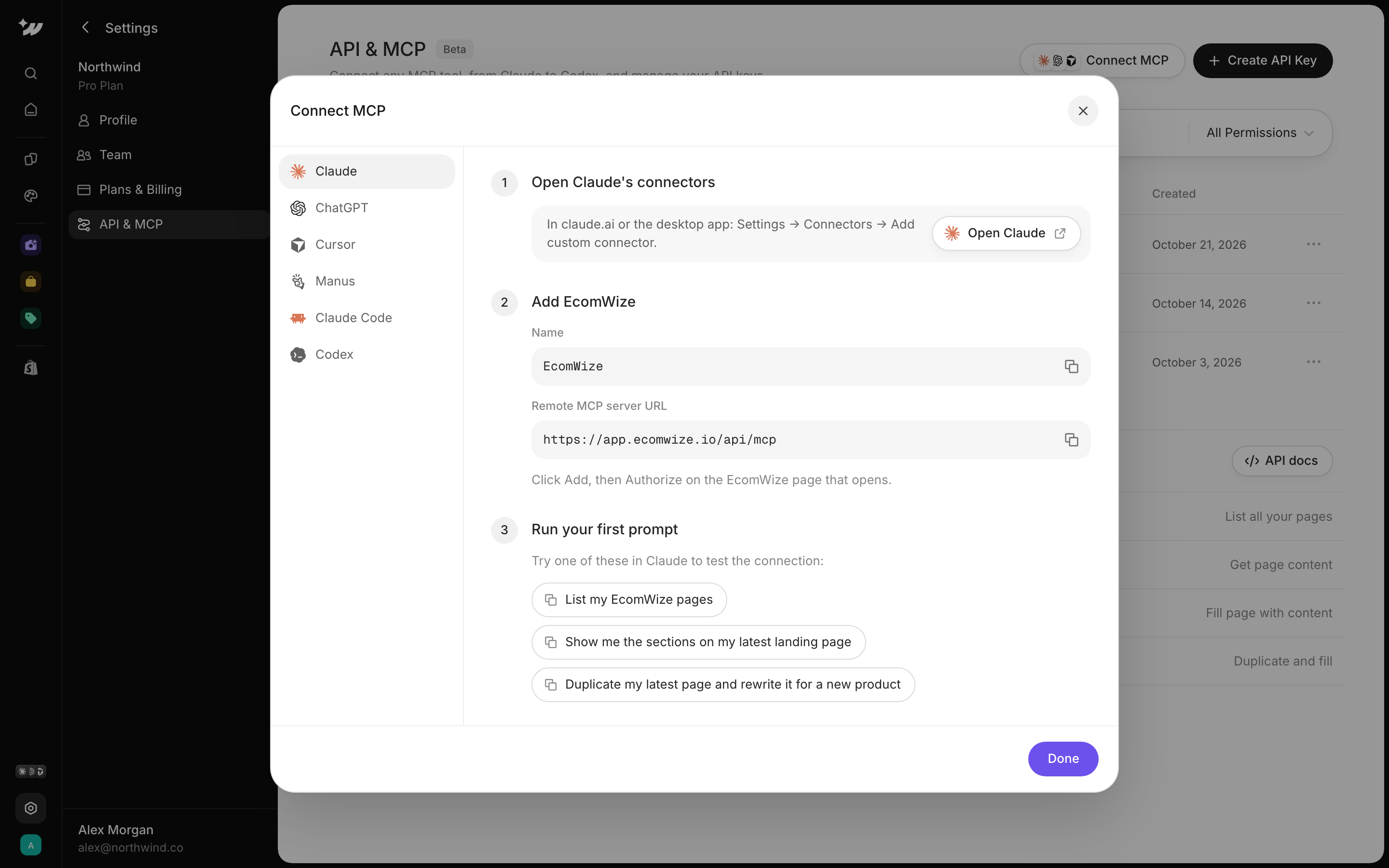
- Claude
- ChatGPT
- Claude Code
- Codex
- Cursor
- In Claude, open Settings > Connectors > Add custom connector.
- Name it “EcomWize” and paste the server URL.
- Click Add, then authorize.
Authorize access
When you connect, EcomWize opens an authorize page.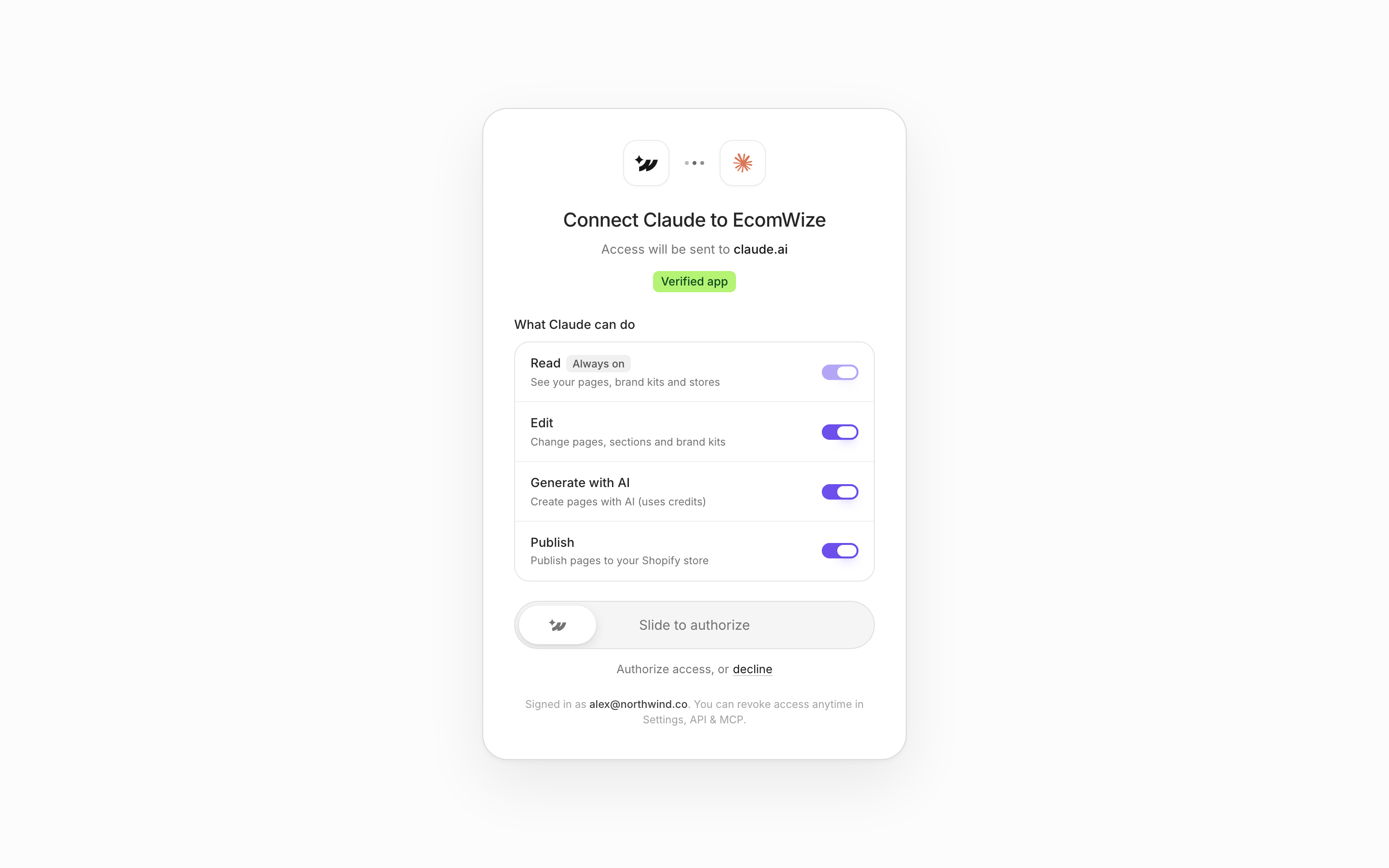
1
Pick a workspace
Choose the Workspace the tool can use.
2
Choose permissions
Read is always on. Turn on Edit, Generate with AI (uses your credits) and Publish as needed.
3
Confirm
Use Slide to authorize.
What AI tools can do
- List and read pages, templates, brand kits, stores and products
- Create pages from templates
- Add, move and remove sections
- Edit text and images
- Set or create brand kits
- Generate a full page (50 credits + 10 per image) or a brand kit (1 credit)
- Publish pages
Revoke access
Go to Settings > API & MCP and revoke the connected app. You can do this anytime.Create API keys
The workspace owner can click Create API Key. Choose Full access or Read only. You can Rename a key or click Revoke Key to disable it. See the API reference for endpoints.Related

API reference
Endpoints and authentication.

Credits
What AI generation costs.

Workspaces
Who can create API keys.