

Overview
Connecting your Shopify store to EcomWize allows you to publish landing pages directly to your Shopify theme. The connection process walks you through 5 simple steps with video tutorials.You will need to create a custom app on the Shopify Dev Dashboard. If you are working on behalf of a client, ask them to add you as a collaborator or create the custom app themselves.
Connect a store
1
Step 1: Enter your Shopify Store URL
From the EcomWize dashboard, go to Stores and click the Connect Store button.Enter your Shopify admin store URL. You can paste it in either format:
https://admin.shopify.com/store/your-store-nameyour-store.myshopify.com
- Go to your Shopify Store Admin
- Click on the Home button from the sidebar
- Click on your browser’s URL bar, copy the URL, and paste it into the field
2
Step 2: Create App
Open the Shopify Dev Dashboard by visiting dev.shopify.com/dashboard and click the Create app button.
3
Step 3: Fill out the app details
Inside the opened modal/popup:
- In the name field, enter:
EcomWize - Click the Create button
- In the App URL field, enter:
https://app.ecomwize.io/ - Uncheck the Embed app in Shopify admin checkbox
4
Step 4: Configure Access and Release
In the opened page:
- Find the Access card
- Check the Use legacy install flow checkbox
- Complete the Redirect URLs field with the value shown in EcomWize (copy it using the copy button)
- Click the Release button located at the bottom right corner
- In the opened modal/popup, leave the fields empty and click Release
5
Step 5: Enter Client ID and Secret
- From the left sidebar, click on Settings — you will see the Client ID and Secret fields at the top of the page
- Copy and paste both values into the corresponding fields in EcomWize
- Click Connect Store to complete the connection
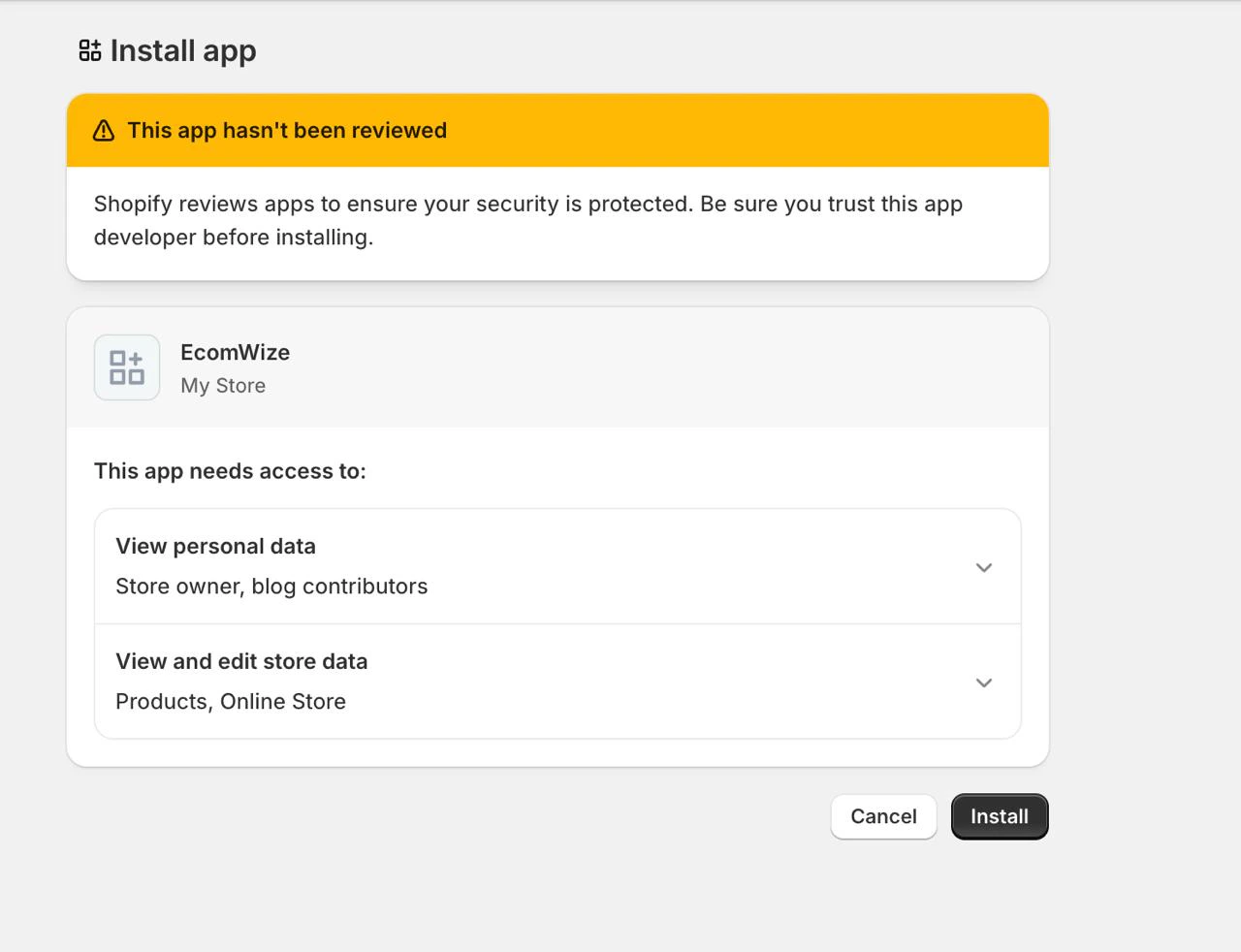
The Shopify app authorization screen for EcomWize.
Verify your connection
After connecting, your store will appear on the Stores page with a status badge:- Connected — The store is linked and ready for publishing
- Error — There was a problem with the connection (re-authorize or check your credentials)
Manage multiple stores
EcomWize supports connecting multiple Shopify stores. The number of stores you can connect depends on your plan:
When creating or publishing a page, you select which store to publish to from a dropdown. Each page is associated with one store at a time.
If you have reached your store limit, you will be prompted to upgrade your plan when trying to connect an additional store.
Disconnect a store
If you need to remove a store connection:1
Go to the Stores page
Navigate to Stores from the sidebar.
2
Click the delete button
Find the store you want to disconnect and click the trash icon or Disconnect button on the store card.
3
Confirm disconnection
A confirmation dialog will appear. Click Disconnect to confirm. This removes the store connection from EcomWize.
Troubleshooting
I get a 'Security validation failed' error
I get a 'Security validation failed' error
This usually means the session expired. Close and start the connection process again. Make sure your browser allows cookies from EcomWize.
I get a 'Failed to get access token' error
I get a 'Failed to get access token' error
Double-check that you entered the correct Client ID and Secret from your Shopify app. Even a single extra space can cause this error.
My store shows as disconnected after it was working
My store shows as disconnected after it was working
This can happen if the Shopify credentials were rotated or the custom app was uninstalled from Shopify. Re-connect the store using the updated credentials.
I cannot find my Client ID and Secret
I cannot find my Client ID and Secret
In the Shopify Dev Dashboard, go to your app and click Settings in the left sidebar. The Client ID and Secret are displayed at the top of the settings page.
If you encounter any other issues, contact us at [email protected] and we will help you get connected.