

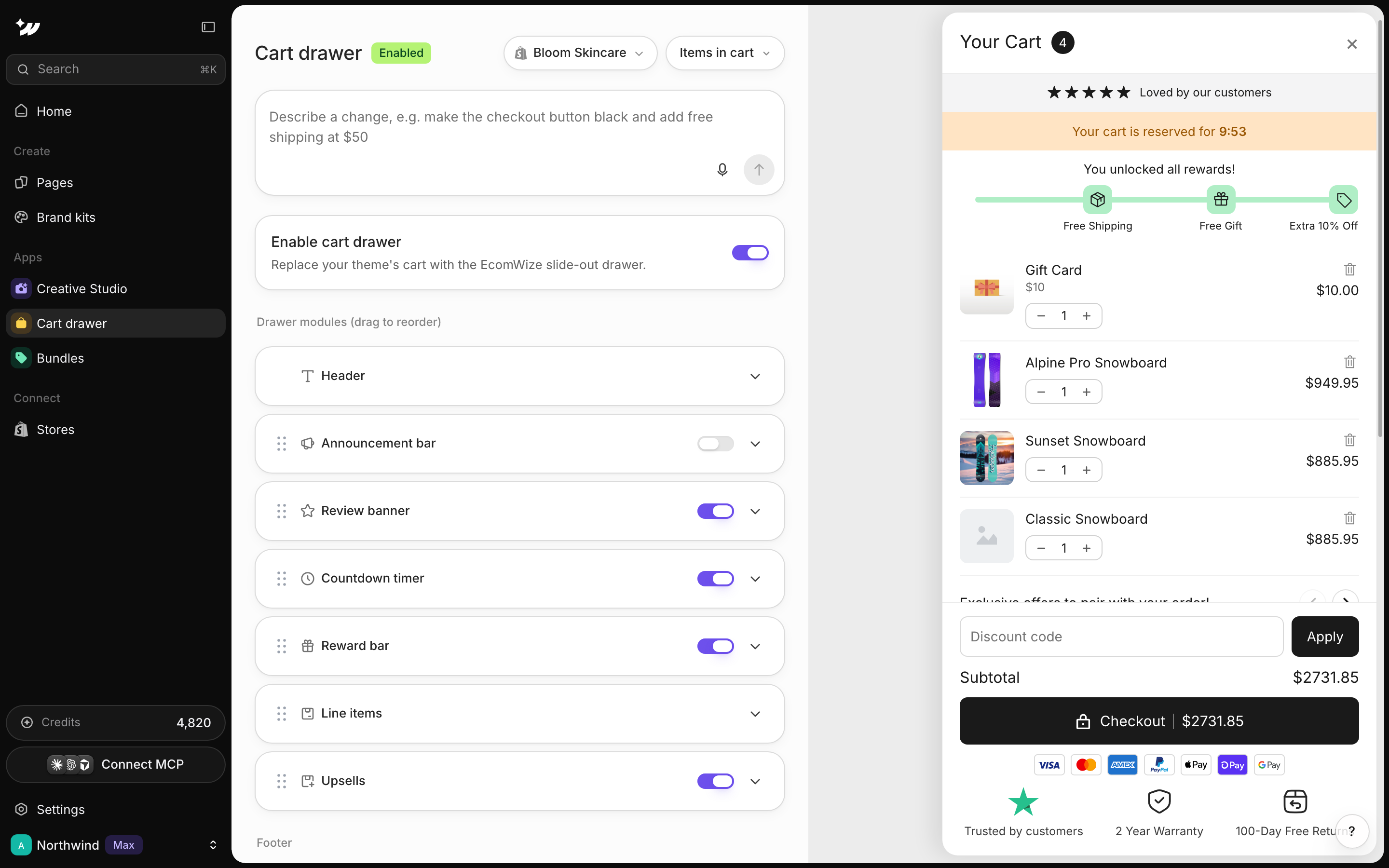
Turn on the cart drawer
1
Open Cart drawer
In EcomWize, click Cart drawer in the left sidebar (under Apps). You can also click Customize cart in the EcomWize app inside Shopify.
2
Enable it
Switch on Enable cart drawer.
3
Save
Save your changes from the save bar.
The cart drawer needs the app embed. If you see App embed is off, click Turn on app embed.
Arrange the modules
Drag modules to reorder them:- Header: title and item count
- Announcement bar
- Review banner
- Countdown timer: minutes and message
- Reward bar
- Line items: vendor, variant, savings, compare-at price, quantity selector
- Upsells
Set up the reward bar
Base tiers on Cart total ($) or Item quantity (#). Add up to 4 tiers. Each tier gives one reward: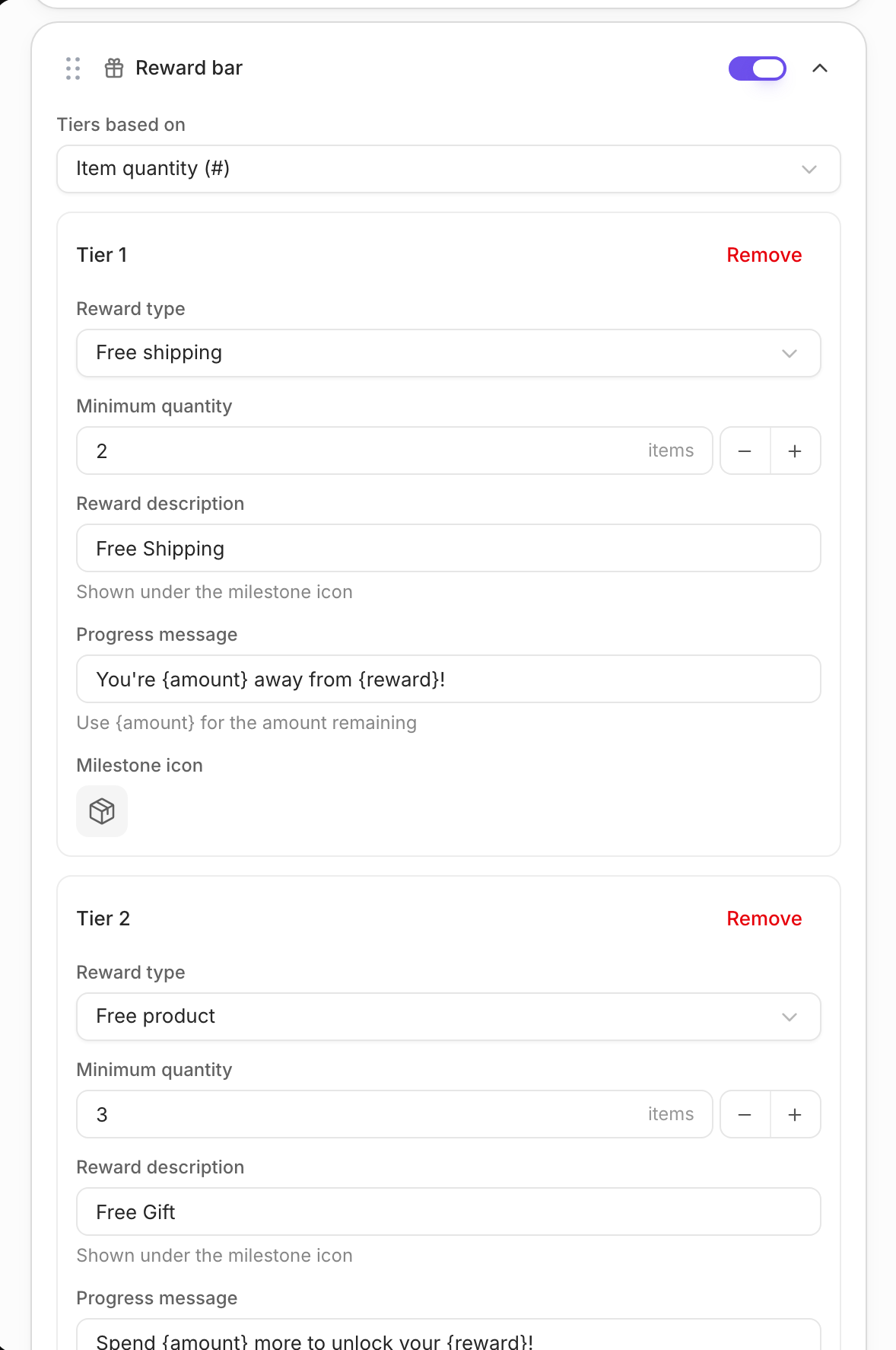
Write a progress message using
{amount} to show how much is left. Rewards apply automatically at checkout. There is no discount code to set up.
Add upsells
Show products you pick (up to 10), a collection, or smart recommendations. You can pin upsells above checkout and hide products already in the cart.Set the footer and checkout
The footer can show an order note, a discount code field, the subtotal with savings, and the checkout button. The button can show a lock icon, the price and express checkout (Shop Pay, Apple Pay, Google Pay). Add payment icons and up to 4 trust badges.Adjust the appearance
Choose whether the drawer opens automatically on add to cart, inherit your theme fonts, and set widths, corners, blur and the empty cart message.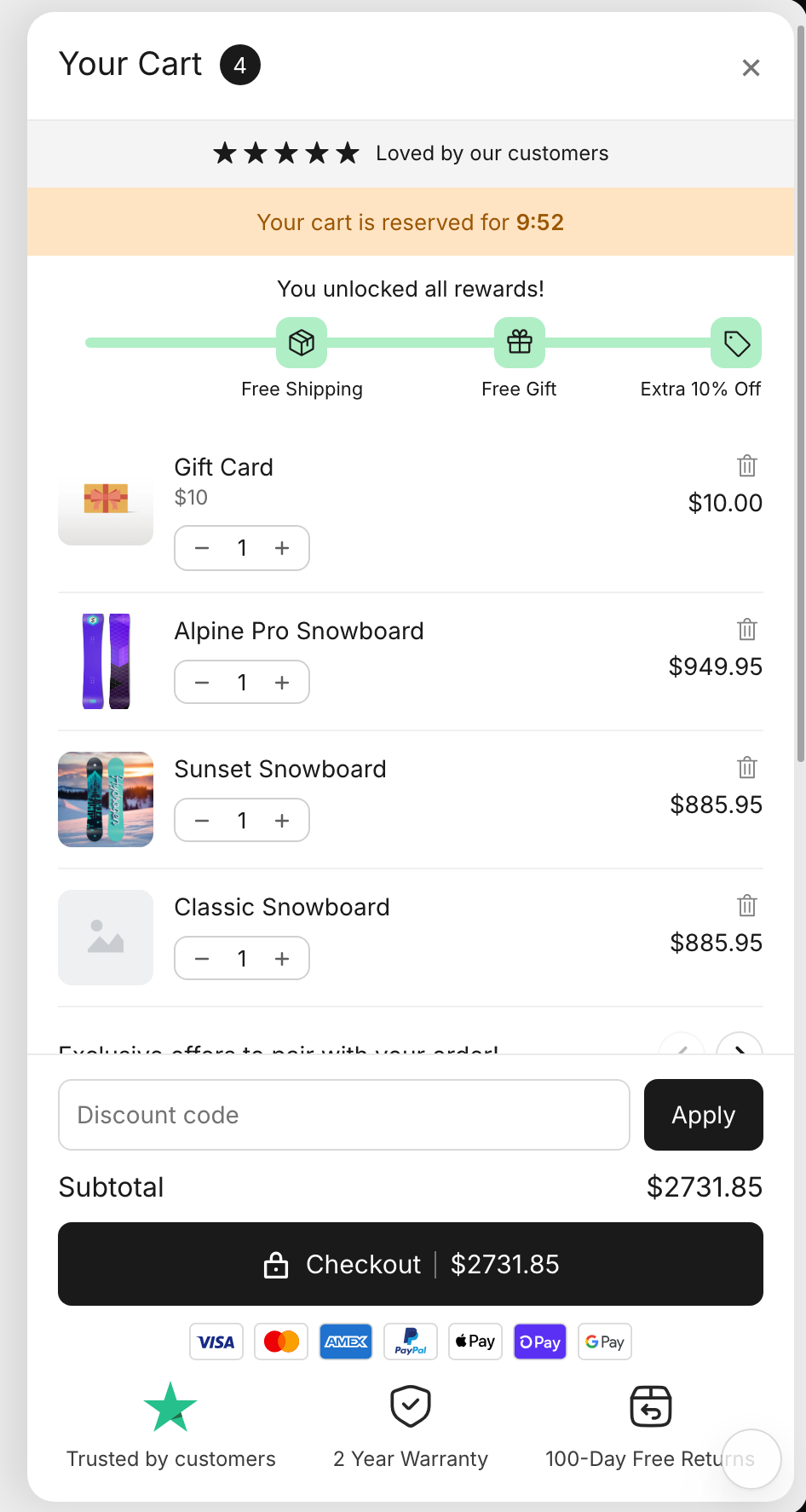
Edit with AI
Type in the AI box, for example “make the checkout button black”. Each edit costs 10 credits.Plans
The cart drawer is included on Starter, Pro and Max.Related

Bundles
Add bundle offers to product pages.

App embed
Required for the cart drawer.

Credits
What AI edits cost.