

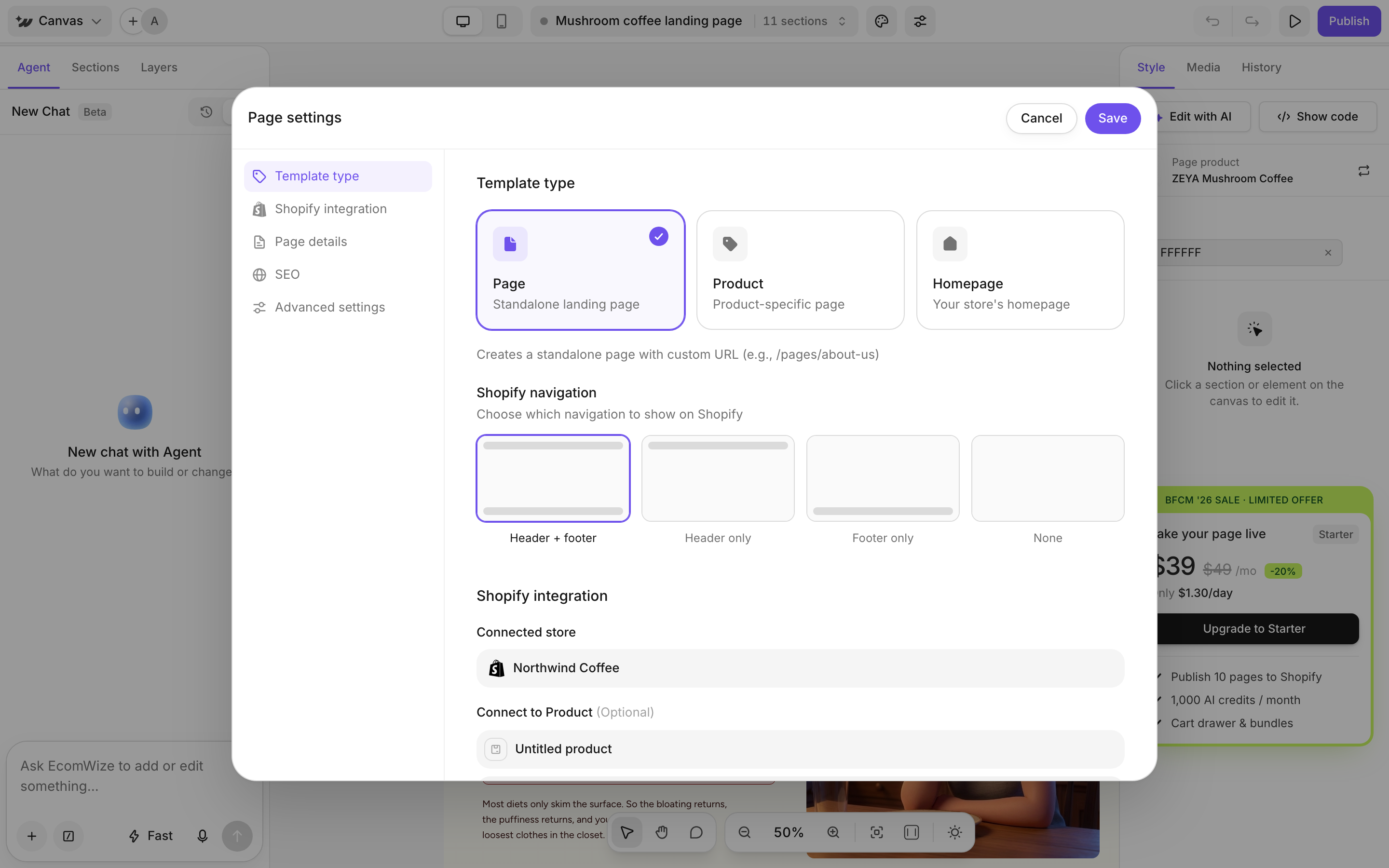
Choose a template type
To go back to your old homepage, click Restore original homepage.
Pick the Shopify navigation
Choose what shows around your page: Header + footer, Header only, Footer only or None.Connect a store and product
Under Shopify integration, pick your store in Select store… and use Connect to Product to link a product. A product is required for the Product type.Set the title and URL handle
Under Page details, enter the Page title and the URL handle (the part after pages/). If you see Handle already taken, choose a different handle.Write SEO details
Add an SEO Title (up to 70 characters) and a Meta description (up to 160 characters). The search preview shows how the page may look in search results.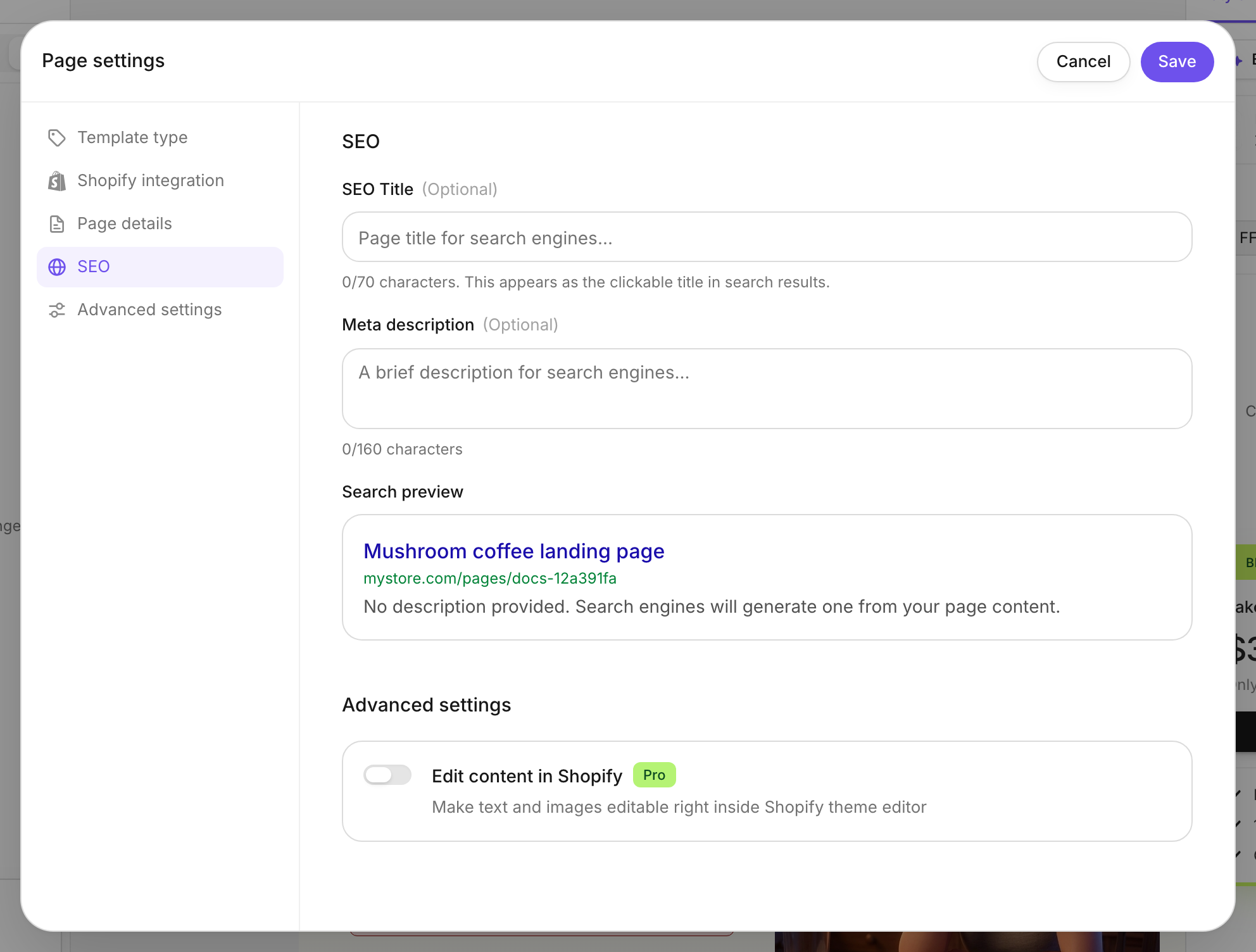
Edit content in Shopify
Under Advanced, turn on Edit content in Shopify to make text and images editable right inside the Shopify theme editor. Available on the Pro and Max plans.When you publish later, edits made in Shopify are kept unless you turn on Overwrite content edited in Shopify under Advanced options in the publish dialog.


