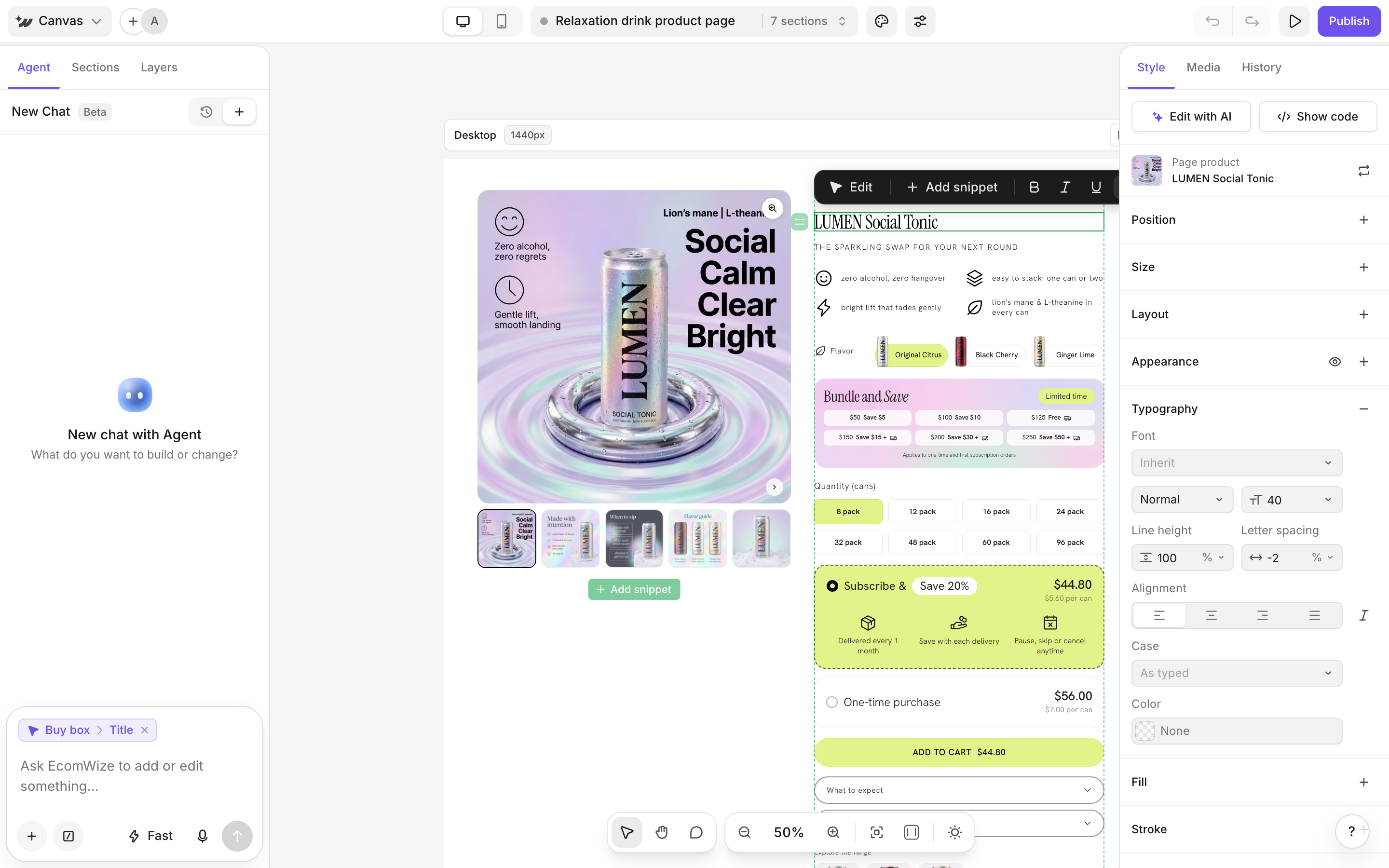
Set the page background and fine-tune size, layout, typography and colors of any element.
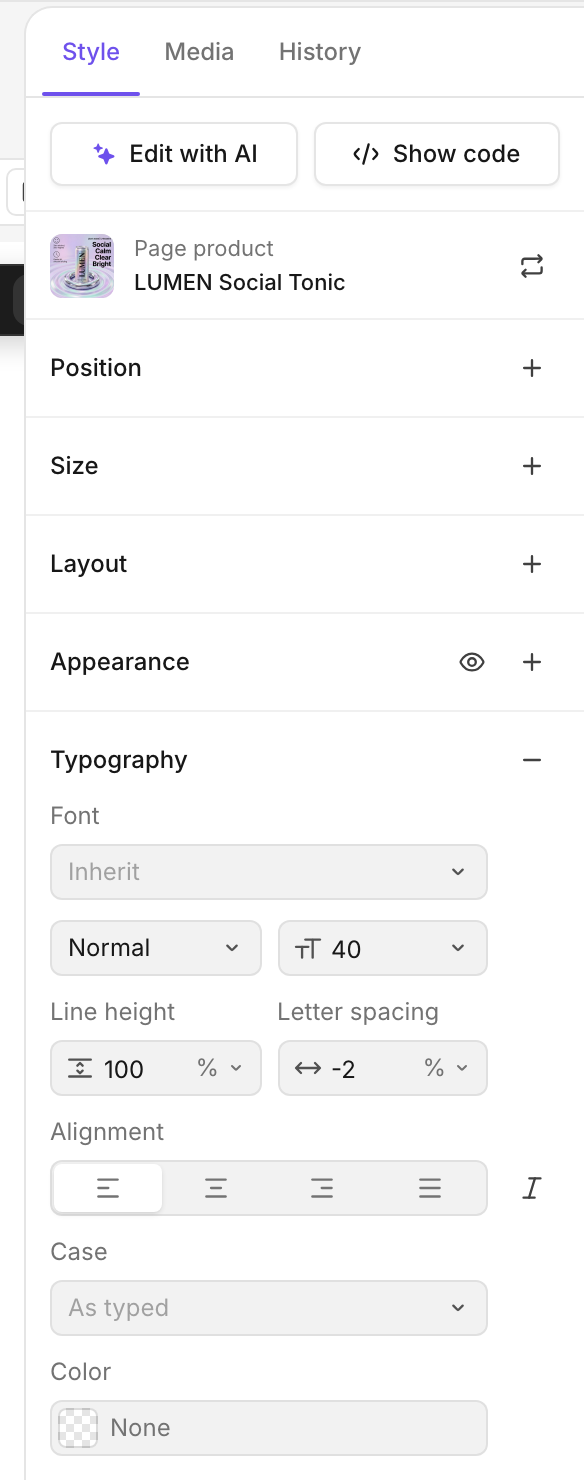
The Style tab in the right panel controls how the selected element looks. With nothing selected, it controls the page background.
At the top you find Edit with AI (send your selection to the agent) and Show code (see Code editing). If a product is linked, Page product shows it with a button to change it.
Some blocks have their own panel with extra options: carousel, video, countdown, bundle, collection source, add to cart and app widget. The app widget panel has an Open app embeds button. See App embed.
{"docsConfig":{"theme":"mint","$schema":"https://mintlify.com/docs.json","name":"EcomWize Help Center","colors":{"primary":"#6E51EC","light":"#FFFFFF","dark":"#171717"},"logo":{"light":"https://mintcdn.com/ecomwize/JsWC_FijBx-b2Uw0/logo/ecomwize-light.svg?fit=max\u0026auto=format\u0026n=JsWC_FijBx-b2Uw0\u0026q=85\u0026s=c6d1c4eb7eb59fcf49fd19cd4c85a068","dark":"https://mintcdn.com/ecomwize/JsWC_FijBx-b2Uw0/logo/ecomwize-dark.svg?fit=max\u0026auto=format\u0026n=JsWC_FijBx-b2Uw0\u0026q=85\u0026s=c4cb8da51e7c7e024ac1516c083d721c","href":"https://ecomwize.io"},"favicon":"https://mintcdn.com/ecomwize/JsWC_FijBx-b2Uw0/favicon.png?fit=max\u0026auto=format\u0026n=JsWC_FijBx-b2Uw0\u0026q=85\u0026s=617e069ac9c012d6e6a5368f587860a9","api":{"playground":{}},"navbar":{"links":[{"href":"mailto:[email protected]","label":"Support"}],"primary":{"type":"button","label":"Open EcomWize","href":"https://app.ecomwize.io"}},"footer":{"socials":{"x":"https://x.com/EcomWize","linkedin":"https://www.linkedin.com/company/ecomwize-io","youtube":"https://www.youtube.com/@EcomWize","website":"https://ecomwize.io"}},"fonts":{"family":"Inter"},"contextual":{"options":["copy","chatgpt","claude"],"display":"header"},"styling":{"latex":true},"navigation":{"global":{"anchors":[{"anchor":"Go to EcomWize","icon":"arrow-up-right-from-square","href":"https://app.ecomwize.io"},{"anchor":"Feature Requests","icon":"lightbulb","href":"https://ecomwize.featurebase.app"}]},"pages":[]}},"deployment":{"deploymentMetadataValue":{"subdomain":"ecomwize","hasAudioNarration":false,"actualSubdomain":"ecomwize","customDomains":["docs.ecomwize.io"],"gitSource":{"type":"github","owner":"ecomwize","repo":"docs","deployBranch":"main","contentDirectory":"","isPrivate":true,"mountPath":"","label":""},"chroma":{"liveDeploymentHistoryId":"6ae20758494007f25510650b","collectionId":"709b8901-110e-4f78-ae25-9782df02b557","schemaVersion":"v3","latestBuiltDeploymentHistoryId":"6ae20758494007f25510650b"},"feedback":{"thumbs":true},"entitlements":{},"buildId":"6ae20758494007f25510650b","clientVersion":"0.0.4006","searchFilterCounts":[{"language":"default","tag":"Guides","count":30},{"language":"default","tag":"MCP \u0026 API","count":9},{"language":"default","tag":"Builder","count":8},{"language":"default","tag":"Endpoints","count":5},{"language":"default","tag":"Create pages","count":5},{"language":"default","tag":"Get started","count":4},{"language":"default","tag":"Plans and billing","count":3},{"language":"default","tag":"Publish","count":3},{"language":"default","tag":"API","count":2},{"language":"default","tag":"Brand and images","count":2}]},"assistantConfig":{"enableAskAiButton":false,"enableStarterQuestions":false,"enableAskAiSearchBar":true},"basePath":"","hasChatPermissions":false,"hasWebMcpPermissions":false,"toggles":[{"name":"kill-isr","enabled":true,"variant":{"name":"disabled","enabled":false,"feature_enabled":true},"impressionData":false},{"name":"agent-mintlify-slack","enabled":true,"variant":{"name":"disabled","enabled":false,"feature_enabled":true},"impressionData":false},{"name":"editor-v7-file-tree","enabled":true,"variant":{"name":"disabled","enabled":false,"feature_enabled":true},"impressionData":false},{"name":"agent-integrations-settings","enabled":true,"variant":{"name":"disabled","enabled":false,"feature_enabled":true},"impressionData":false},{"name":"automations-pr-grouping","enabled":true,"variant":{"name":"disabled","enabled":false,"feature_enabled":true},"impressionData":false},{"name":"custom-prefix","enabled":true,"variant":{"name":"disabled","enabled":false,"feature_enabled":true},"impressionData":false},{"name":"analytics-v7","enabled":true,"variant":{"name":"disabled","enabled":false,"feature_enabled":true},"impressionData":false},{"name":"user-flows-analytics","enabled":true,"variant":{"name":"disabled","enabled":false,"feature_enabled":true},"impressionData":false},{"name":"no-publish-flow","enabled":true,"variant":{"name":"disabled","enabled":false,"feature_enabled":true},"impressionData":false},{"name":"workos-onboarding","enabled":true,"variant":{"name":"disabled","enabled":false,"feature_enabled":true},"impressionData":false},{"name":"llms-txt-v2","enabled":true,"variant":{"name":"disabled","enabled":false,"feature_enabled":true},"impressionData":false},{"name":"pause-universal-search-reconcile","enabled":true,"variant":{"name":"disabled","enabled":false,"feature_enabled":true},"impressionData":false},{"name":"snapshot-serving-live","enabled":true,"variant":{"name":"disabled","enabled":false,"feature_enabled":true},"impressionData":false},{"name":"stripTemperatureMiddleware","enabled":true,"variant":{"name":"disabled","enabled":false,"feature_enabled":true},"impressionData":false},{"name":"per-site-search-delta","enabled":true,"variant":{"name":"disabled","enabled":false,"feature_enabled":true},"impressionData":false},{"name":"support-platform-pylon-zendesk","enabled":true,"variant":{"name":"disabled","enabled":false,"feature_enabled":true},"impressionData":false},{"name":"snapshot-serving","enabled":true,"variant":{"name":"disabled","enabled":false,"feature_enabled":true},"impressionData":false},{"name":"instant-rollback","enabled":true,"variant":{"name":"disabled","enabled":false,"feature_enabled":true},"impressionData":false},{"name":"granular-notifications-server","enabled":true,"variant":{"name":"disabled","enabled":false,"feature_enabled":true},"impressionData":false},{"name":"granular-notifications","enabled":true,"variant":{"name":"disabled","enabled":false,"feature_enabled":true},"impressionData":false},{"name":"editor-private-page-search","enabled":true,"variant":{"name":"disabled","enabled":false,"feature_enabled":true},"impressionData":false},{"name":"automations-fable","enabled":true,"variant":{"name":"disabled","enabled":false,"feature_enabled":true},"impressionData":false},{"name":"fixed-ai-action-pricing","enabled":true,"variant":{"name":"disabled","enabled":false,"feature_enabled":true},"impressionData":false},{"name":"automation-resolve-merge-conflict","enabled":true,"variant":{"name":"disabled","enabled":false,"feature_enabled":true},"impressionData":false},{"name":"scoped-publishing","enabled":true,"variant":{"name":"disabled","enabled":false,"feature_enabled":true},"impressionData":false},{"name":"mintql","enabled":true,"variant":{"name":"disabled","enabled":false,"feature_enabled":true},"impressionData":false},{"name":"page-level-analytics","enabled":true,"variant":{"name":"disabled","enabled":false,"feature_enabled":true},"impressionData":false},{"name":"editor-version-history-v2","enabled":true,"variant":{"name":"disabled","enabled":false,"feature_enabled":true},"impressionData":false},{"name":"editor-nav-generations","enabled":true,"variant":{"name":"disabled","enabled":false,"feature_enabled":true},"impressionData":false},{"name":"billing-page-v2","enabled":true,"variant":{"name":"disabled","enabled":false,"feature_enabled":true},"impressionData":false},{"name":"workspace-projects","enabled":true,"variant":{"name":"disabled","enabled":false,"feature_enabled":true},"impressionData":false},{"name":"assistant-v5","enabled":true,"variant":{"name":"disabled","enabled":false,"feature_enabled":true},"impressionData":false},{"name":"byok-sep-25","enabled":true,"variant":{"name":"disabled","enabled":false,"feature_enabled":true},"impressionData":false},{"name":"fork-pr-previews","enabled":true,"variant":{"name":"disabled","enabled":false,"feature_enabled":true},"impressionData":false},{"name":"revalidation-jwt","enabled":true,"variant":{"name":"disabled","enabled":false,"feature_enabled":true},"impressionData":false},{"name":"vite-origin","enabled":true,"variant":{"name":"disabled","enabled":false,"feature_enabled":true},"impressionData":false},{"name":"editor-agent-model-picker","enabled":true,"variant":{"name":"disabled","enabled":false,"feature_enabled":true},"impressionData":false},{"name":"billing-updated-9-15","enabled":true,"variant":{"name":"disabled","enabled":false,"feature_enabled":true},"impressionData":false},{"name":"workos-sso-scim","enabled":true,"variant":{"name":"disabled","enabled":false,"feature_enabled":true},"impressionData":false},{"name":"hobby-abuse-scan","enabled":true,"variant":{"name":"disabled","enabled":false,"feature_enabled":true},"impressionData":false},{"name":"dashboard-inbox","enabled":true,"variant":{"name":"disabled","enabled":false,"feature_enabled":true},"impressionData":false},{"name":"workos-signup","enabled":true,"variant":{"name":"disabled","enabled":false,"feature_enabled":true},"impressionData":false},{"name":"workos-enabled","enabled":true,"variant":{"name":"disabled","enabled":false,"feature_enabled":true},"impressionData":false}],"googleFontsInlined":false},"customCss":[{"filePath":"style.css","content":"#navbar img{width:132px;height:auto}#page-title,#sidebar-group>h5,.card h2,.card h3,.eyebrow,h1,h2,h3,h4,h5,h6{font-weight:400!important}.card .prose,.card [data-component-part=card-content],[data-component-part=card-content] p{font-size:14px!important;line-height:1.5!important}"}],"page":{"pagePath":"builder/style-panel","slug":"/builder/style-panel","pageMetadata":{"title":"Style panel","description":"Set the page background and fine-tune size, layout, typography and colors of any element.","icon":"https://assets.ecomwize.io/docs/icons/sliders.svg","href":"/builder/style-panel"},"description":{"compiledSource":"\"use strict\";\nconst {jsx: _jsx} = arguments[0];\nconst {useMDXComponents: _provideComponents} = arguments[0];\nfunction _createMdxContent(props) {\n const _components = {\n p: \"p\",\n ..._provideComponents(),\n ...props.components\n };\n return _jsx(_components.p, {\n children: \"Set the page background and fine-tune size, layout, typography and colors of any element.\"\n });\n}\nfunction MDXContent(props = {}) {\n const {wrapper: MDXLayout} = {\n ..._provideComponents(),\n ...props.components\n };\n return MDXLayout ? _jsx(MDXLayout, {\n ...props,\n children: _jsx(_createMdxContent, {\n ...props\n })\n }) : _createMdxContent(props);\n}\nreturn {\n default: MDXContent\n};\n","frontmatter":{},"scope":{}},"pageType":"default","mdx":{"mdxSource":{"compiledSource":"\"use strict\";const{Fragment:_Fragment,jsx:_jsx,jsxs:_jsxs}=arguments[0];const{useMDXComponents:_provideComponents}=arguments[0];function _createMdxContent(props){const _components={a:`a`,p:`p`,strong:`strong`,tbody:`tbody`,td:`td`,th:`th`,thead:`thead`,tr:`tr`,..._provideComponents(),...props.components},{Card,CardGroup,Frame,Heading,OptimizedImage,Table,Tip}=_components;if(!Card)_missingMdxReference(`Card`,true);if(!CardGroup)_missingMdxReference(`CardGroup`,true);if(!Frame)_missingMdxReference(`Frame`,true);if(!Heading)_missingMdxReference(`Heading`,true);if(!OptimizedImage)_missingMdxReference(`OptimizedImage`,true);if(!Table)_missingMdxReference(`Table`,true);if(!Tip)_missingMdxReference(`Tip`,true);return _jsxs(_Fragment,{children:[_jsxs(_components.p,{children:[`The `,_jsx(_components.strong,{children:`Style`}),` tab in the right panel controls how the selected element looks. With nothing selected, it controls the page background.`]}),`\n`,_jsx(Frame,{children:_jsx(OptimizedImage,{src:`https://assets.ecomwize.io/docs/shots/style-panel.png`,alt:`The Style tab in the right panel`})}),`\n`,_jsxs(_components.p,{children:[`At the top you find `,_jsx(_components.strong,{children:`Edit with AI`}),` (send your selection to the `,_jsx(_components.a,{href:`/builder/ai-agent`,children:`agent`}),`) and `,_jsx(_components.strong,{children:`Show code`}),` (see `,_jsx(_components.a,{href:`/builder/code-editing`,children:`Code editing`}),`). If a product is linked, `,_jsx(_components.strong,{children:`Page product`}),` shows it with a button to change it.`]}),`\n`,_jsx(Heading,{level:`2`,id:`change-the-page-background`,children:`Change the page background`}),`\n`,_jsxs(_components.p,{children:[`Click an empty area so nothing is selected. Under `,_jsx(_components.strong,{children:`Fill`}),`, pick a background color. Your brand colors are available here.`]}),`\n`,_jsx(Heading,{level:`2`,id:`style-an-element`,children:`Style an element`}),`\n`,_jsx(_components.p,{children:`Click a section or element on the canvas. The panel shows its controls:`}),`\n`,_jsx(Frame,{children:_jsx(OptimizedImage,{src:`https://assets.ecomwize.io/docs/shots/style-panel-crop.png`,alt:`The Style panel controls for a selected element`})}),`\n`,_jsxs(Table,{children:[_jsx(_components.thead,{children:_jsxs(_components.tr,{children:[_jsx(_components.th,{children:`Group`}),_jsx(_components.th,{children:`What you can change`})]})}),_jsxs(_components.tbody,{children:[_jsxs(_components.tr,{children:[_jsx(_components.td,{children:`Position and Size`}),_jsx(_components.td,{children:`Where it sits and how big it is`})]}),_jsxs(_components.tr,{children:[_jsx(_components.td,{children:`Layout`}),_jsx(_components.td,{children:`Wrap, Columns, Gap`})]}),_jsxs(_components.tr,{children:[_jsx(_components.td,{children:`Opacity, Corner radius, Rotation`}),_jsx(_components.td,{children:`Basic look`})]}),_jsxs(_components.tr,{children:[_jsx(_components.td,{children:`Typography`}),_jsx(_components.td,{children:`Font size, Line height, Letter spacing, Italic`})]}),_jsxs(_components.tr,{children:[_jsx(_components.td,{children:`Fill and Stroke`}),_jsx(_components.td,{children:`Background color and border`})]}),_jsxs(_components.tr,{children:[_jsx(_components.td,{children:`Style`}),_jsx(_components.td,{children:`Shadow, blur, Z index`})]}),_jsxs(_components.tr,{children:[_jsx(_components.td,{children:`Classes`}),_jsx(_components.td,{children:`The element’s style classes`})]})]})]}),`\n`,_jsx(Heading,{level:`2`,id:`style-desktop-and-mobile-separately`,children:`Style desktop and mobile separately`}),`\n`,_jsxs(_components.p,{children:[`Edits you make in `,_jsx(_components.strong,{children:`Desktop view`}),` apply to desktop. Switch to `,_jsx(_components.strong,{children:`Mobile view`}),` in the top bar to make edits that apply to mobile only.`]}),`\n`,_jsx(Tip,{children:`Check both views before you publish. A font size that works on desktop can be too big on a phone.`}),`\n`,_jsx(Heading,{level:`2`,id:`use-special-block-panels`,children:`Use special block panels`}),`\n`,_jsxs(_components.p,{children:[`Some blocks have their own panel with extra options: carousel, video, countdown, bundle, collection source, add to cart and app widget. The app widget panel has an `,_jsx(_components.strong,{children:`Open app embeds`}),` button. See `,_jsx(_components.a,{href:`/publish/app-embed`,children:`App embed`}),`.`]}),`\n`,_jsx(Heading,{level:`2`,id:`related`,children:`Related`}),`\n`,_jsxs(CardGroup,{cols:2,children:[_jsx(Card,{title:`Edit on the canvas`,icon:`https://assets.ecomwize.io/docs/icons/pen-to-square.svg`,href:`/builder/edit-on-canvas`}),_jsx(Card,{title:`Brand kits`,icon:`https://assets.ecomwize.io/docs/icons/palette.svg`,href:`/brand-kits/brand-kits`}),_jsx(Card,{title:`Code editing`,icon:`https://assets.ecomwize.io/docs/icons/code.svg`,href:`/builder/code-editing`}),_jsx(Card,{title:`App embed`,icon:`https://assets.ecomwize.io/docs/icons/puzzle-piece.svg`,href:`/publish/app-embed`})]})]})}function MDXContent(props={}){const{wrapper:MDXLayout}={..._provideComponents(),...props.components};return MDXLayout?_jsx(MDXLayout,{...props,children:_jsx(_createMdxContent,{...props})}):_createMdxContent(props)}return{default:MDXContent};function _missingMdxReference(id,component){throw new Error(`Expected `+(component?`component`:`object`)+\" `\"+id+\"` to be defined: you likely forgot to import, pass, or provide it.\")}","frontmatter":{},"scope":{"config":{},"pageMetadata":{"title":"Style panel","description":"Set the page background and fine-tune size, layout, typography and colors of any element.","icon":"https://assets.ecomwize.io/docs/icons/sliders.svg","href":"/builder/style-panel"}}},"mdxSourceWithNoJs":null},"mdxExtracts":{"tableOfContents":[{"title":"Change the page background","slug":"change-the-page-background","depth":2,"children":[]},{"title":"Style an element","slug":"style-an-element","depth":2,"children":[]},{"title":"Style desktop and mobile separately","slug":"style-desktop-and-mobile-separately","depth":2,"children":[]},{"title":"Use special block panels","slug":"use-special-block-panels","depth":2,"children":[]},{"title":"Related","slug":"related","depth":2,"children":[]}],"codeExamples":{}},"jsLinks":[],"subdomain":"ecomwize","siteName":"EcomWize Help Center","title":"Style panel - EcomWize Help Center","navMaps":{"firstHrefInVersion":{},"firstHrefInLanguage":{}},"lastModified":"2026-10-28T14:32:05.791Z","originalFileLocation":"builder/style-panel.mdx"},"headHtml":"\u003cscript data-mint-head>(function(){var d=document.documentElement,p=null;if(!p){try{p=localStorage.getItem(\"isDarkMode\")}catch(e){}if(p==='true')p='dark';else if(p==='false')p='light';if(p!=='light'\u0026\u0026p!=='dark'\u0026\u0026p!=='system')p=\"system\"}var r=p==='system'?(matchMedia(\"(prefers-color-scheme: dark)\").matches?'dark':'light'):p;d.classList.remove(r==='dark'?'light':'dark');d.classList.add(r);d.setAttribute(\"data-theme-preference\",p)})();\u003c/script>\u003cmeta data-mint-head name=\"description\" content=\"Set the page background and fine-tune size, layout, typography and colors of any element.\">\u003cmeta data-mint-head name=\"application-name\" content=\"EcomWize Help Center\">\u003cmeta data-mint-head name=\"generator\" content=\"Mintlify\">\u003clink data-mint-head rel=\"icon\" type=\"image/png\" sizes=\"192x192\" href=\"/mintlify-assets/_mintlify/favicons/ecomwize/xp_js11rtnyO3wqS/_generated/favicon/android-chrome-192x192.png\" media=\"(prefers-color-scheme: light)\">\u003clink data-mint-head rel=\"apple-touch-icon\" type=\"image/png\" sizes=\"180x180\" href=\"/mintlify-assets/_mintlify/favicons/ecomwize/xp_js11rtnyO3wqS/_generated/favicon/apple-touch-icon.png\">\u003clink data-mint-head rel=\"icon\" type=\"image/png\" sizes=\"16x16\" href=\"/mintlify-assets/_mintlify/favicons/ecomwize/xp_js11rtnyO3wqS/_generated/favicon/favicon-16x16.png\" media=\"(prefers-color-scheme: light)\">\u003clink data-mint-head rel=\"icon\" type=\"image/png\" sizes=\"32x32\" href=\"/mintlify-assets/_mintlify/favicons/ecomwize/xp_js11rtnyO3wqS/_generated/favicon/favicon-32x32.png\" media=\"(prefers-color-scheme: light)\">\u003clink data-mint-head rel=\"shortcut icon\" type=\"image/x-icon\" href=\"/mintlify-assets/_mintlify/favicons/ecomwize/xp_js11rtnyO3wqS/_generated/favicon/favicon.ico\" media=\"(prefers-color-scheme: light)\">\u003clink data-mint-head rel=\"icon\" type=\"image/png\" sizes=\"192x192\" href=\"/mintlify-assets/_mintlify/favicons/ecomwize/xp_js11rtnyO3wqS/_generated/favicon-dark/android-chrome-192x192.png\" media=\"(prefers-color-scheme: dark)\">\u003clink data-mint-head rel=\"icon\" type=\"image/png\" sizes=\"16x16\" href=\"/mintlify-assets/_mintlify/favicons/ecomwize/xp_js11rtnyO3wqS/_generated/favicon-dark/favicon-16x16.png\" media=\"(prefers-color-scheme: dark)\">\u003clink data-mint-head rel=\"icon\" type=\"image/png\" sizes=\"32x32\" href=\"/mintlify-assets/_mintlify/favicons/ecomwize/xp_js11rtnyO3wqS/_generated/favicon-dark/favicon-32x32.png\" media=\"(prefers-color-scheme: dark)\">\u003clink data-mint-head rel=\"shortcut icon\" type=\"image/x-icon\" href=\"/mintlify-assets/_mintlify/favicons/ecomwize/xp_js11rtnyO3wqS/_generated/favicon-dark/favicon.ico\" media=\"(prefers-color-scheme: dark)\">\u003cmeta data-mint-head property=\"og:title\" content=\"Style panel - EcomWize Help Center\">\u003cmeta data-mint-head property=\"og:description\" content=\"Set the page background and fine-tune size, layout, typography and colors of any element.\">\u003cmeta data-mint-head property=\"og:site_name\" content=\"EcomWize Help Center\">\u003cmeta data-mint-head property=\"og:url\" content=\"https://docs.ecomwize.io/builder/style-panel\">\u003cmeta data-mint-head property=\"og:type\" content=\"website\">\u003cmeta data-mint-head property=\"og:image\" content=\"https://ecomwize.mintlify.app/_mintlify/api/og/v2?division=Builder\u0026amp;title=Style+panel\u0026amp;description=Set+the+page+background+and+fine-tune+size%2C+layout%2C+typography+and+colors+of+any+element.\u0026amp;theme=83d4b1b48725df4986b1c491\u0026amp;signature=4f1c29989c1fb200feb8f51a77c66cdf0ab23e8ea35e9a856e02cf3b0710aacf\">\u003cmeta data-mint-head property=\"og:image:width\" content=\"1200\">\u003cmeta data-mint-head property=\"og:image:height\" content=\"630\">\u003cmeta data-mint-head name=\"twitter:card\" content=\"summary_large_image\">\u003cmeta data-mint-head name=\"twitter:title\" content=\"Style panel - EcomWize Help Center\">\u003cmeta data-mint-head name=\"twitter:description\" content=\"Set the page background and fine-tune size, layout, typography and colors of any element.\">\u003cmeta data-mint-head name=\"twitter:image\" content=\"https://ecomwize.mintlify.app/_mintlify/api/og/v2?division=Builder\u0026amp;title=Style+panel\u0026amp;description=Set+the+page+background+and+fine-tune+size%2C+layout%2C+typography+and+colors+of+any+element.\u0026amp;theme=83d4b1b48725df4986b1c491\u0026amp;signature=4f1c29989c1fb200feb8f51a77c66cdf0ab23e8ea35e9a856e02cf3b0710aacf\">\u003cmeta data-mint-head name=\"twitter:image:width\" content=\"1200\">\u003cmeta data-mint-head name=\"twitter:image:height\" content=\"630\">\u003cmeta data-mint-head name=\"msapplication-config\" content=\"/mintlify-assets/_mintlify/favicons/ecomwize/xp_js11rtnyO3wqS/_generated/favicon/browserconfig.xml\">\u003cmeta data-mint-head name=\"apple-mobile-web-app-title\" content=\"EcomWize Help Center\">\u003cmeta data-mint-head name=\"msapplication-TileColor\" content=\"#6E51EC\">\u003clink data-mint-head rel=\"canonical\" href=\"https://docs.ecomwize.io/builder/style-panel\">\u003clink data-mint-head rel=\"alternate\" type=\"application/xml\" href=\"/sitemap.xml\">\u003clink data-mint-head rel=\"alternate\" type=\"text/markdown\" href=\"/builder/style-panel.md\">\u003cscript data-mint-head type=\"application/ld+json\">{\"@context\":\"https://schema.org\",\"@graph\":[{\"@type\":\"Organization\",\"@id\":\"https://docs.ecomwize.io/#organization\",\"name\":\"EcomWize Help Center\",\"url\":\"https://docs.ecomwize.io\",\"logo\":{\"@type\":\"ImageObject\",\"url\":\"https://mintcdn.com/ecomwize/JsWC_FijBx-b2Uw0/logo/ecomwize-light.svg?fit=max\u0026auto=format\u0026n=JsWC_FijBx-b2Uw0\u0026q=85\u0026s=c6d1c4eb7eb59fcf49fd19cd4c85a068\"}},{\"@type\":\"WebSite\",\"@id\":\"https://docs.ecomwize.io#website\",\"name\":\"EcomWize Help Center\",\"url\":\"https://docs.ecomwize.io\",\"publisher\":{\"@id\":\"https://docs.ecomwize.io/#organization\"}},{\"@type\":\"WebPage\",\"@id\":\"https://docs.ecomwize.io/builder/style-panel#webpage\",\"url\":\"https://docs.ecomwize.io/builder/style-panel\",\"name\":\"Style panel\",\"description\":\"Set the page background and fine-tune size, layout, typography and colors of any element.\",\"dateModified\":\"2026-10-28T14:32:05.791Z\",\"isPartOf\":{\"@id\":\"https://docs.ecomwize.io#website\"},\"breadcrumb\":{\"@id\":\"https://docs.ecomwize.io/builder/style-panel#breadcrumb\"}},{\"@type\":\"BreadcrumbList\",\"@id\":\"https://docs.ecomwize.io/builder/style-panel#breadcrumb\",\"itemListElement\":[{\"@type\":\"ListItem\",\"position\":1,\"name\":\"Builder\",\"item\":\"https://docs.ecomwize.io/builder/ai-agent\"},{\"@type\":\"ListItem\",\"position\":2,\"name\":\"Style panel\",\"item\":\"https://docs.ecomwize.io/builder/style-panel\"}]},{\"@type\":[\"Article\",\"TechArticle\"],\"@id\":\"https://docs.ecomwize.io/builder/style-panel#article\",\"headline\":\"Style panel\",\"name\":\"Style panel\",\"description\":\"Set the page background and fine-tune size, layout, typography and colors of any element.\",\"url\":\"https://docs.ecomwize.io/builder/style-panel\",\"mainEntityOfPage\":{\"@id\":\"https://docs.ecomwize.io/builder/style-panel#webpage\"},\"dateModified\":\"2026-10-28T14:32:05.791Z\",\"publisher\":{\"@id\":\"https://docs.ecomwize.io/#organization\"},\"isPartOf\":{\"@id\":\"https://docs.ecomwize.io#website\"}}]}\u003c/script>\u003cscript data-mint-head type=\"application/ld+json\">{\"@context\":\"https://schema.org\",\"@type\":\"WebSite\",\"name\":\"EcomWize Help Center\",\"creator\":{\"@type\":\"Organization\",\"name\":\"Mintlify\",\"url\":\"https://mintlify.com\"}}\u003c/script>","siteName":"EcomWize Help Center","nav":{"global":{"anchors":[{"anchor":"Go to EcomWize","icon":"arrow-up-right-from-square","href":"https://app.ecomwize.io"},{"anchor":"Feature Requests","icon":"lightbulb","href":"https://ecomwize.featurebase.app"}]},"tabs":[{"tab":"Guides","groups":[{"group":"Get started","pages":[{"title":"EcomWize Help Center","sidebarTitle":"Welcome","href":""},{"title":"Create your account","icon":"https://assets.ecomwize.io/docs/icons/user-plus.svg","href":"/getting-started/sign-up"},{"title":"Connect your Shopify store","icon":"https://assets.ecomwize.io/docs/icons/shopify.svg","href":"/getting-started/connect-shopify"},{"title":"Create your first page","icon":"https://assets.ecomwize.io/docs/icons/rocket.svg","href":"/getting-started/create-first-page"},{"title":"Tour the builder","icon":"https://assets.ecomwize.io/docs/icons/compass.svg","href":"/getting-started/builder-tour"}]},{"group":"Create pages","pages":[{"title":"Build a page with AI","sidebarTitle":"Build with AI","icon":"https://assets.ecomwize.io/docs/icons/wand-magic-sparkles.svg","href":"/create/build-with-ai"},{"title":"Start from a template","sidebarTitle":"Templates","icon":"https://assets.ecomwize.io/docs/icons/table-cells-large.svg","href":"/create/templates"},{"title":"Quiz pages","icon":"https://assets.ecomwize.io/docs/icons/clipboard-question.svg","href":"/create/quiz-pages"},{"title":"Build a complete store","sidebarTitle":"Complete store","icon":"https://assets.ecomwize.io/docs/icons/store.svg","href":"/create/complete-store"},{"title":"Manage your pages","sidebarTitle":"Manage pages","icon":"https://assets.ecomwize.io/docs/icons/file-lines.svg","href":"/create/manage-pages"}]},{"group":"Builder","pages":[{"title":"Edit your page with the AI agent","sidebarTitle":"AI agent","icon":"https://assets.ecomwize.io/docs/icons/wand-magic-sparkles.svg","href":"/builder/ai-agent"},{"title":"Edit on the canvas","icon":"https://assets.ecomwize.io/docs/icons/pen-to-square.svg","href":"/builder/edit-on-canvas"},{"title":"Add sections and manage layers","sidebarTitle":"Sections and layers","description":"Add ready-made sections, save your own, and organize the page in the Layers tab.","icon":"https://assets.ecomwize.io/docs/icons/layer-group.svg","href":"/builder/sections-and-layers"},{"title":"Style panel","icon":"https://assets.ecomwize.io/docs/icons/sliders.svg","href":"/builder/style-panel"},{"title":"Upload and manage media","sidebarTitle":"Media","description":"Upload images and videos, reuse AI generated images, and create new ones in Creative Studio.","icon":"https://assets.ecomwize.io/docs/icons/image.svg","href":"/builder/media"},{"title":"Version history and undo","sidebarTitle":"History","icon":"https://assets.ecomwize.io/docs/icons/clock-rotate-left.svg","href":"/builder/history"},{"title":"Edit section code","sidebarTitle":"Code editing","icon":"https://assets.ecomwize.io/docs/icons/code.svg","href":"/builder/code-editing"},{"title":"Keyboard shortcuts","icon":"https://assets.ecomwize.io/docs/icons/keyboard.svg","href":"/builder/keyboard-shortcuts"}]},{"group":"Brand and images","pages":[{"title":"Brand kits","icon":"https://assets.ecomwize.io/docs/icons/palette.svg","href":"/brand-kits/brand-kits"},{"title":"Creative Studio","icon":"https://assets.ecomwize.io/docs/icons/image.svg","href":"/creative-studio/creative-studio"}]},{"group":"Publish","pages":[{"title":"Publish your page to Shopify","sidebarTitle":"Publishing","icon":"https://assets.ecomwize.io/docs/icons/rocket.svg","href":"/publish/publishing"},{"title":"Page settings","icon":"https://assets.ecomwize.io/docs/icons/gear.svg","href":"/publish/page-settings"},{"title":"Turn on the app embed","icon":"https://assets.ecomwize.io/docs/icons/puzzle-piece.svg","href":"/publish/app-embed"}]},{"group":"Sell more","pages":[{"title":"Cart drawer","icon":"https://assets.ecomwize.io/docs/icons/cart-shopping.svg","href":"/sell/cart-drawer"},{"title":"Bundles","icon":"https://assets.ecomwize.io/docs/icons/layer-group.svg","href":"/sell/bundles"}]},{"group":"Teams","pages":[{"title":"Workspaces and team","icon":"https://assets.ecomwize.io/docs/icons/users.svg","href":"/team/workspaces"},{"title":"Share pages, collaborate and comment","sidebarTitle":"Sharing and comments","icon":"https://assets.ecomwize.io/docs/icons/users.svg","href":"/team/sharing-and-comments"}]},{"group":"Plans and billing","pages":[{"title":"Plans","icon":"https://assets.ecomwize.io/docs/icons/credit-card.svg","href":"/billing/plans"},{"title":"Credits","icon":"https://assets.ecomwize.io/docs/icons/coins.svg","href":"/billing/credits"},{"title":"Manage your subscription","icon":"https://assets.ecomwize.io/docs/icons/gear.svg","href":"/billing/manage-subscription"}]},{"group":"Help","pages":[{"title":"Troubleshooting","icon":"https://assets.ecomwize.io/docs/icons/wrench.svg","href":"/help/troubleshooting"}]}]},{"tab":"MCP \u0026 API","pages":[{"title":"MCP \u0026 API","href":"/integrations/mcp"}]}]},"title":"Style panel - EcomWize Help Center","buildId":"dpl_2xiSHD9XEvLsPGPcfoMtkLTB3dy9","deploymentId":"dpl_2xiSHD9XEvLsPGPcfoMtkLTB3dy9","dynamics":["07c022d89b","a74be98ba7"],"chunks":["Frame-DYplxqhs.js","DynamicMarkdown-Cc6AuSHS.js","zoom-image-lightbox-BNnMwe0F.js","lightbox-handle-r17bVUz3.js"]}