

Browse and search templates
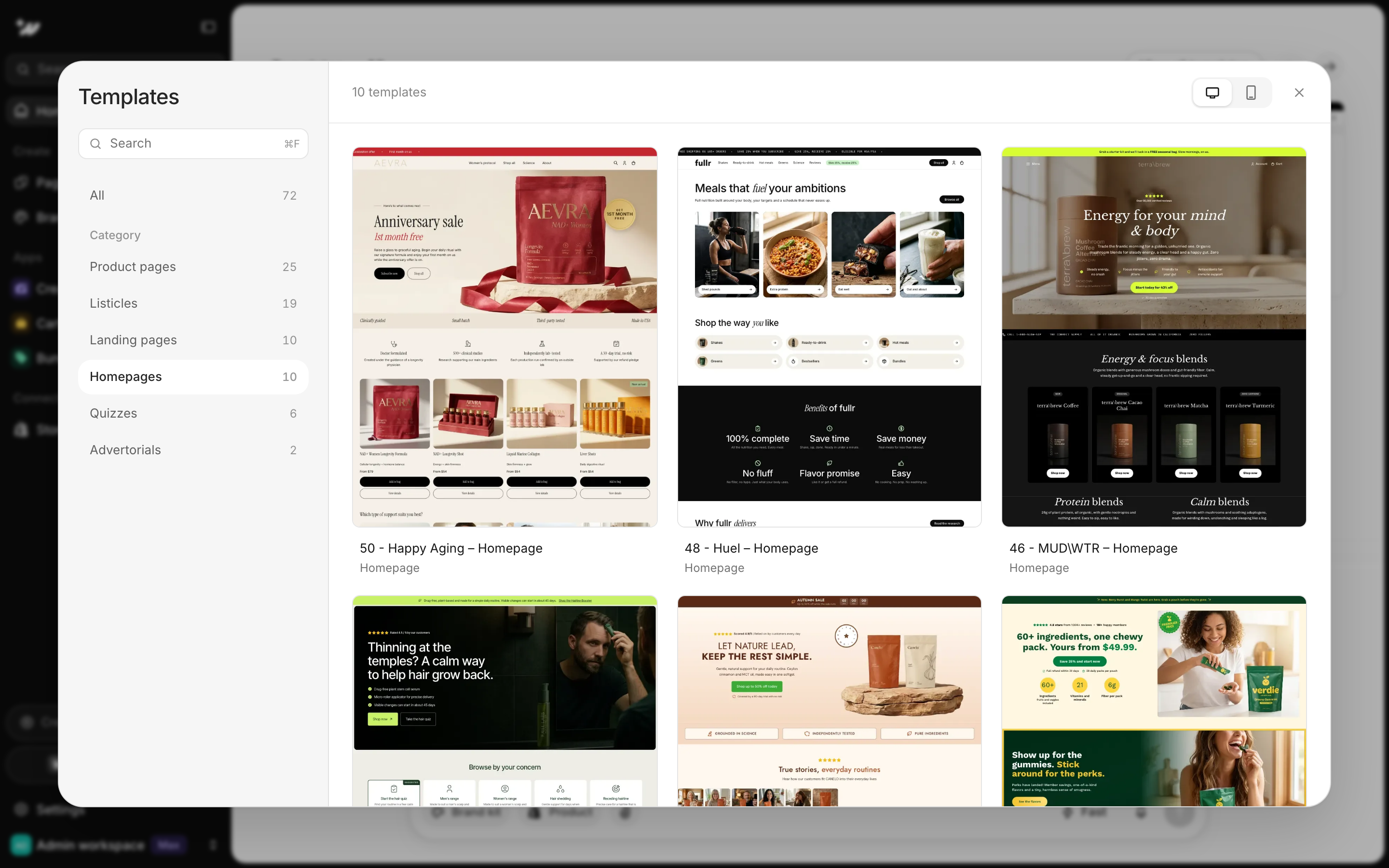
Templates come in six categories: Product pages, Listicles, Landing pages, Homepages, Quizzes and Advertorials.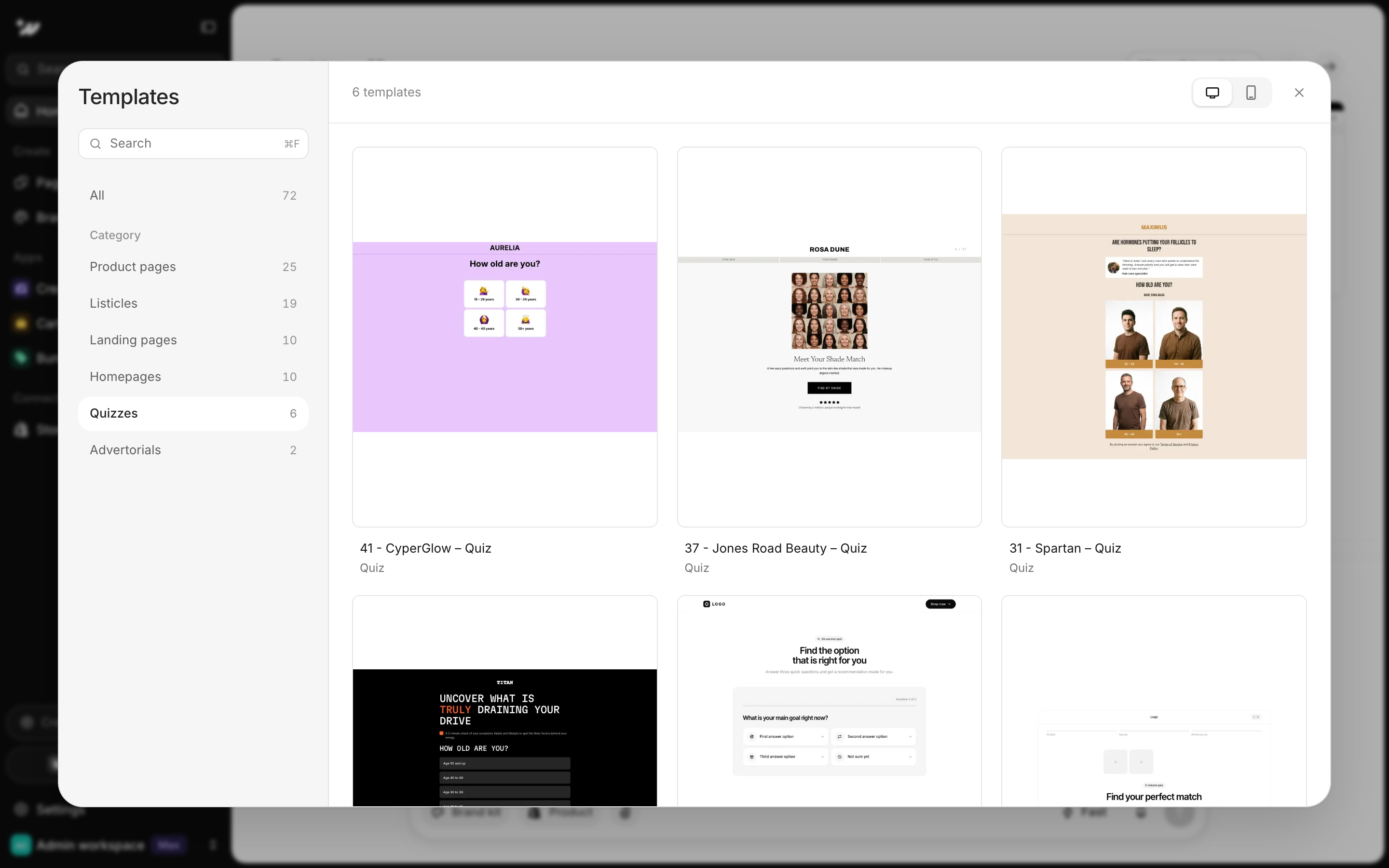
1
Open the templates
On the home screen, scroll to the Templates strip under the prompt box. Filter by category, use the arrows, or click View all templates.
2
Search and filter
In the Templates window, use Search (⌘F) or pick a category in the sidebar. Switch the preview between Desktop and Mobile.
3
Preview a template
Hover a card to scroll its preview. Click the card or the eye icon to open the full page in a new tab.
Use a template from home
1
Attach it
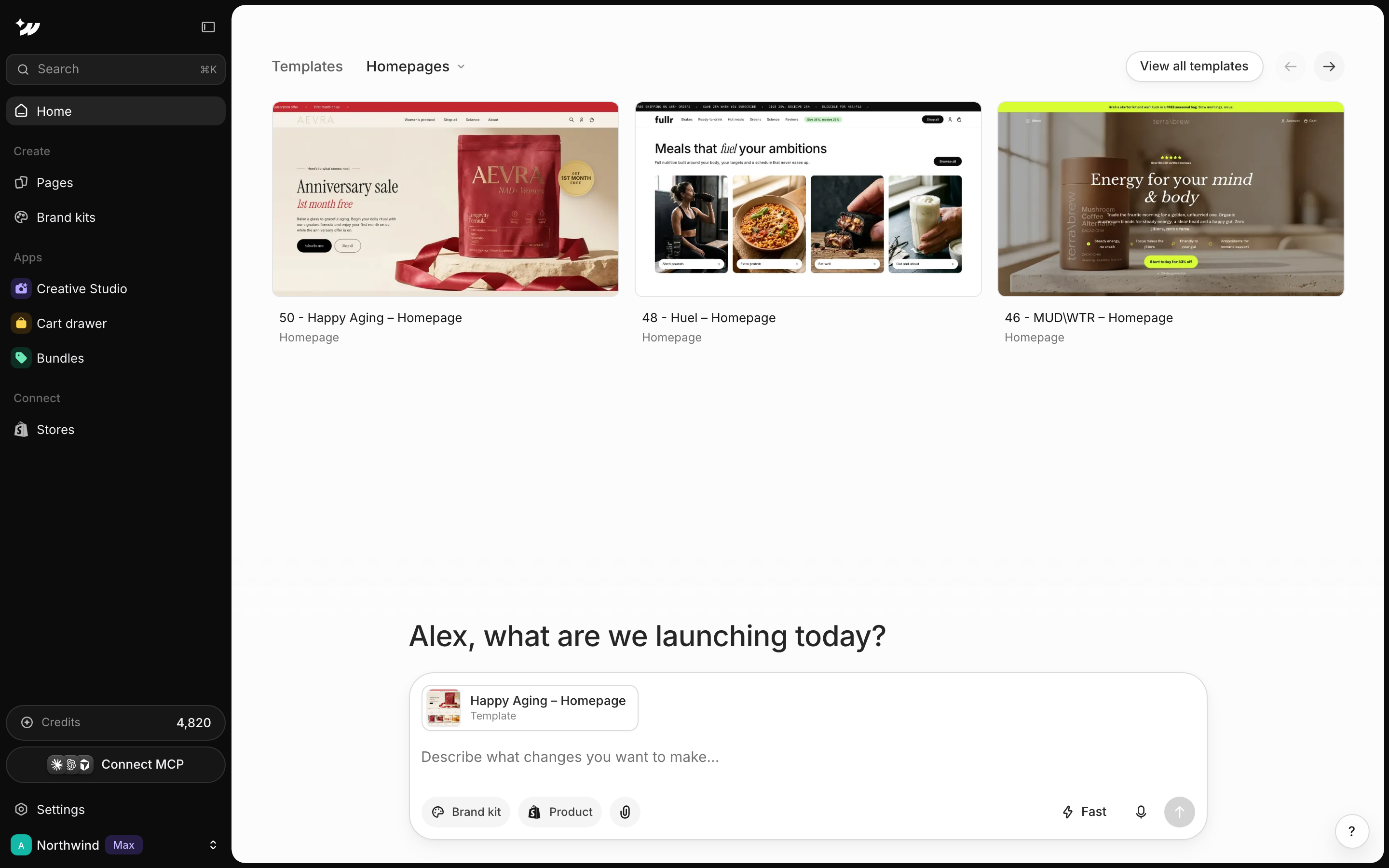
Click Use template. The template is attached to the prompt box as a Template chip and the page type is set for you.
2
Describe your product
Tell the AI what changes you want. You can attach product photos too.
3
Choose a style
Leave Keep template style on or turn it off, then send.
Keep template style
With Keep template style on, you don’t need to pick a brand kit. The page gets its own copy of the template’s design, named after your latest brand kit.


