

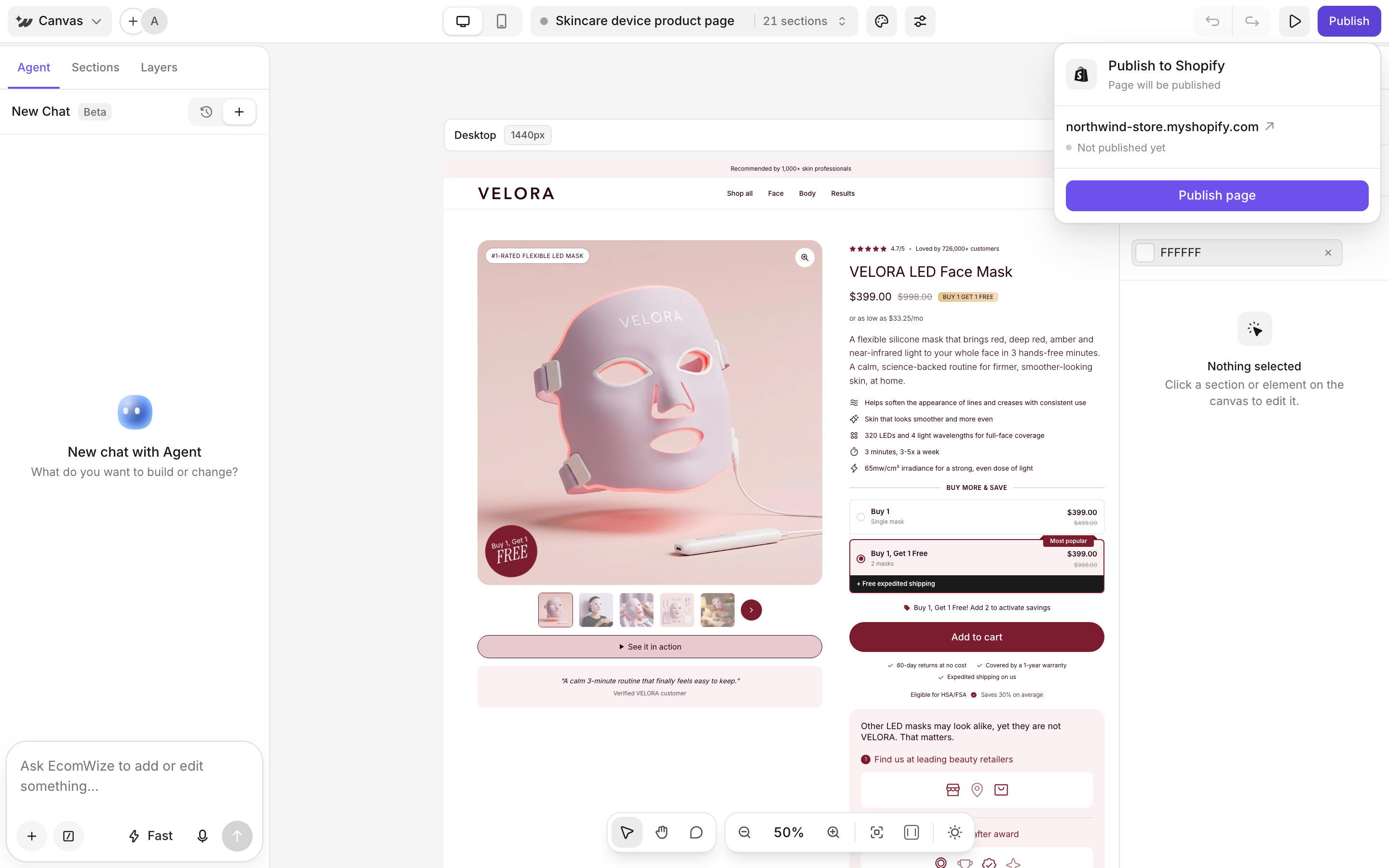
Publish a page
1
Click Publish
In the top bar, click Publish. The Publish to Shopify dialog opens.
2
Follow the button
The main button tells you what is missing. It can read Upgrade to Publish (Free plan), Connect Store, Select Store, Select Product & Publish or Publish page.
3
Wait for it to go live
You see Publishing to Shopify, then Your page is live with View live page and Copy link.
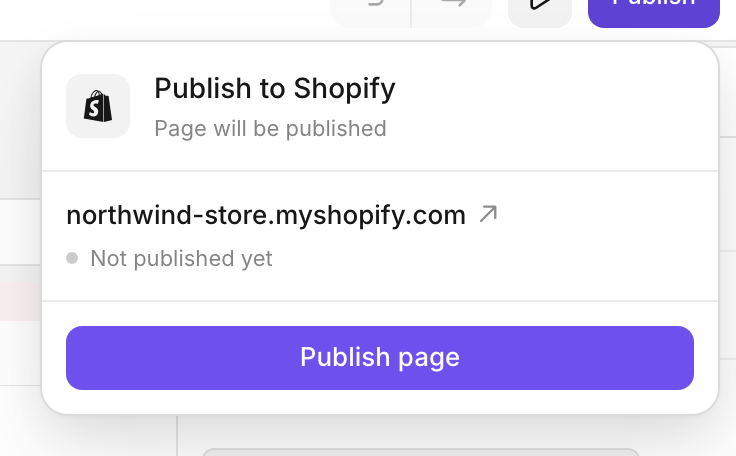
Update a published page
Once a page is live, the top bar button reads Update. Make your edits, click Update, then Update page. The dialog also shows Open theme editor, View live page and when the page was last published. If Edit content in Shopify is on, open Advanced options and turn on Overwrite content edited in Shopify to replace edits made in the theme editor.Publishing limits by plan
Updating a page that is already published does not count toward the limit. See Plans.


