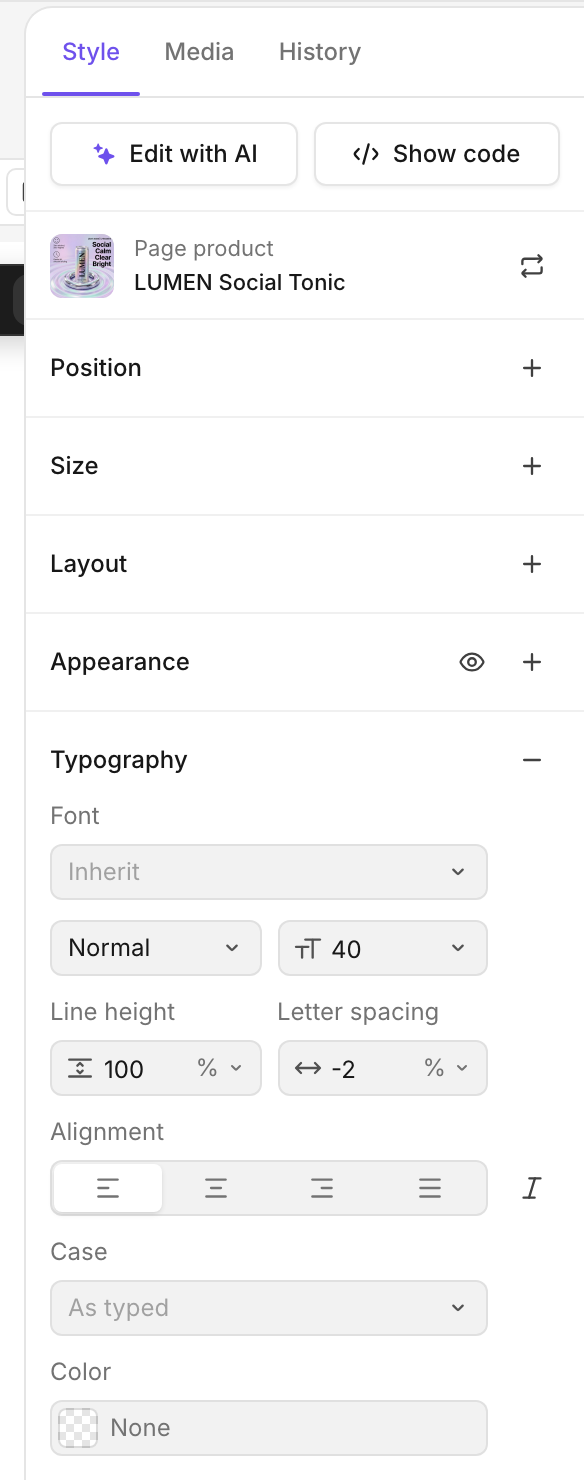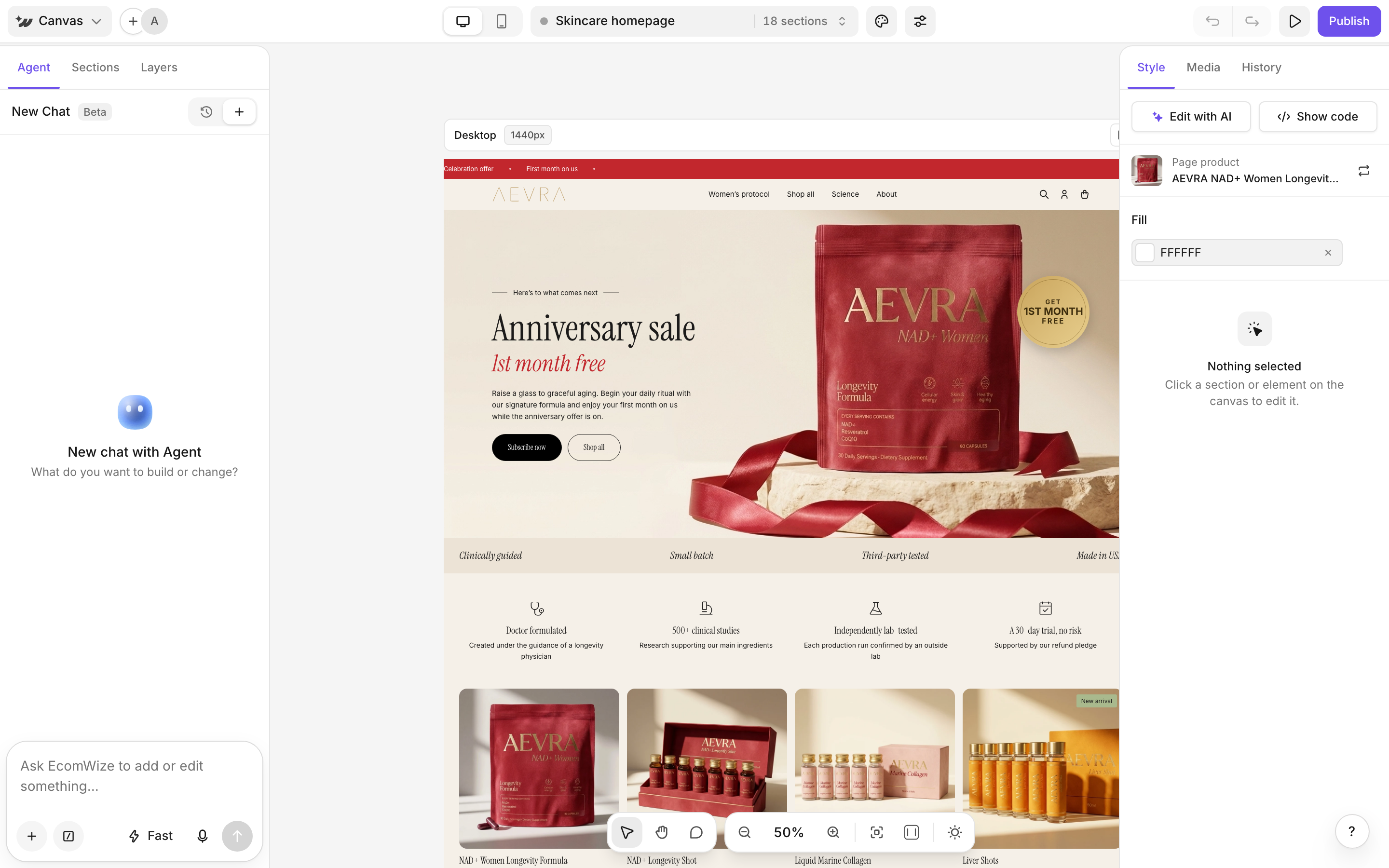
Top bar
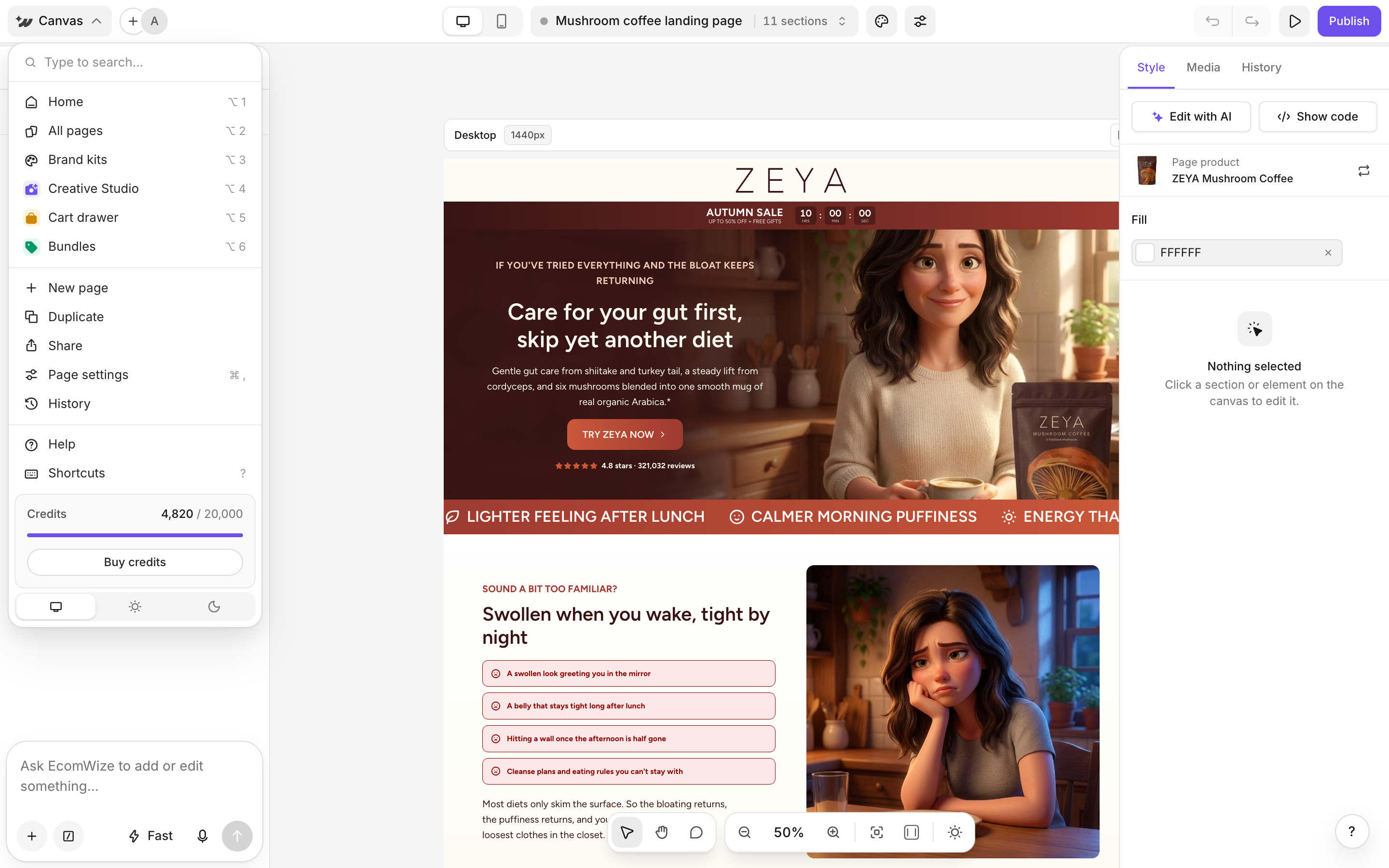
- Canvas menu (the logo): search, jump to Home, All pages, Brand kits, Creative Studio, Cart drawer and Bundles, plus New page, Duplicate, Share, Page settings, History, Help and Shortcuts. It also shows your credits and the light or dark theme.
- Invite and share (the + next to your avatar): invite teammates and copy the page link. See Sharing and comments.
- Desktop view and Mobile view toggle.
- Page selector in the center: a status dot (green for Published, grey for Draft), the page title and its section count. Use it to switch stores, workspaces and pages.
- Brand kit (palette icon), Page settings (sliders icon) and View live page (globe) once the page is live. See Page settings.
- Undo, Redo, Preview and Publish (it reads Update once the page is published). See Publishing.
Left sidebar
- Agent: chat with AI to add or edit sections, text, styles and images. See The AI agent.
- Sections: browse and add ready-made sections. See Sections and layers.
- Layers: reorder sections and pick elements from a tree.
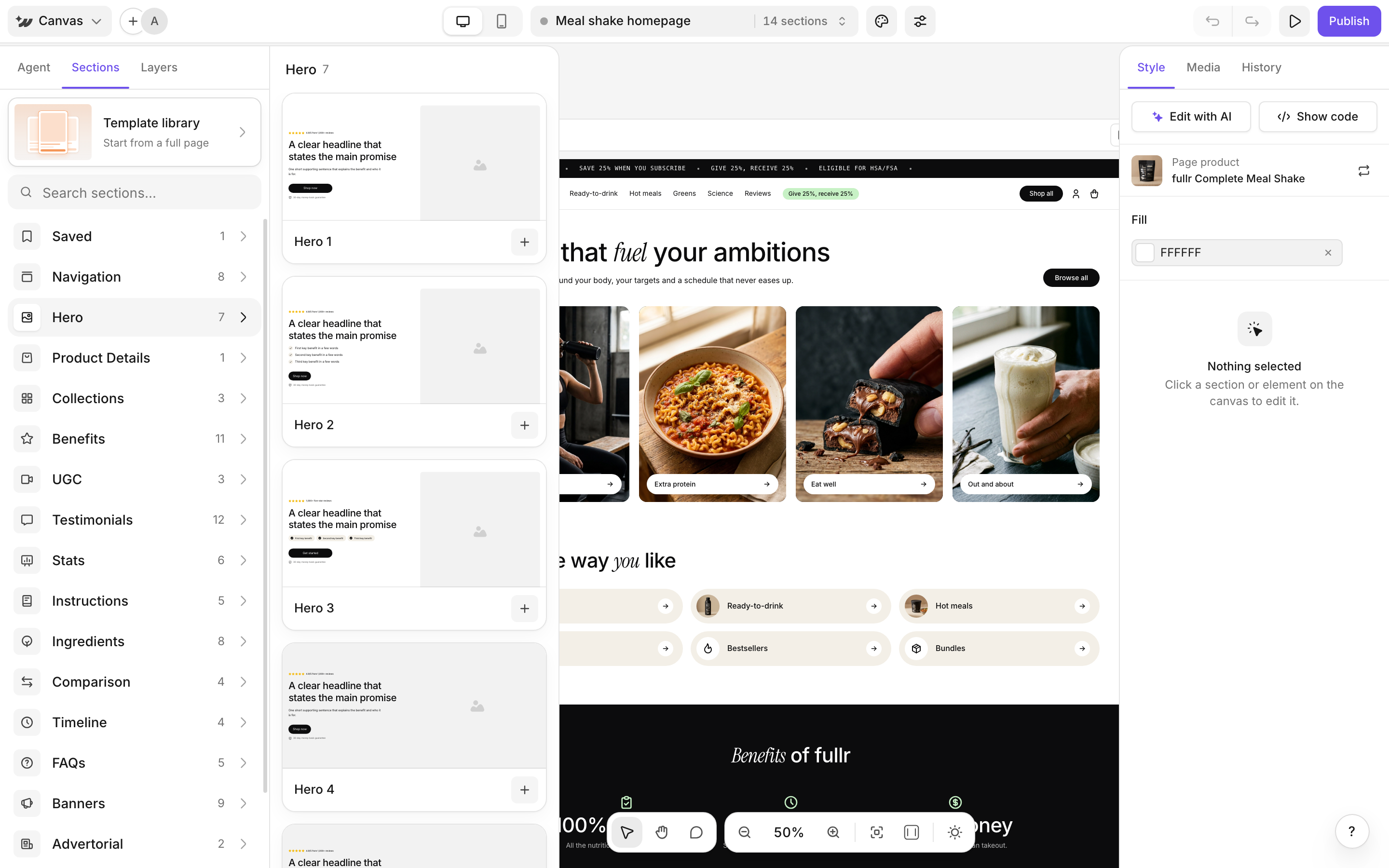
Canvas
Click any section or element to select it, and double-click text to edit it. See Edit on the canvas. The bottom toolbar has Select (V), Pan (H or hold Space), Comment (C), zoom out, zoom in, the zoom percentage and fit to screen.Right panel
- Style: page background and element controls. See Style panel.
- Media: upload files and pick AI generated images. See Media.
- History: save, preview and restore versions. See History.