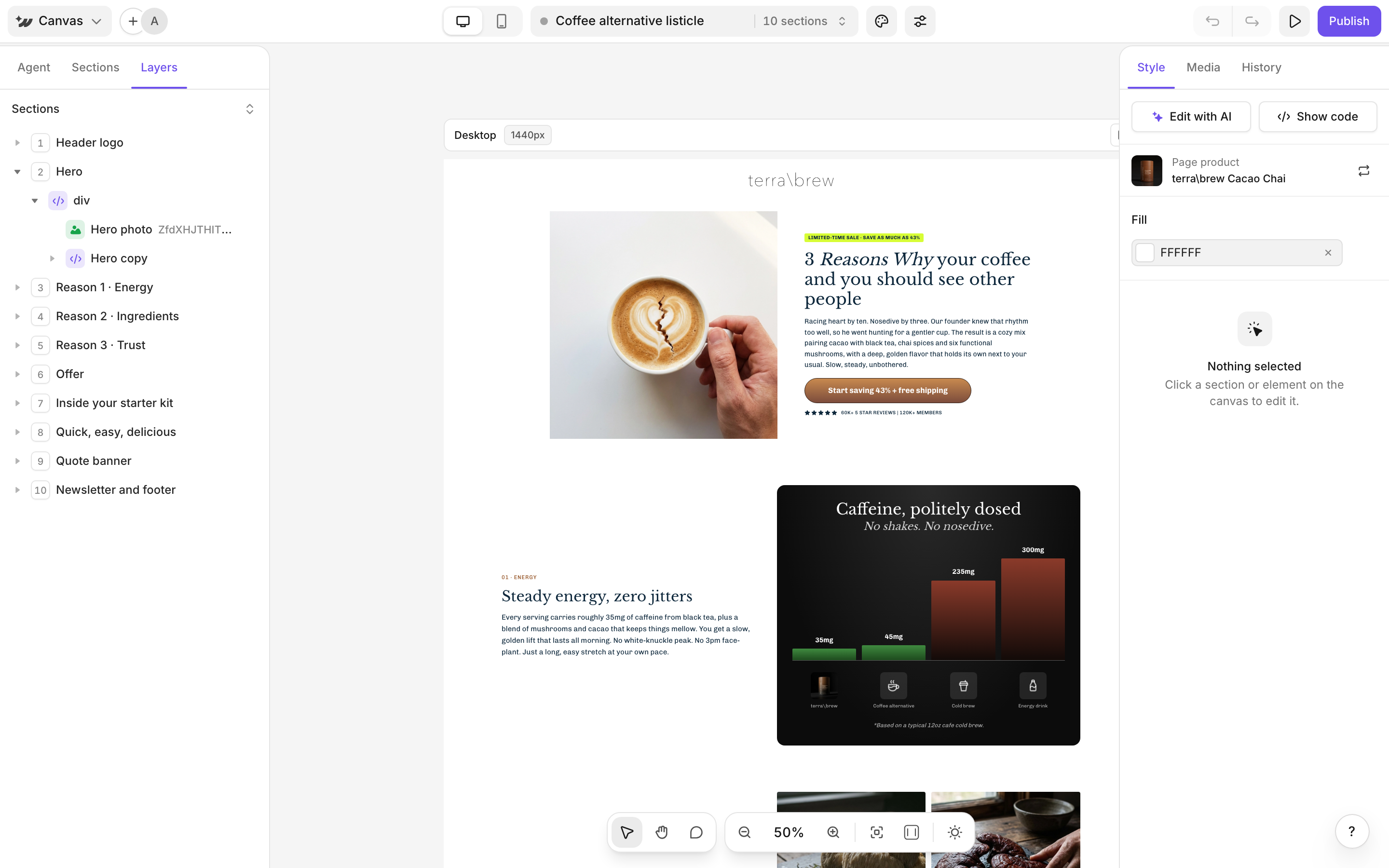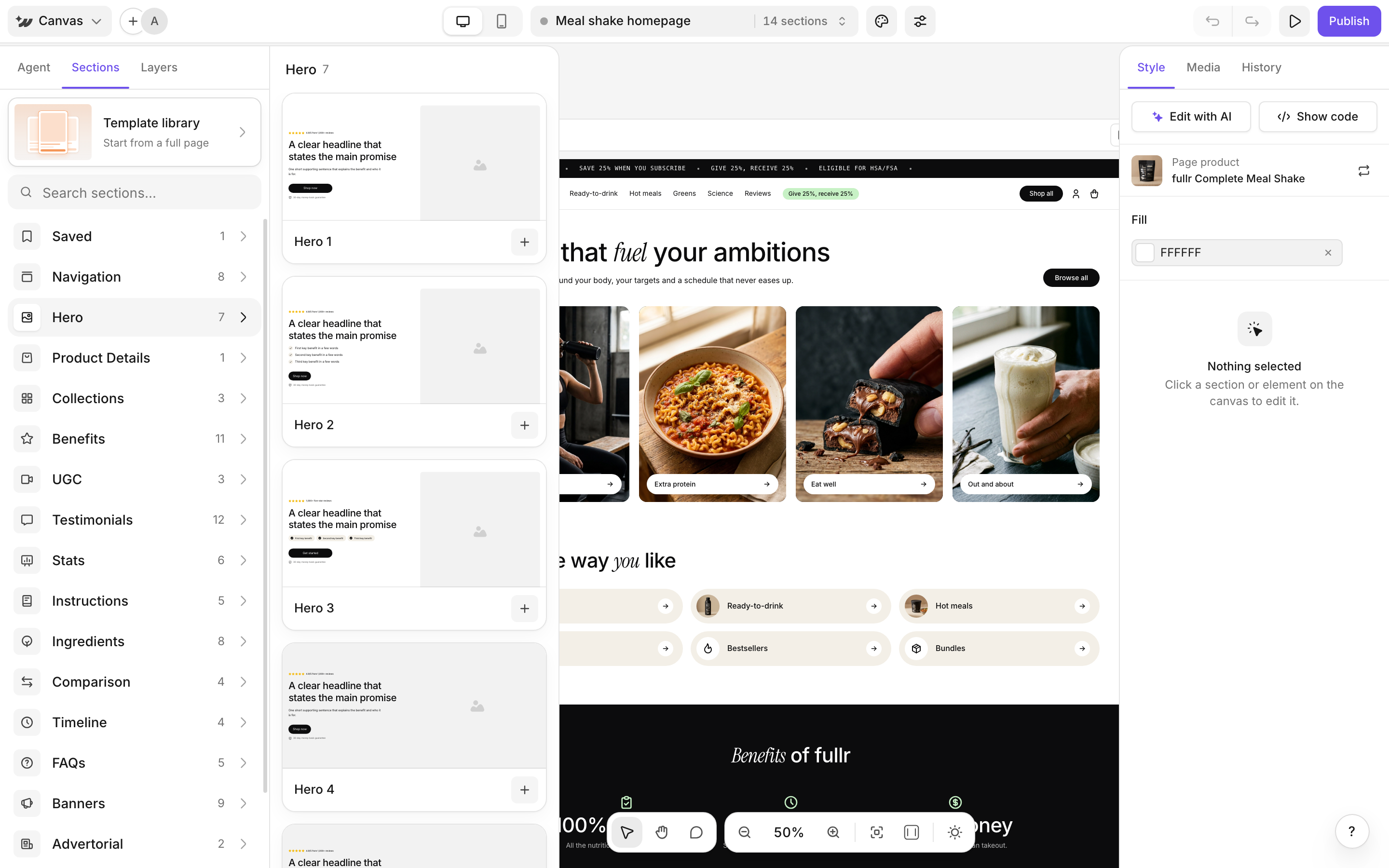
Pages are built from sections. Add them from the Sections tab and organize them in the Layers tab, both in the left sidebar.
The Sections tab with categories and section previews

Add a section

1

Open the Sections tab

In the left sidebar, click Sections.
2

Find a section

Type in Search sections… or browse the categories, such as Navigation, Hero, Product Details, Benefits, Testimonials, FAQs and more. Hover a category to preview its sections.
3

Add it

Click a card to add the section to your page.
The Template library row at the top opens the templates. See Templates.

Save and reuse your own sections

To keep a section you styled, hover it on the canvas and click Save to my sections. You can also use the section menu in the Layers tab. Your saved sections appear in the Saved category of the Sections tab, ready to add to any page.

Reorder sections in Layers

The Layers tab showing sections and their elements
Click Layers in the left sidebar. Drag a section up or down to move it on the page. Expand a section to see its elements and click one to select it on the canvas. The section menu has Duplicate, Save to my sections and Delete.

Add alt text to an image

Open the element menu on an image layer and choose Alt text. Alt text describes the image for screen readers and search engines. The element menu also has Duplicate and Delete.
You can also ask the agent to add, remove or reorder sections for you.

Edit on the canvas

Templates

The AI agent