

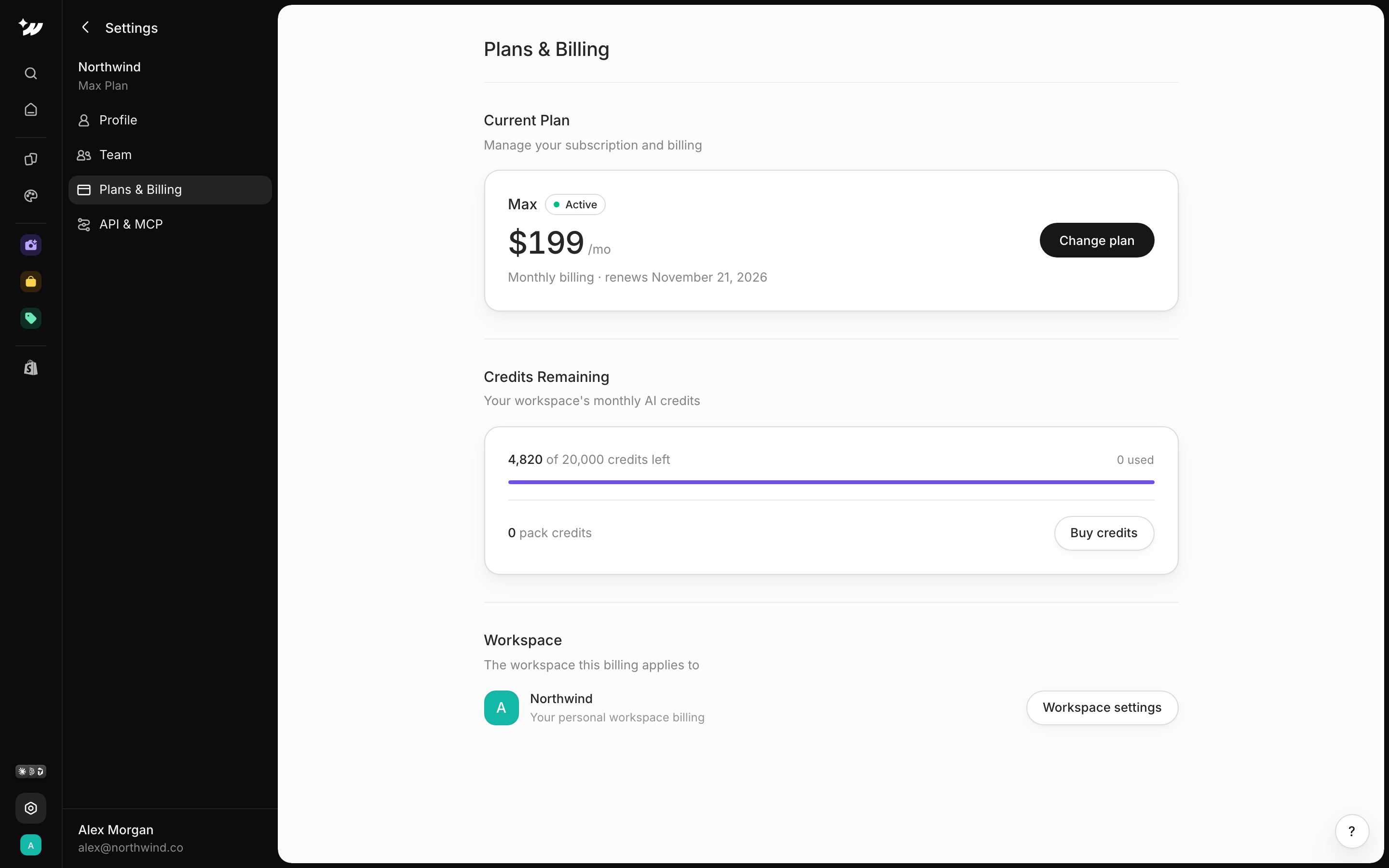
Upgrade or change plan
1
Open billing
Go to Settings > Plans & Billing. The Current Plan card shows your plan as Active or Canceling.
2
Pick a plan
Click Upgrade or Change plan. Use the Monthly and Yearly toggle to choose a billing period.
3
Confirm
Confirm the change. If you pay through Shopify billing, approve the charge on Shopify’s screen.
Update your card and get invoices
If you pay by card, click Manage billing to open the billing portal. There you can update your card and see invoices. Each invoice has View invoice and Download PDF.Downgrade or cancel
When you downgrade or cancel, your plan stays active until the end of the billing period. Then it moves to the new plan, or to Free if you canceled. Canceling asks you for a reason. Card accounts may see a retention offer.Fix a failed payment
If a payment fails, a window says Your payment didn’t go through. It blocks the app until you choose one:- Update payment method
- Switch to Free
Only the workspace owner can upgrade, change plan, cancel or update payment.
Related

Plans
Compare plans and prices.

Credits
Monthly credits and packs.

Workspaces
Owners and members.