

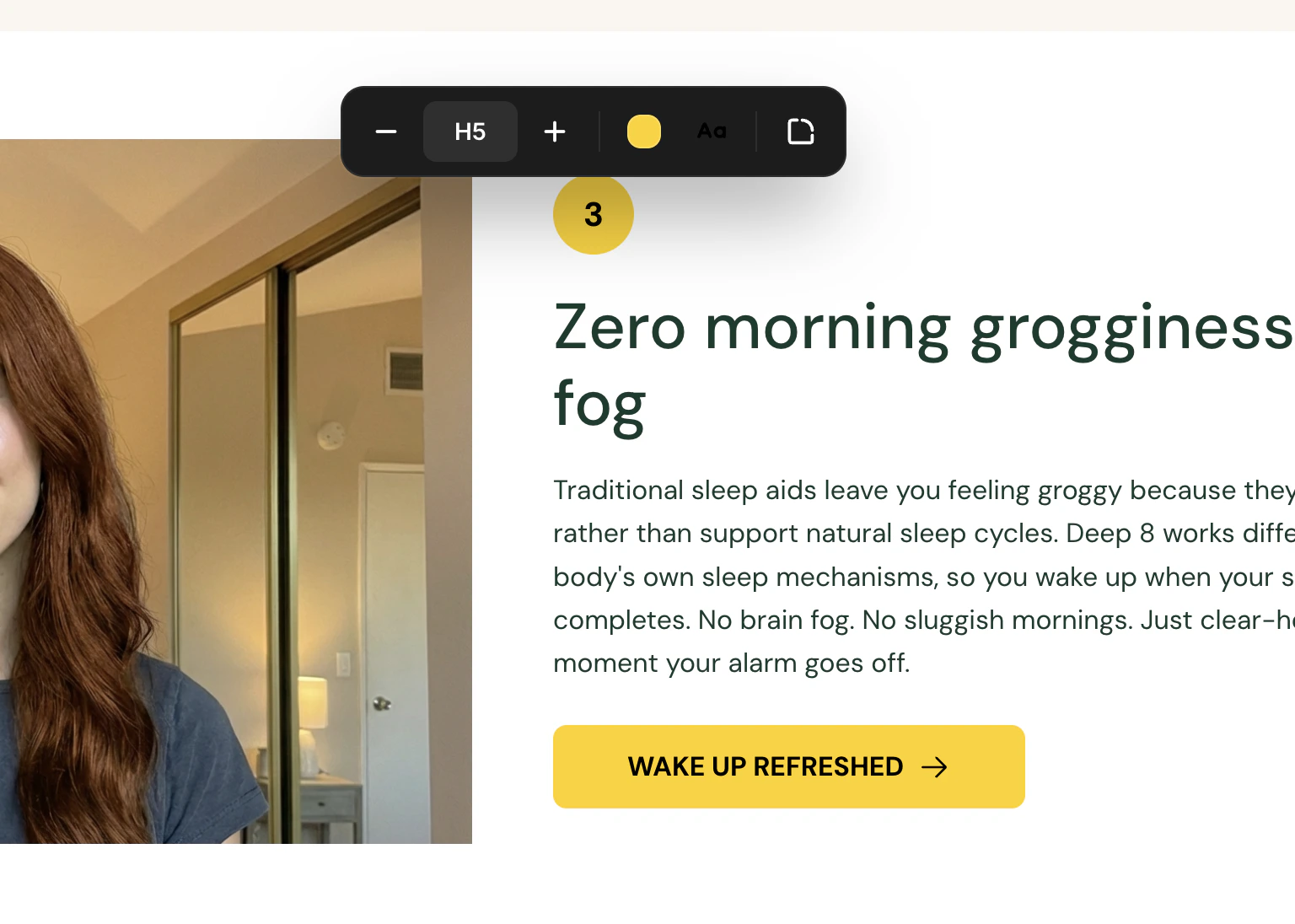
The tag toolbar showing size controls for a tag element.
Opening the Toolbar
Click on any tag element in the canvas. The toolbar appears above the tag, centered horizontally. It slides in with a smooth animation.The toolbar closes when you click outside of it. All changes are applied instantly as you make them.
Toolbar Controls
Text Size
The left side of the toolbar contains text size controls, identical to the heading size system:- Minus (-) — Decrease size one level down
- Size dropdown — Shows the current level (H1-H6, P1-P3). Click to see all nine options and select one.
- Plus (+) — Increase size one level up
Background Color
Click the colored square button to open the background color picker. This changes the fill color behind the tag text.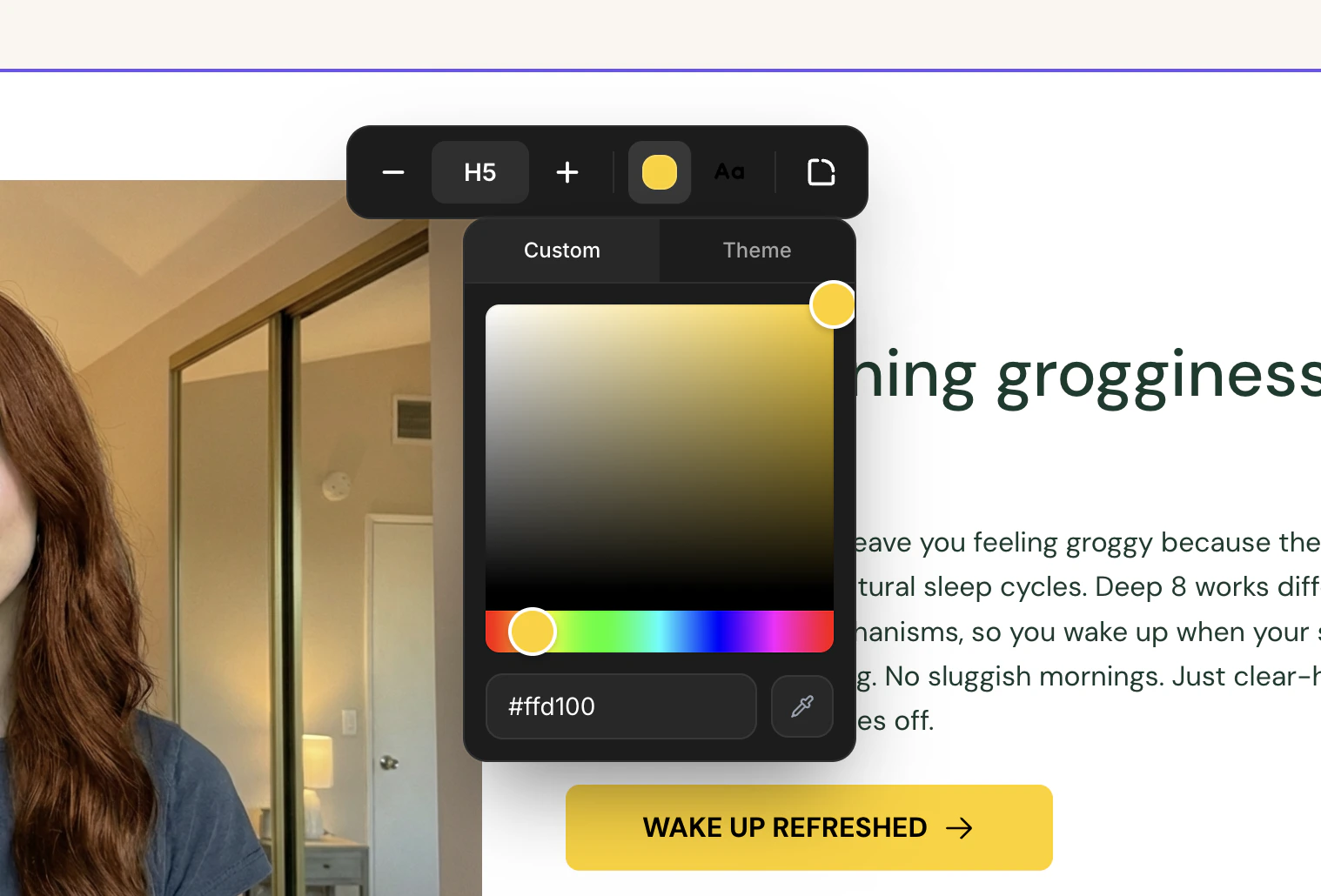
The tag toolbar with the color picker open.
Custom tab
Custom tab
- Full color picker with saturation/brightness selector and hue slider
- Hex color input field for precise color values
- Eyedropper tool to pick colors from anywhere on your screen
Theme tab
Theme tab
Quick-access swatches from your brand style:
- Brand colors — Primary, secondary, and tertiary
- Background colors — Primary and secondary background colors
Text Color
Click the “A” icon button (showing the current text color) to open the text color picker. This changes the color of the text within the tag. The text color picker has the same two tabs as the background picker, with swatches organized into:- Brand colors — Primary, secondary, and tertiary
- Text colors — Headline and body text colors
- Button colors — Button, button hover, and button text colors
Border Radius
Click the rounded corner icon button to open the border radius dropdown. This controls how rounded the tag’s corners are:Color Workflow Tips
Maintaining contrast
Maintaining contrast
Always ensure sufficient contrast between the tag’s background and text colors. A dark background with light text (or vice versa) makes tags readable at small sizes.
Using brand colors
Using brand colors
Switch to the “Theme” tab in the color picker to use your brand style colors. This keeps tags visually consistent with the rest of your page.
Matching across sections
Matching across sections
If you use tags in multiple sections, use the same color combination for consistency. The hex input field helps you apply exact color values across different tags.