

Supported Formats
Images
Videos
Raster images (JPEG, PNG, GIF, WebP) are automatically converted to WebP format during upload for optimized file sizes. SVGs and videos are uploaded in their original format.
File Size Limits
If you try to upload a file that exceeds the size limit, an error message will appear with the maximum allowed size.
How to Upload
From the Media Panel
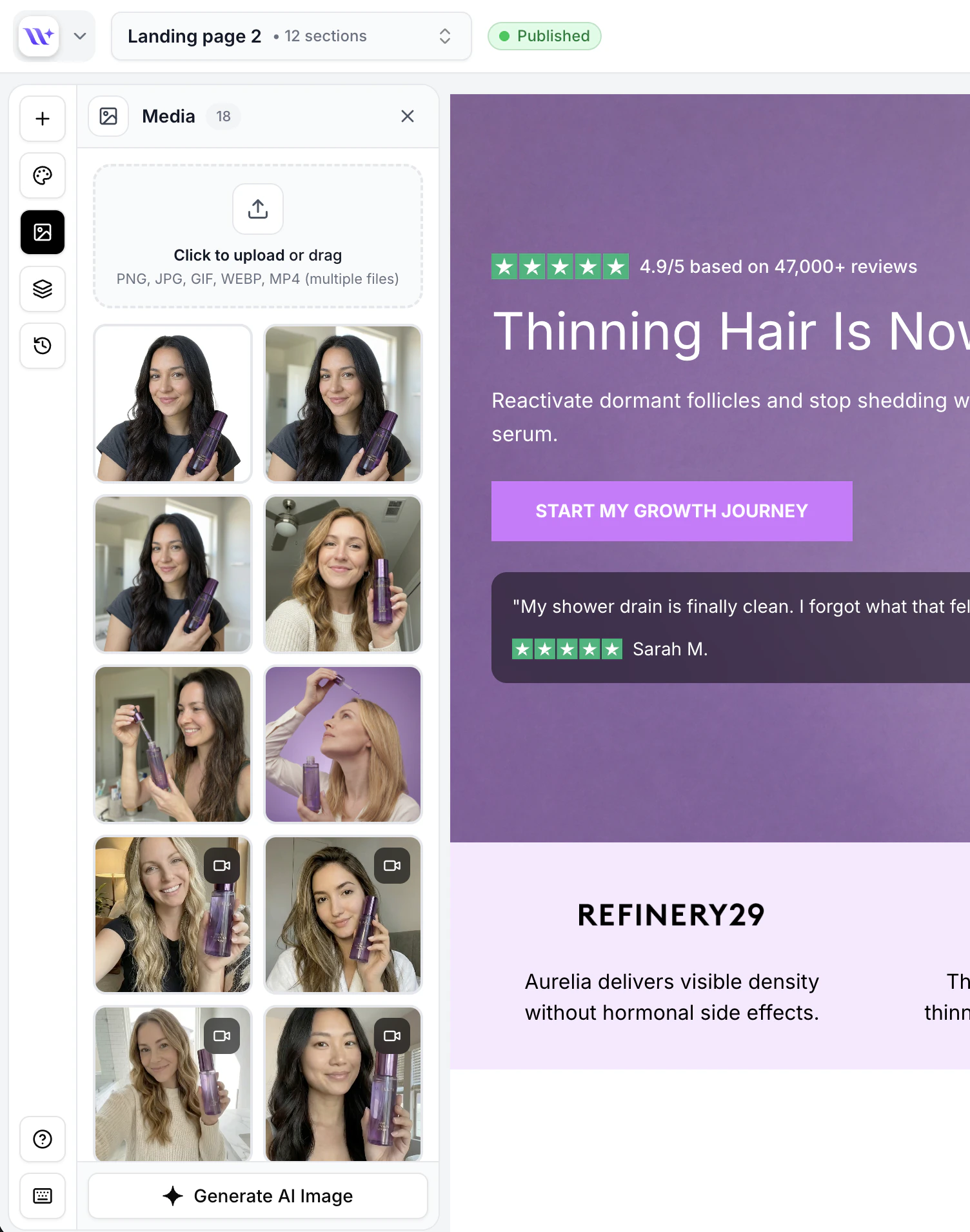
The Media Panel with upload area, image thumbnails, and Generate AI Image button.
1
Open the Media Panel
Click the media icon in the builder toolbar to open the Media Panel. It appears as a side panel showing your uploaded media library.
2
Click Upload
Click the Upload button at the top of the Media Panel.
3
Select your files
A file picker dialog will open. Select one or more files to upload. You can select multiple files at once.
4
Wait for upload
Each file shows an upload progress indicator. Once complete, the file appears in your media library.
Drag and Drop
You can also upload files by dragging them directly into the Media Panel:1
Open the Media Panel
Open the Media Panel from the builder toolbar.
2
Drag files
Drag one or more files from your computer’s file manager and drop them into the Media Panel area.
3
Drop to upload
When you drag files over the panel, a visual indicator appears confirming the drop zone. Release the files to start uploading.
From an Image Element
When clicking on an image element in a section, you can upload directly from the image toolbar:- Click on any image element in the canvas
- Click the upload icon in the image toolbar
- Select a file from the file picker
- The image is uploaded and immediately applied to the element
Upload Processing
When you upload a file, it is validated, optimized (raster images are converted to WebP for smaller file sizes), and added to your media library. The file is immediately available for use in any section.WebP Conversion
EcomWize automatically converts raster images to WebP format during upload. This provides several benefits:- Smaller file sizes — WebP typically produces files 25-35% smaller than JPEG and PNG at equivalent quality
- Faster page loads — Smaller images mean faster loading times for your published Shopify pages
- No quality loss — Conversion uses 100% quality setting, so there is no visible degradation
SVG files are not converted to WebP since they are already vector-based and resolution-independent. Video files (MP4) are also uploaded in their original format.
Frequently Asked Questions
Can I upload files larger than the size limit?
Can I upload files larger than the size limit?
No. The 5 MB image limit and 10 MB video limit are strictly enforced. Files exceeding these limits will be rejected with an error message. Compress your files before uploading if they are too large.
Can I upload multiple files at once?
Can I upload multiple files at once?
Yes. Both the file picker and drag-and-drop support multiple file selection. Each file is uploaded independently, and progress is tracked per file.
Where are my files stored?
Where are my files stored?
Files are stored on a global CDN. This ensures fast delivery regardless of where your website visitors are located.