

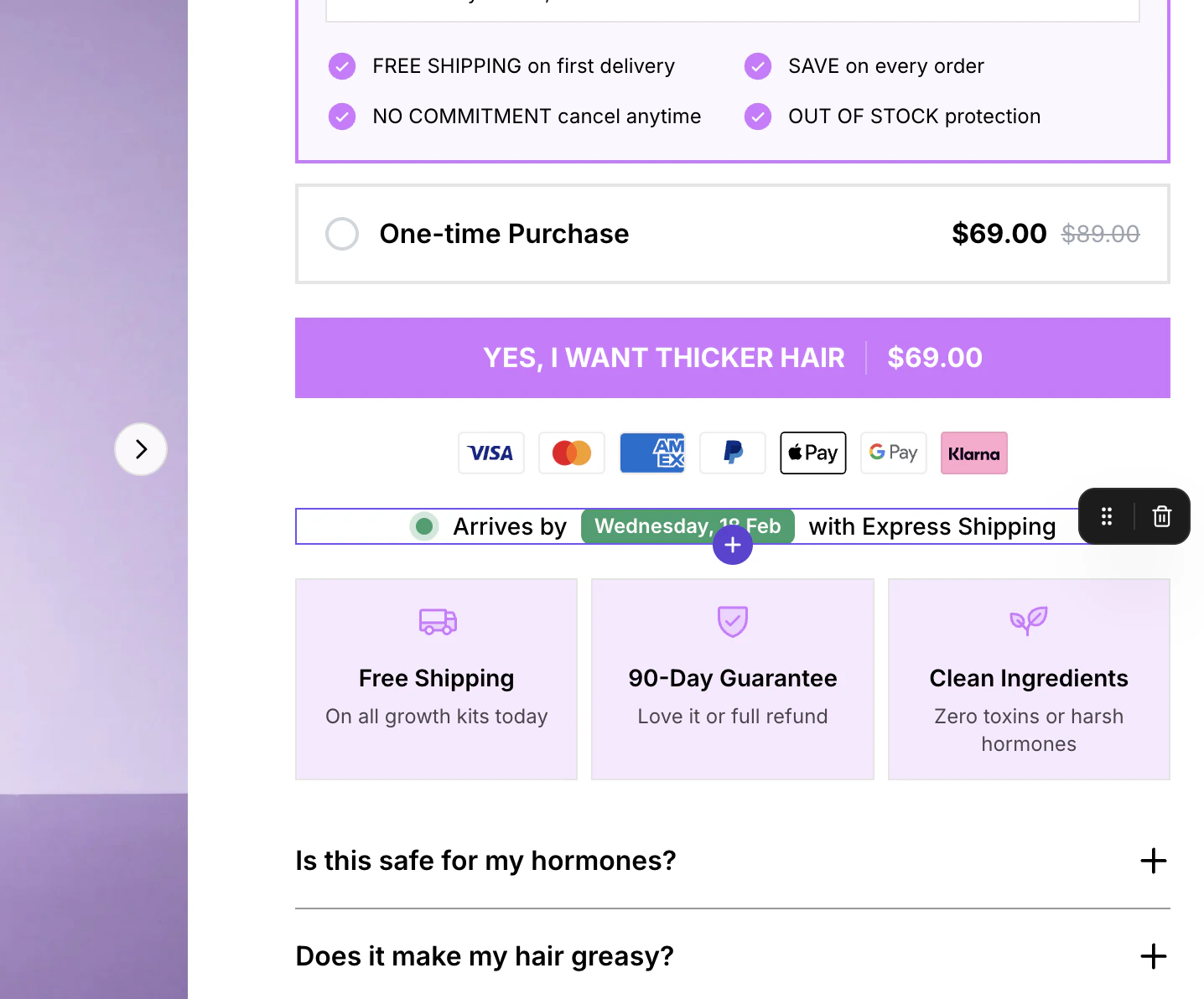
A product section with snippets for pricing, shipping badges, payment icons, and FAQ.
How Product Sections Work
A product section is a composable container that you build by adding snippets — small, modular components that each display a specific piece of product information. You choose which snippets to include, arrange their order, and configure each one individually.1
Add a Product section
Open the sections panel and select the Product Details category. Click the Product section to add it to your canvas.
2
Link a Shopify product
In the Section Settings panel (right sidebar), use the product dropdown to search and select a product from your connected Shopify store. The section will pull in that product’s data automatically.
3
Add and arrange snippets
Click the Add Snippet button within the product section to browse and add individual snippets. Each snippet you add displays a different piece of product data or a custom element.
4
Configure the section
Select the product section to open the Section Settings panel. Settings for the entire section — including snippet-specific options like add to cart behavior and reviews provider — appear in this panel. Text, images, and icons within snippets are edited inline on the canvas.
Linking a Shopify Product
Before a product section can display real data, you need to link it to a Shopify product:- Select the product section on the canvas.
- In the Section Settings panel (right sidebar), you will see a Product dropdown at the top.
- Click the dropdown and search for your product by name.
- Select the product. Data from Shopify (title, price, images, variants, etc.) is fetched and applied to all relevant snippets.
The product you link is the page product. It applies to all product sections on the page. When you publish to Shopify, the published page always shows the latest information from your Shopify store.
Available Product Snippets
EcomWize offers a wide range of product snippets that you can mix and match within a product section. Here is a complete list:Core Product Information
Purchase Actions
Trust and Social Proof
Product Details
Status and Availability
Visual Elements
Adding Snippets to a Product Section
1
Select the product section
Click on the product section on your canvas.
2
Click Add Snippet
Look for the Add Snippet button within the product section. It typically appears at the bottom of the existing snippets.
3
Choose a snippet
Browse the available snippets and click one to add it to the product section.
4
Reorder snippets
Once added, drag snippets within the product section to rearrange their order. The order you set in the builder is the order they appear on the published page.
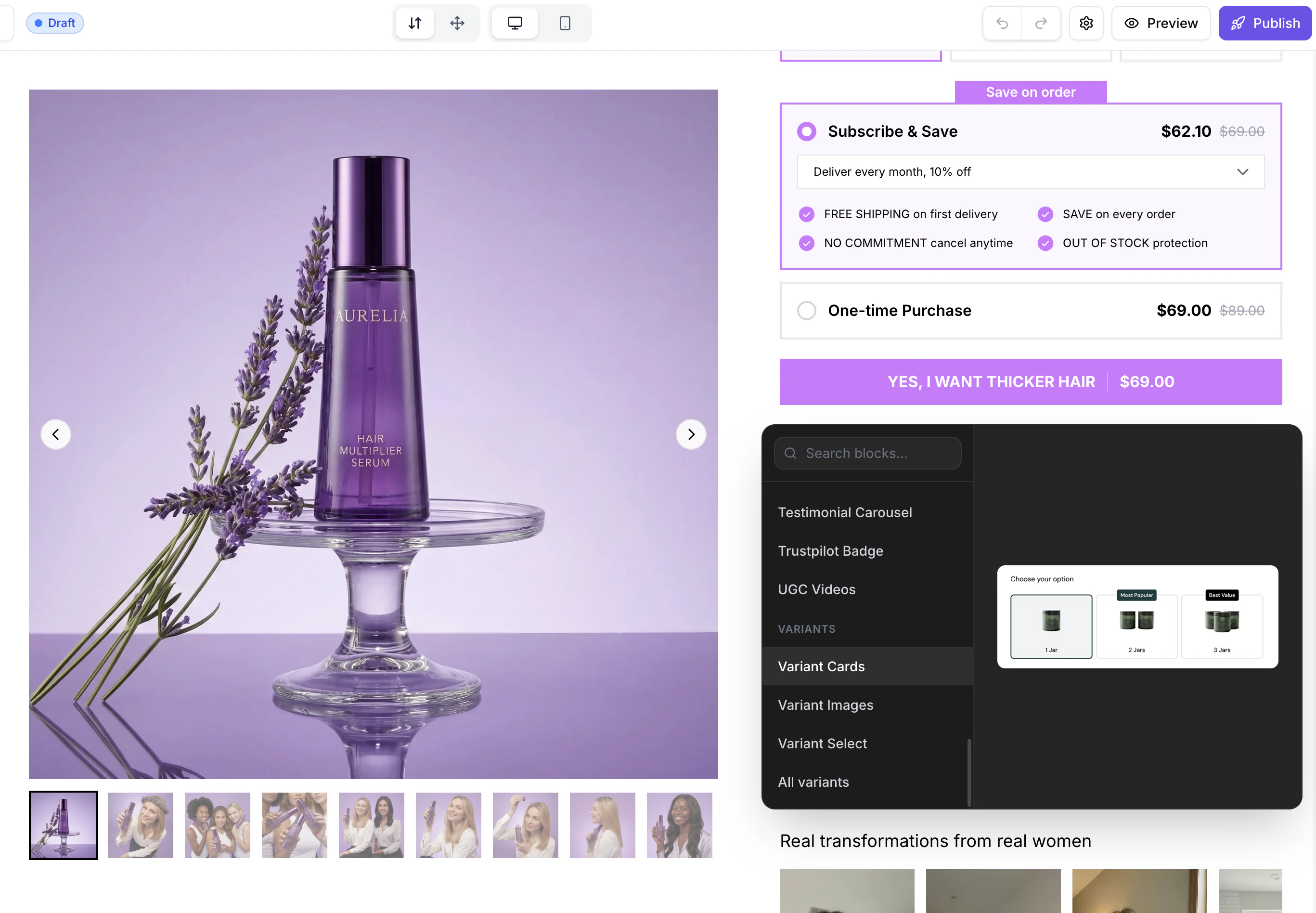
The snippets library dropdown showing available product snippets.
How Shopify Data Syncs
Product sections use dynamic data from your Shopify store. Here is how the syncing works:- In the builder: When you link a product, EcomWize fetches the product data from Shopify and displays it in the preview. This is a snapshot of the data at the time you linked the product.
- On the published page: The published page always shows the current data from your Shopify store — if you change a price or description in Shopify, the landing page updates automatically.
Product Section vs. Static Sections
Template Types and Product Data
When publishing your page to Shopify, the template type affects how product data is loaded:- Page template: Product data is fetched by product handle. Best for standalone landing pages.
- Product template: Product data comes from the current product context. Best when the landing page replaces or extends the default product page.