Step-by-step guide to connecting your Shopify store to EcomWize Builder.
To publish landing pages to your Shopify store, you need to connect it to EcomWize Builder. The connection process walks you through creating a custom app on Shopify and linking it to your EcomWize account.
The connection process uses 5 simple steps with video tutorials for each step.
1
Step 1: Enter your Shopify Store URL
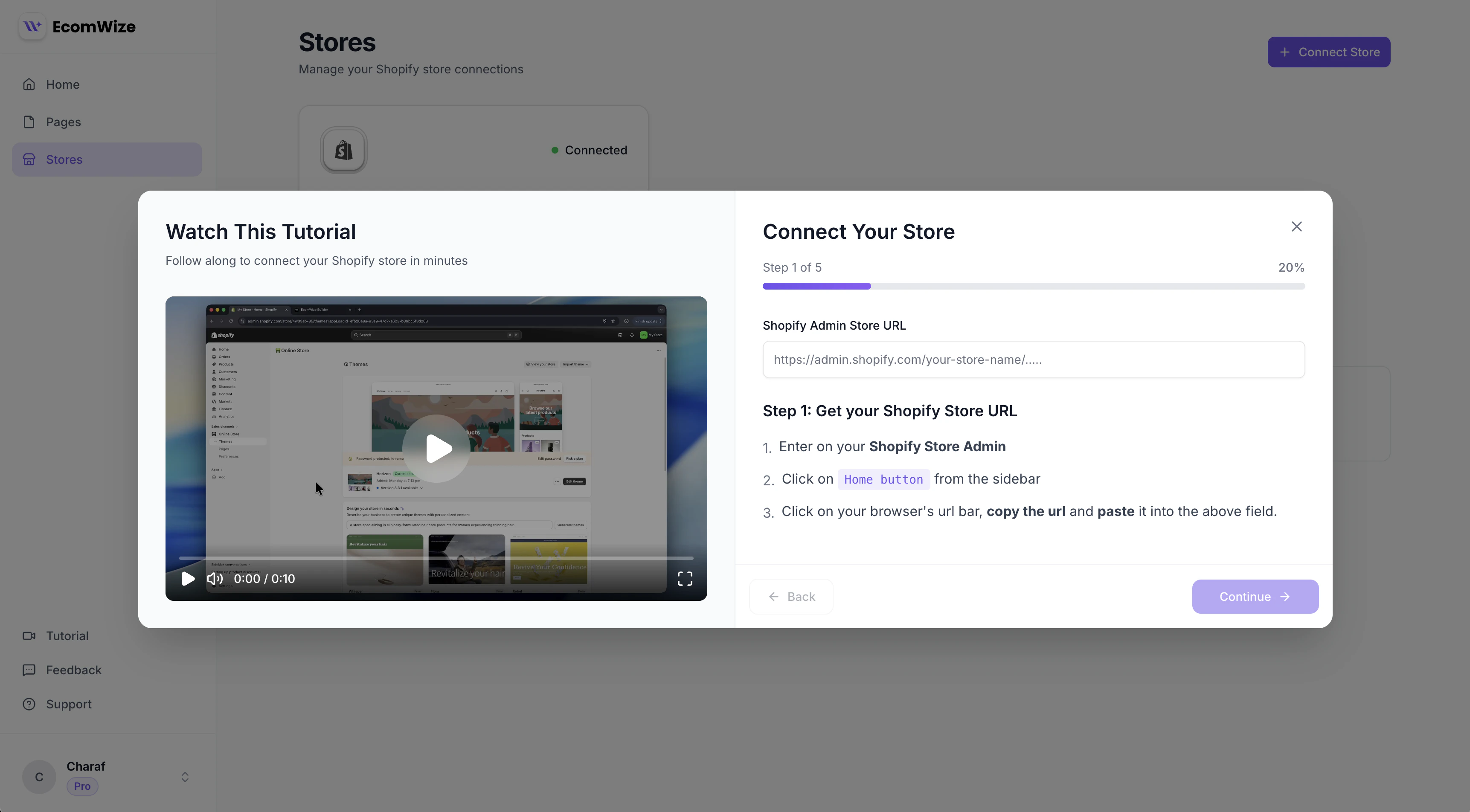
Go to the Stores page from your EcomWize dashboard. Click the Connect Store button.
The store connection wizard - Step 1: Enter your Shopify store URL.
Enter your Shopify admin store URL. You can paste it in either format:
https://admin.shopify.com/store/your-store-name
your-store.myshopify.com
To find this URL:
Go to your Shopify Store Admin
Click on the Home button from the sidebar
Click on your browser’s URL bar, copy the URL, and paste it into the field
EcomWize will automatically extract your shop domain from either format.
2
Step 2: Create App
Open the Shopify Dev Dashboard by visiting dev.shopify.com/dashboard and click the Create app button.
3
Step 3: Fill out the app details
Inside the opened modal/popup:
In the name field, enter: EcomWize
Click the Create button
In the App URL field, enter: https://app.ecomwize.io/
Uncheck the Embed app in Shopify admin checkbox
4
Step 4: Configure Access and Release
In the opened page:
Find the Access card
Check the Use legacy install flow checkbox
Complete the Redirect URLs field with the value shown in EcomWize (copy it using the copy button)
Make sure you check the Use legacy install flow checkbox and complete the Redirect URLs field. Otherwise you will not be able to connect your store.
Click the Release button located at the bottom right corner
In the opened modal/popup, leave the fields empty and click Release
5
Step 5: Enter Client ID and Secret
From the left sidebar, click on Settings — you will see the Client ID and Secret fields at the top of the page
Copy and paste both values into the corresponding fields in EcomWize
Click Connect Store to complete the connection
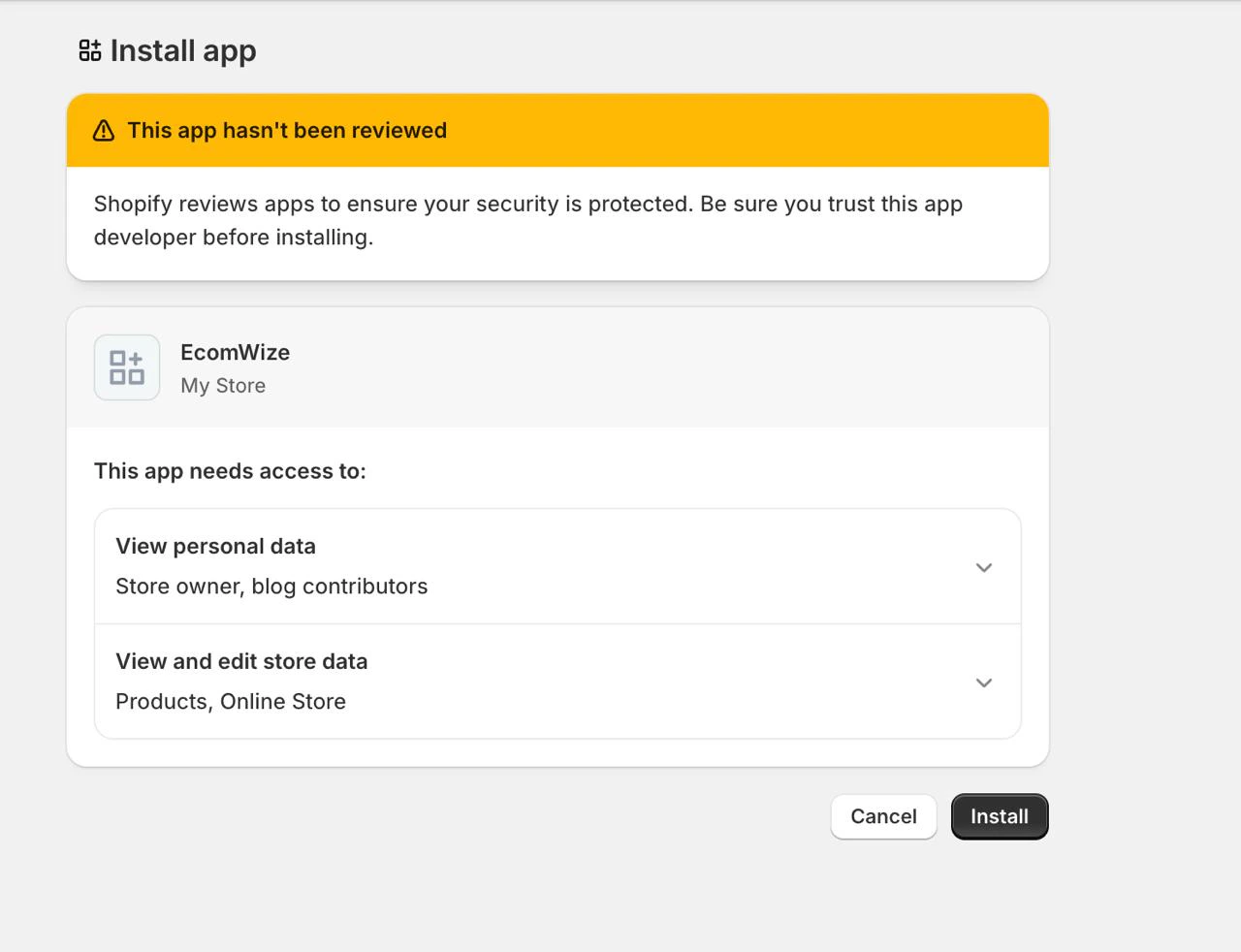
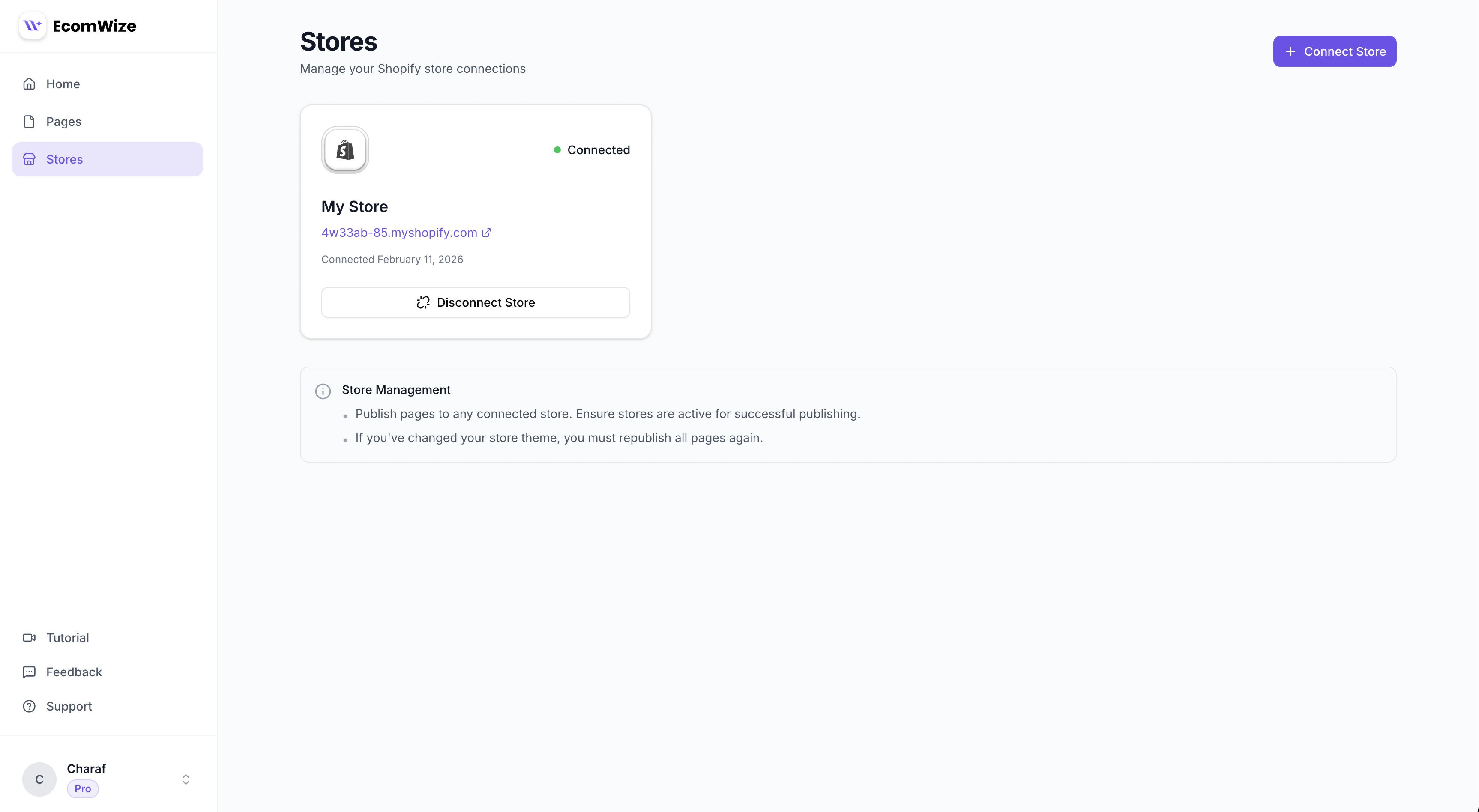
You will be redirected to Shopify to authorize the app. After approving the permissions, you will be redirected back to EcomWize with your store connected.
The Shopify app authorization screen for EcomWize.
Each step includes a video walkthrough. If you are unsure about any step, watch the video before proceeding.
Disconnecting a store does not unpublish any pages you have already published to that store. Published pages will remain live on Shopify until you manually remove them from Shopify’s theme editor or unpublish them before disconnecting.