

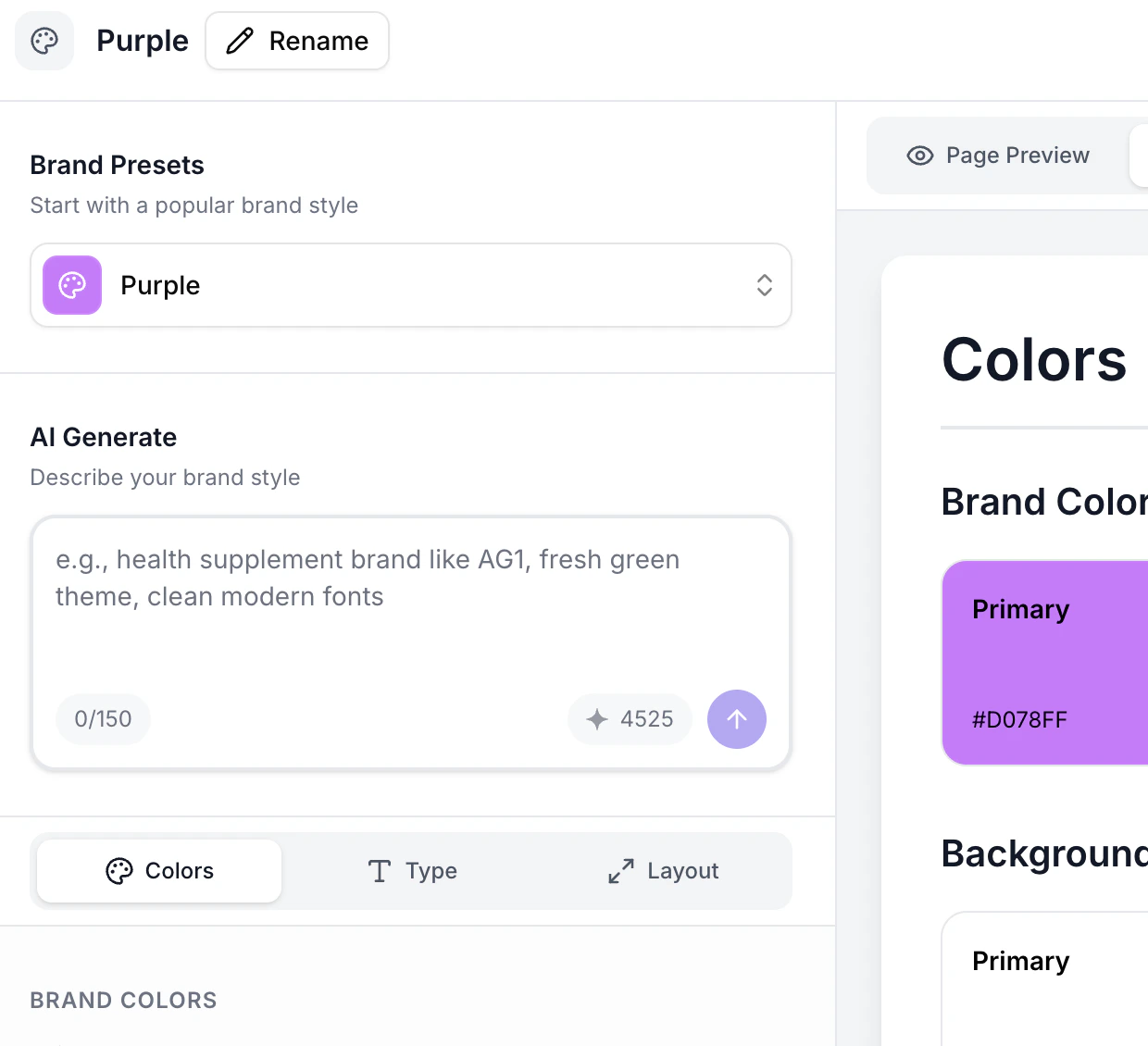
The Brand Style modal with colors, typography, and layout tabs.
What a Brand Style Includes
A brand style defines:- Typography — Heading font, body font, highlight font, font sizes for H1-H6 and paragraphs (desktop and mobile), font weights, text transforms, and line heights
- Colors — Primary, secondary, and tertiary brand colors, background colors, text colors, icon colors, and star colors
- Button styles — Button color, hover color, text color, border width, border color, border radius, and padding
- Layout — Max content width, horizontal and vertical padding (desktop and mobile)
- Spacing — Border radius for cards and containers, small radius, button radius
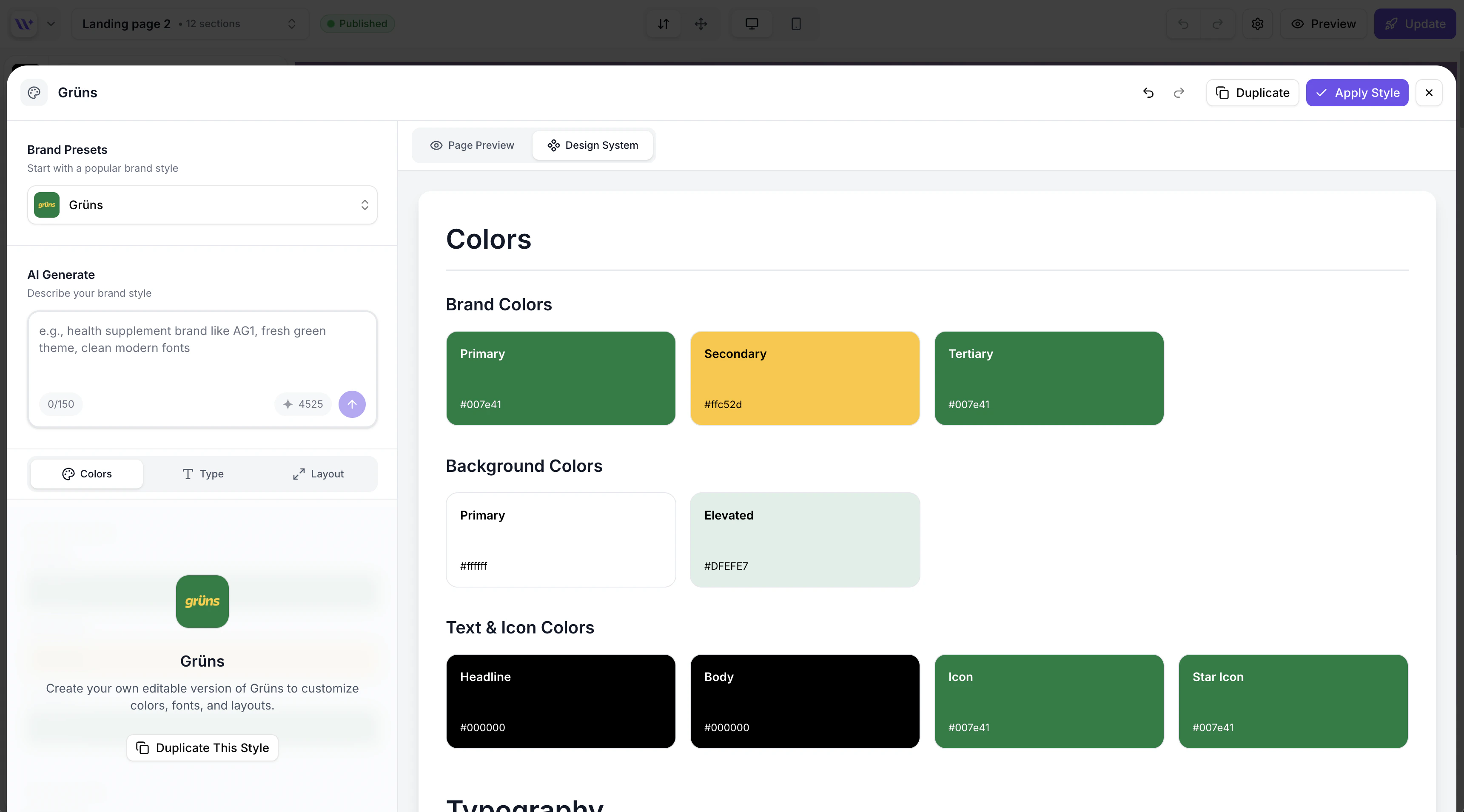
The Design System view showing all brand style properties at a glance.
Creating a New Brand Style
1
Open the Brand Style modal
From the dashboard, click Brand Styles in the navigation, then click Create Brand Style. You can also access brand style creation when creating a new page.
2
Name your brand style
Give your brand style a descriptive name (e.g., “Summer Campaign 2024” or “Main Brand”). Click the name at the top of the modal to edit it.
3
Configure your design properties
The Brand Style modal is organized into three tabs:
- Colors — Set your brand colors, background colors, text colors, button colors, and icon colors
- Typography — Choose fonts, font sizes, weights, and text transforms
- Spacing — Set layout widths, padding, and border radius values
4
Preview your changes
As you adjust properties, the live preview on the right side of the modal shows how your brand style looks applied to a sample section. Toggle between desktop and mobile preview to check both breakpoints.
5
Save your brand style
Click Save to store your brand style. It will appear in your brand styles library and can be applied to any page.
Using AI to Generate a Brand Style
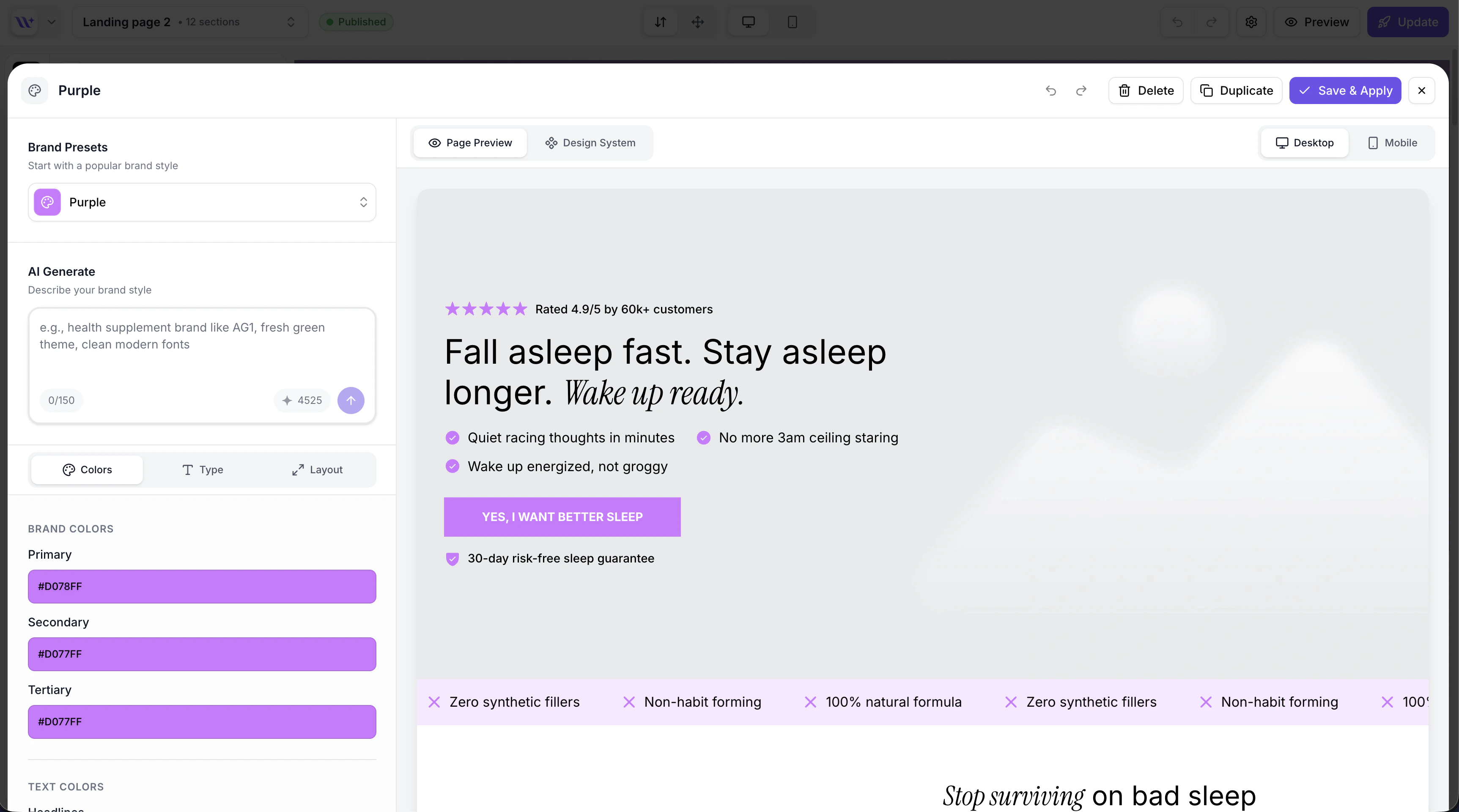
The Brand Style modal with AI generation, brand presets, and live page preview.
1
Open the AI generation field
In the Brand Style modal, look for the AI prompt input field with the sparkles icon at the top.
2
Describe your brand
Type a description of your desired style. Be as specific as you like. Examples:
- “Clean, modern wellness brand with forest green and cream colors”
- “Bold, energetic fitness brand with dark backgrounds and neon accents”
- “Elegant luxury skincare brand inspired by Glossier’s minimalist style”
- “Playful kids’ snack brand with bright, fun colors and rounded shapes”
3
Choose a style preference (optional)
Select a style preference from the dropdown to guide the AI: Auto, Playful, Professional, Minimalist, Bold, Elegant, or Modern.
4
Generate the style
Click the generate button. The AI will create a complete brand style with all 50+ properties configured to match your description. This uses AI credits from your account.
5
Review and adjust
The generated style is applied to the preview immediately. Review the results and manually adjust any properties you want to fine-tune.
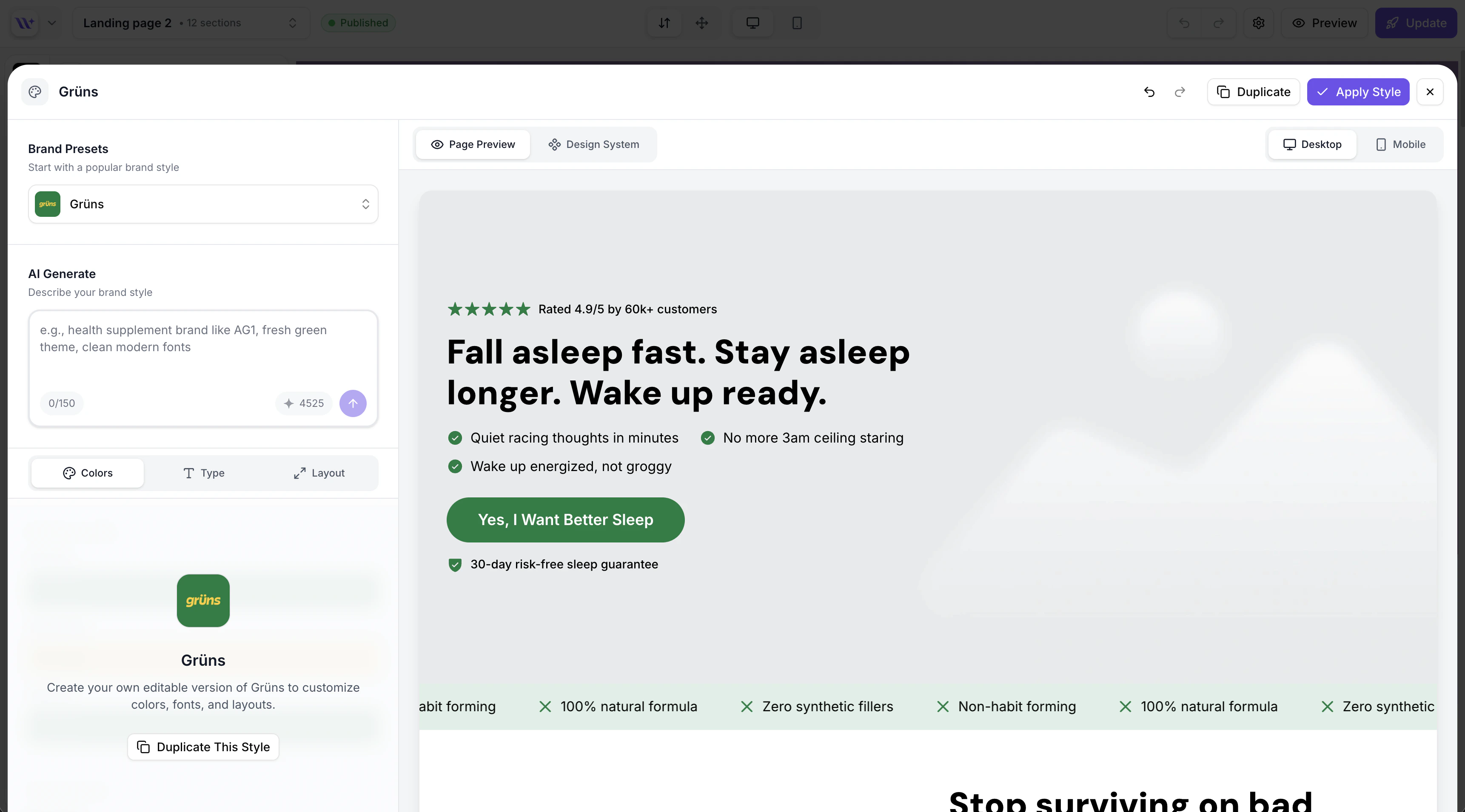
A brand preset applied to the page with live preview showing the updated design.
Editing an Existing Brand Style
To modify a brand style you have already created:- Open the Brand Styles modal.
- Click the brand dropdown at the top to see your saved brand styles.
- Select the style you want to edit. Its properties load into the editor.
- Make your changes across the Colors, Typography, and Spacing tabs.
- Click Save to update the style.
Duplicating a Brand Style
To create a copy of an existing style:- Open the Brand Style modal and load the style you want to duplicate.
- Click the options menu (three-dot menu or dropdown) near the style name.
- Select Duplicate.
- A new brand style is created with the name “[Original Name] (Copy)”.
- Edit the duplicated style as needed and save it.
Deleting a Brand Style
To delete a brand style:- Open the Brand Style modal and load the style you want to remove.
- Click the options menu and select Delete.
- Confirm the deletion in the dialog that appears.
Applying a Brand Style to a Page
Brand styles are applied when you create or edit a page:- When creating a page: Select a brand style from the dropdown during page creation. The style is applied to all sections on the new page.
- In the builder: Change the page’s brand style from the page settings or brand style selector in the builder toolbar.
Undo and Redo in the Brand Style Editor
The Brand Style modal has its own undo/redo system:- Press Cmd+Z (Mac) or Ctrl+Z (Windows) to undo changes
- Press Cmd+Shift+Z (Mac) or Ctrl+Shift+Z (Windows) to redo
- Up to 50 history states are tracked