

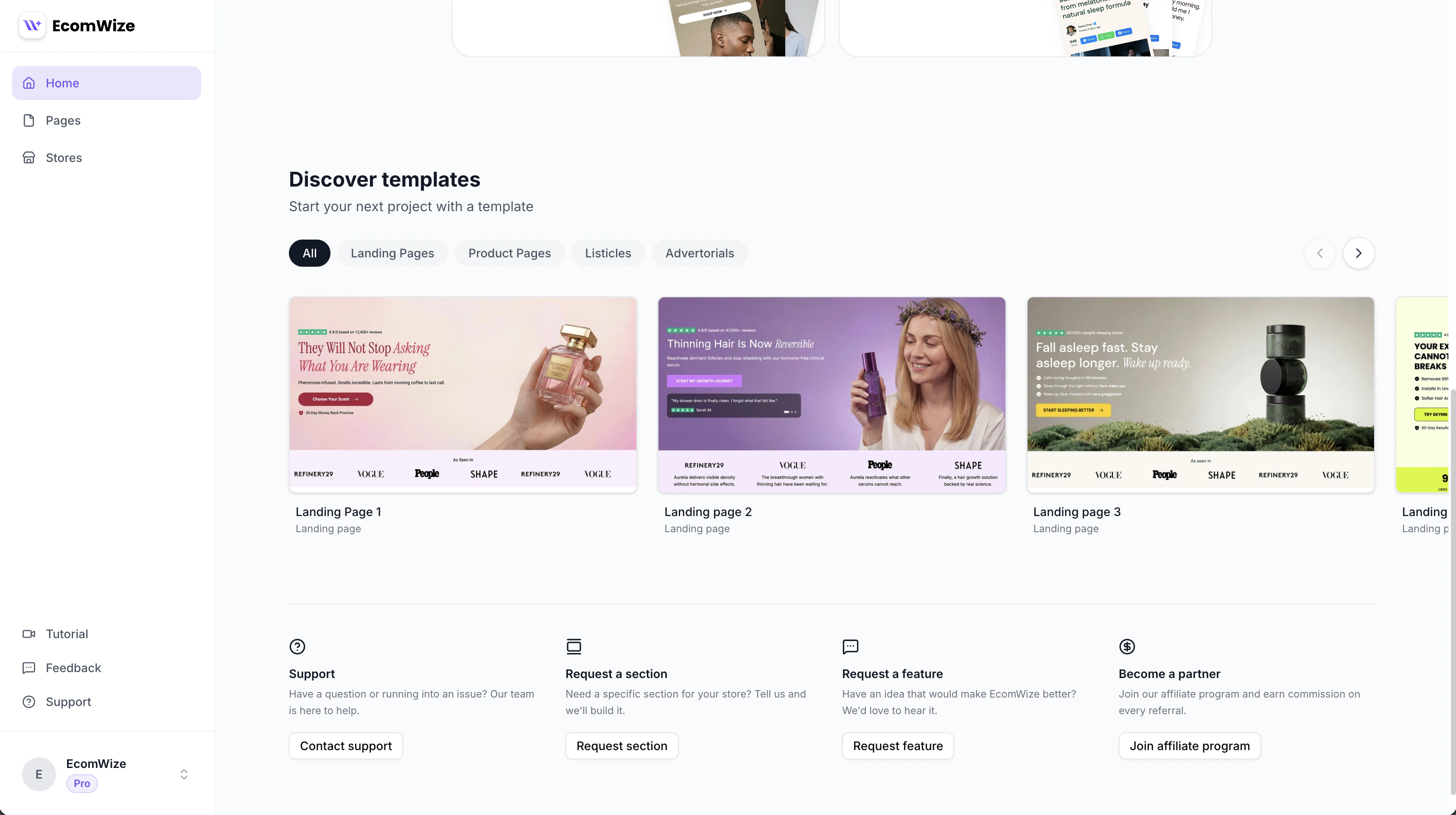
The template gallery on the dashboard showing available templates.
Accessing the Gallery
The template gallery appears on the dashboard page below your existing pages. It loads automatically and displays available templates in a horizontal carousel.Browsing Templates
Category Filters
Templates are organized into four categories. Use the filter buttons above the carousel to narrow your view:Landing Pages
General-purpose landing pages for product launches, campaigns, and promotions.
Product Pages
Dedicated product showcase pages with detailed product sections and CTAs.
Listicles
List-format pages for “Top 10” style content, ingredient breakdowns, and comparison articles.
Advertorials
Editorial-style pages designed to blend advertising with informational content.
Preview Images
Each template card displays:- Preview image — A screenshot of the template that scrolls on hover, giving you a preview of the full page length.
- Template title — The name of the template.
- Category label — The template’s category shown below the title.
Previewing a Template
Click on any template card to open its full preview in a new browser tab. This shows the complete page rendered with all sections, brand styling, and responsive layouts — exactly as it would appear to a visitor.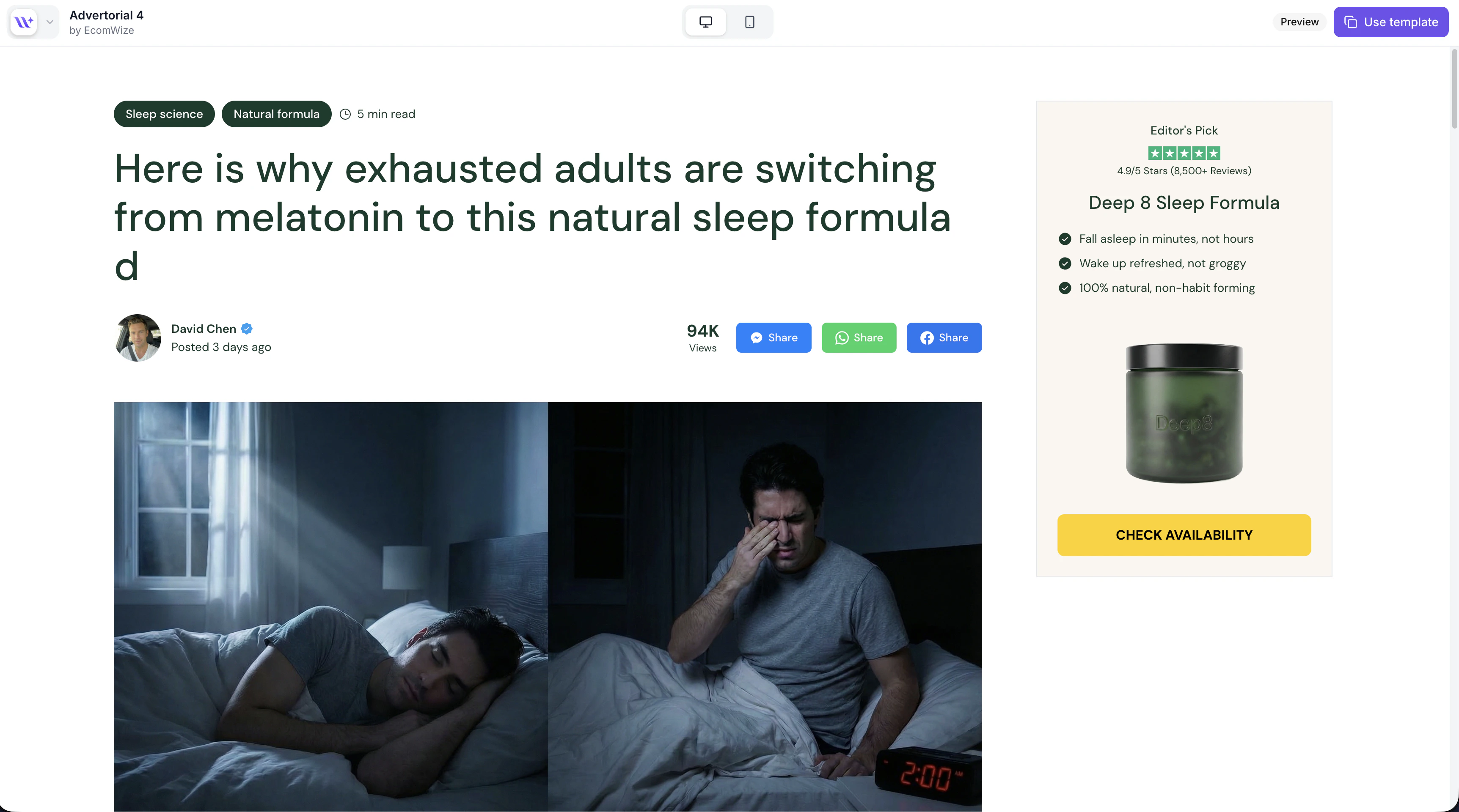
A template live preview showing the full page design.
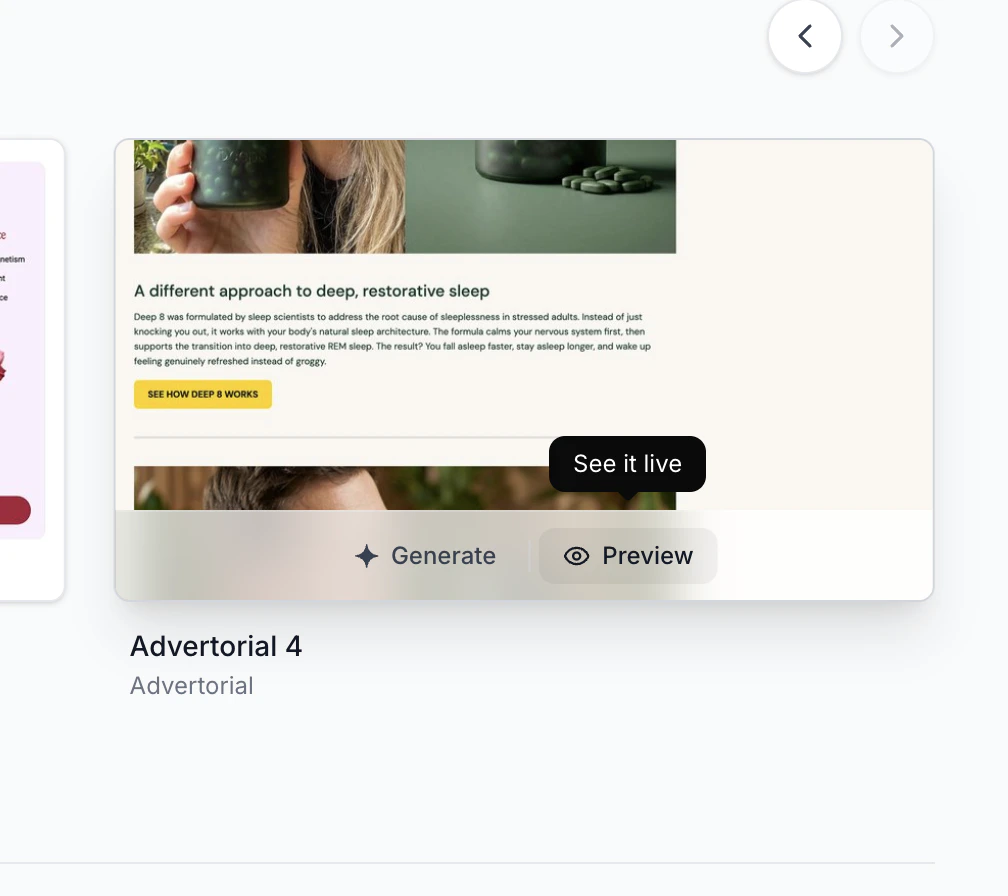
Hovering over a template card shows a 'See it live' tooltip along with Generate and Preview buttons.
Using a Template
There are two ways to create a page from a template:Method 1: Generate from the Gallery
1
Hover over a template
Move your cursor over the template card you want to use.
2
Click Generate
Click the Generate button (with the sparkle icon) that appears in the hover overlay. This selects the template and scrolls you back to the page creation form at the top of the dashboard.
3
Complete the page creation
The template information is pre-filled. Add your page name, select a brand style, and create the page. The template’s sections and configuration will be duplicated into your new page.
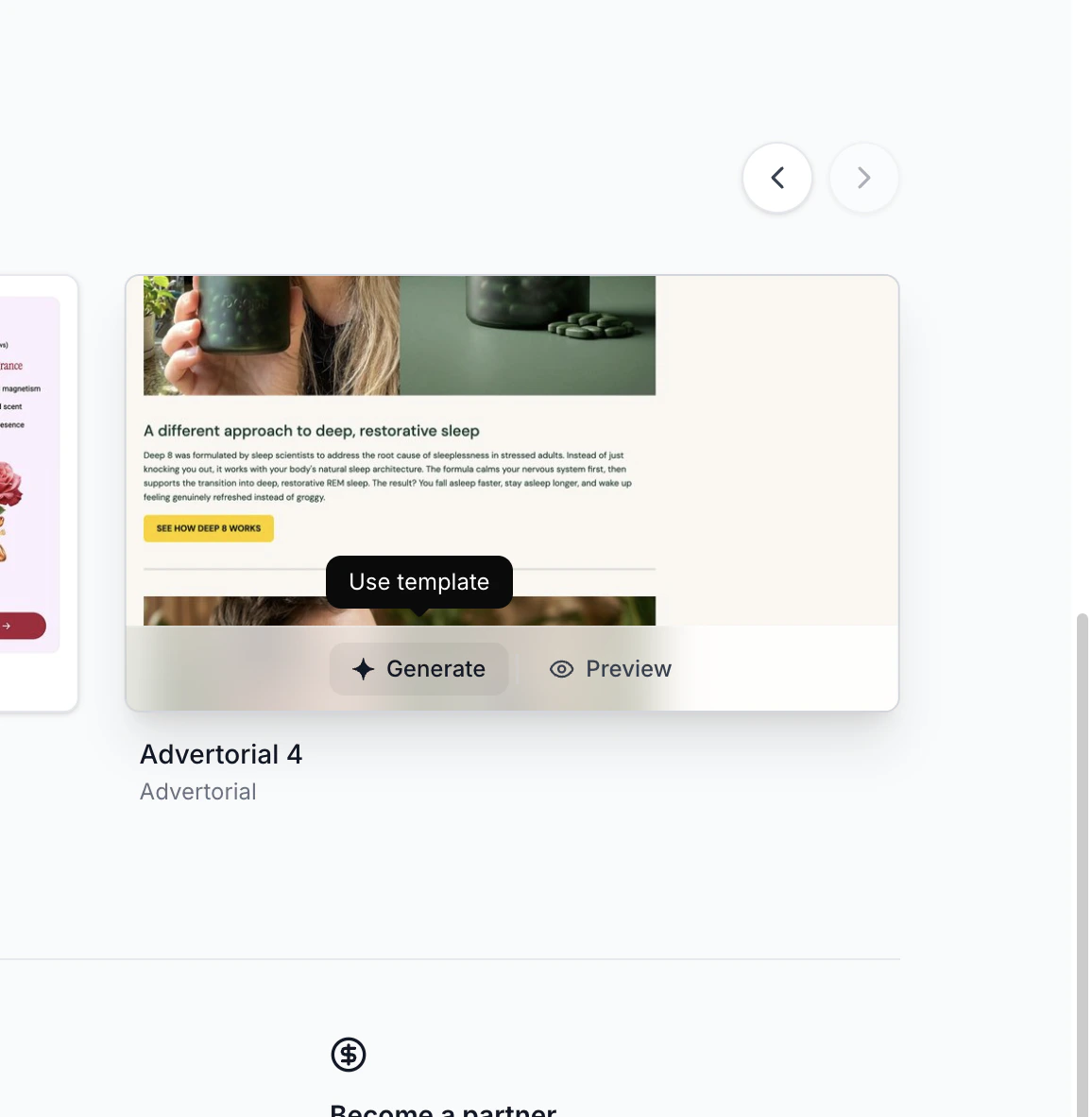
Hovering over a template card shows Generate and Preview buttons.
Method 2: Duplicate from the Preview
1
Open the template preview
Click on the template card to open the full preview in a new tab.
2
Click Use template
If the template allows duplication, click the Use template button in the preview header. This creates a copy in your account and redirects you to the builder.
The “Generate” button only appears on templates that have duplication enabled. If a template is view-only, you can preview it but not copy it.
What Happens When You Use a Template
When you generate a page from a template:- All sections from the template are copied to your new page.
- A copy of the template’s brand style is created in your account (if applicable).
- The page starts in draft status — it is not published.
- Store connections and product links are reset — you need to configure these yourself.
- You can immediately start editing, adding, removing, or reordering sections.