

Opening Page Settings
Click the Settings icon (gear icon) in the builder toolbar to open the Page Settings panel. The panel slides in from the right side and is organized into four sections.Settings Sections
The panel is divided into four navigable sections with a sticky sidebar for quick access:Template Type
Choose the page template type, which determines how the page is structured on Shopify: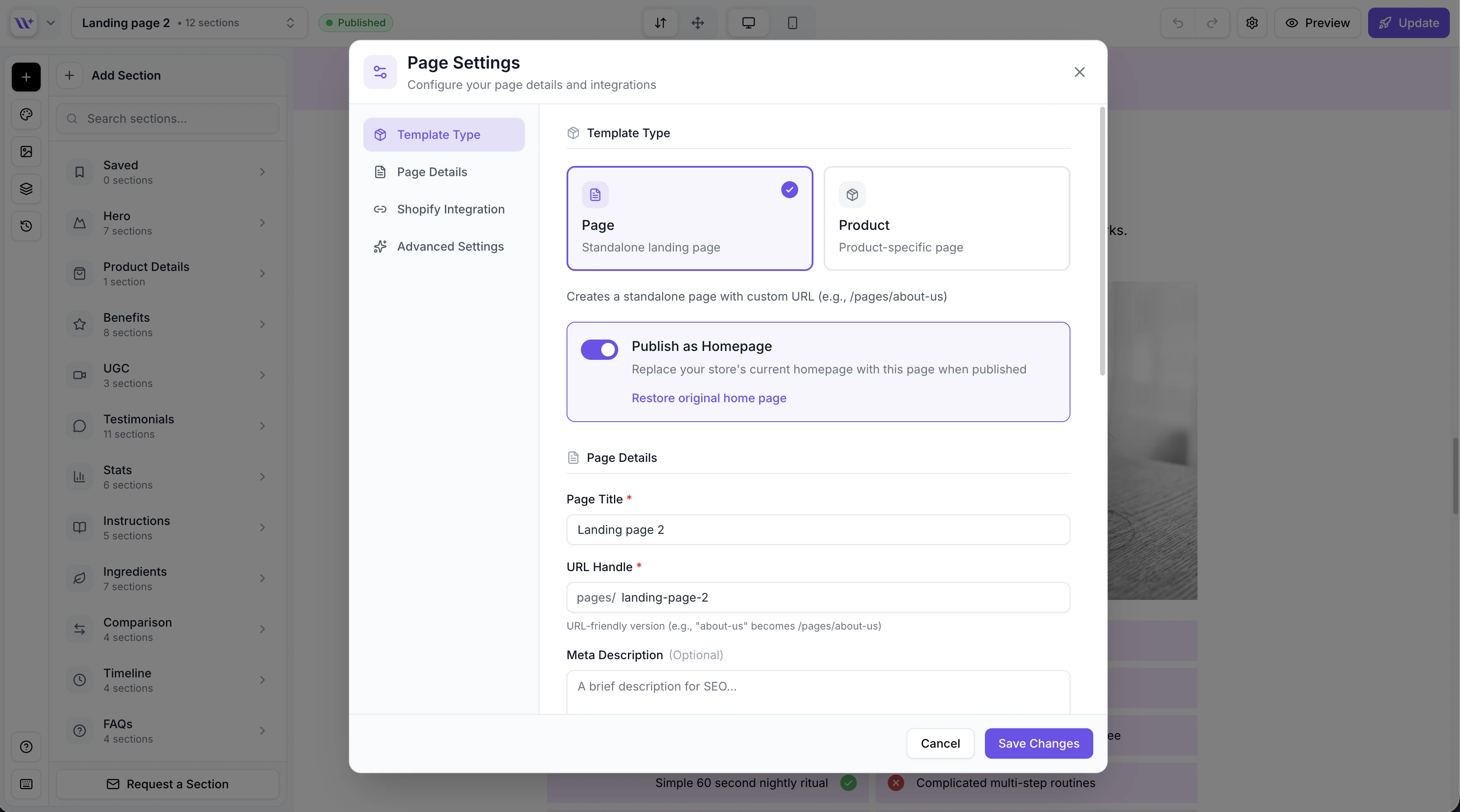
The Page Settings modal showing Template Type options and Publish as Homepage toggle.
The template type affects how the page is published to Shopify. A “page” type creates a Shopify page asset, while a “product” type creates a product page template.
Page Details
Configure the core page metadata:- Page title — The display title used in the page list, browser tab, and as the default Shopify page title. This field is required.
- URL handle (slug) — The URL-friendly version of the page title, used in the page’s URL path on Shopify (e.g.,
yourstore.com/pages/your-handle). This is important for SEO. The handle is auto-generated from the title but can be customized. - Meta description — A brief description of the page content for search engine results. Keep it under 160 characters for best SEO results.
Shopify Integration
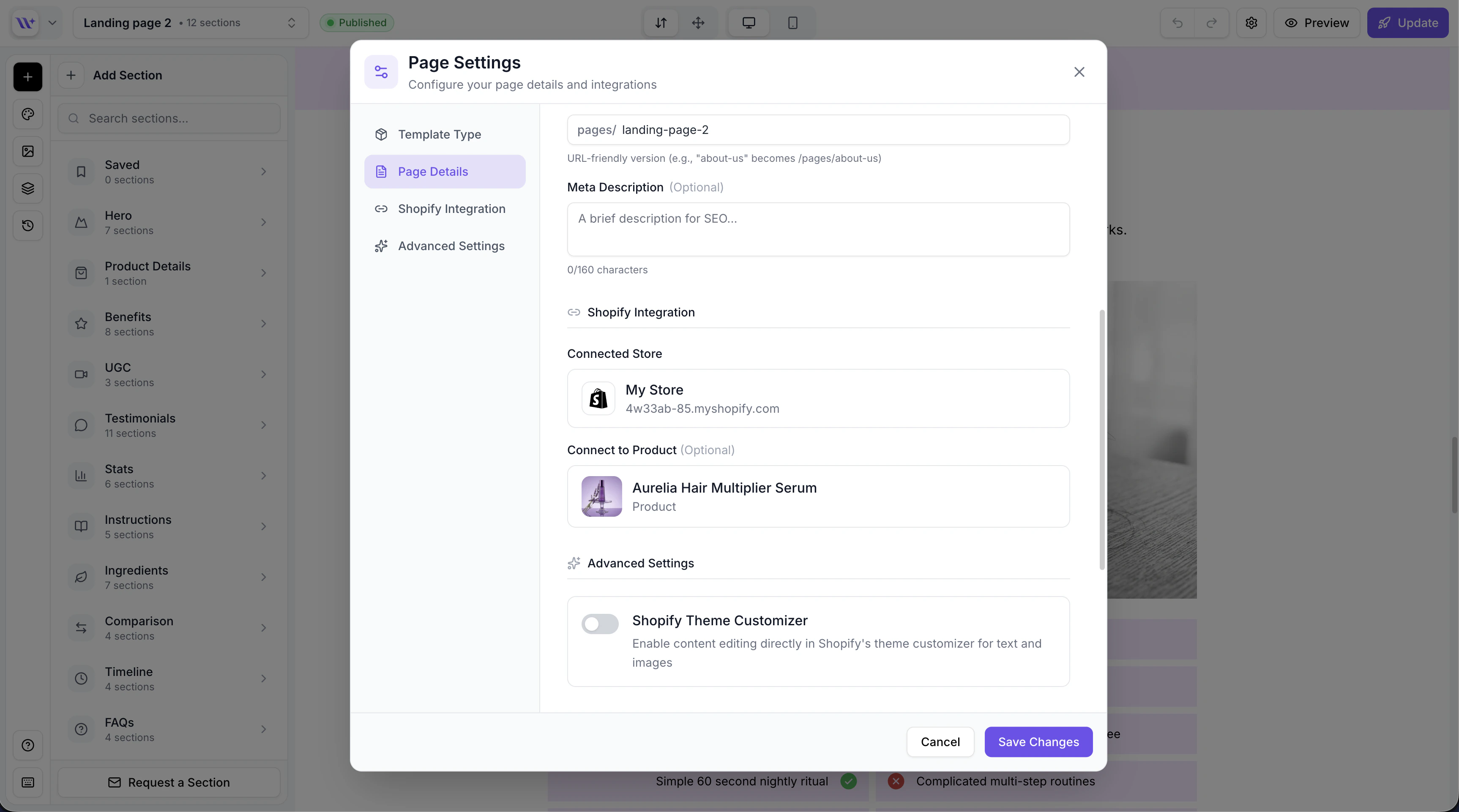
Page Settings showing Shopify Integration with store and product selectors.
Store Selector
Select which Shopify store this page will be published to. The dropdown shows all connected stores with a search field for quick filtering.- Click the store dropdown to see available stores
- Search for a specific store by name
- The selected store determines where the page will be published
- You can reassign a page to a different store at any time
Product Selector
For pages that showcase a specific product, link a Shopify product:- Click the product dropdown to see products from the selected store
- Search for products by name
- When a product is selected, product-specific sections (pricing, variants, add-to-cart, selling plans) automatically pull live data from this product
The product selector only appears after you have selected a store. Products are fetched from the selected Shopify store.
Advanced Settings
Advanced options for fine-tuning your page’s behavior:Publish as Homepage
Toggle this option to publish the page as your Shopify store’s homepage instead of creating a new page. When homepage publishing is enabled and a backup exists, a Restore original homepage option becomes available, letting you revert to your store’s original homepage at any time.Shopify-Editable Toggle
Enable this option to allow content editing directly in the Shopify theme editor. When turned on:- Text content can be modified in the Shopify admin without returning to EcomWize
- Changes made in Shopify persist across page loads
- Useful for teams where non-technical members need to update copy, prices, or other text content
The Shopify-editable feature is available on the Pro plan only. On other plans, this toggle is visible but disabled with a prompt to upgrade.
Saving Changes
Changes in Page Settings are saved when you click the save button. A loading indicator shows while the save is in progress. The panel validates your input before saving:- The page title cannot be empty
- The URL handle must be URL-safe (lowercase letters, numbers, and hyphens only)
- Invalid input shows inline error messages