

Opening the Share Modal
To share a page, open it in the builder and click the EcomWize logo in the top-left corner to open the main menu. Click Share to open the Share modal where you can control all sharing settings.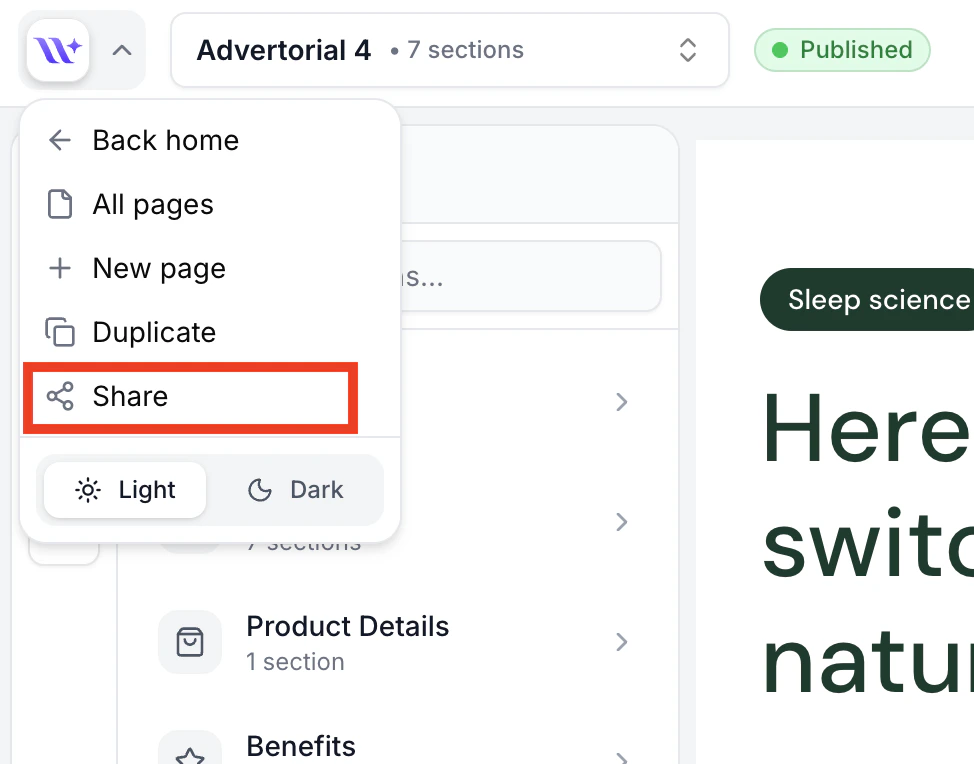
The builder main menu with the Share option highlighted.
Enabling Public Sharing
1
Toggle public visibility
In the Share modal, flip the Make page public toggle to enable sharing. This generates a unique share link for your page.
2
Copy the share link
Once sharing is enabled, a project link appears in the modal. Click the copy button next to the URL to copy it to your clipboard. The URL follows the format:You will see a confirmation toast when the link is copied successfully.
3
Open the link (optional)
Click Open link to preview the shared page in a new browser tab and verify everything looks correct before distributing the URL.
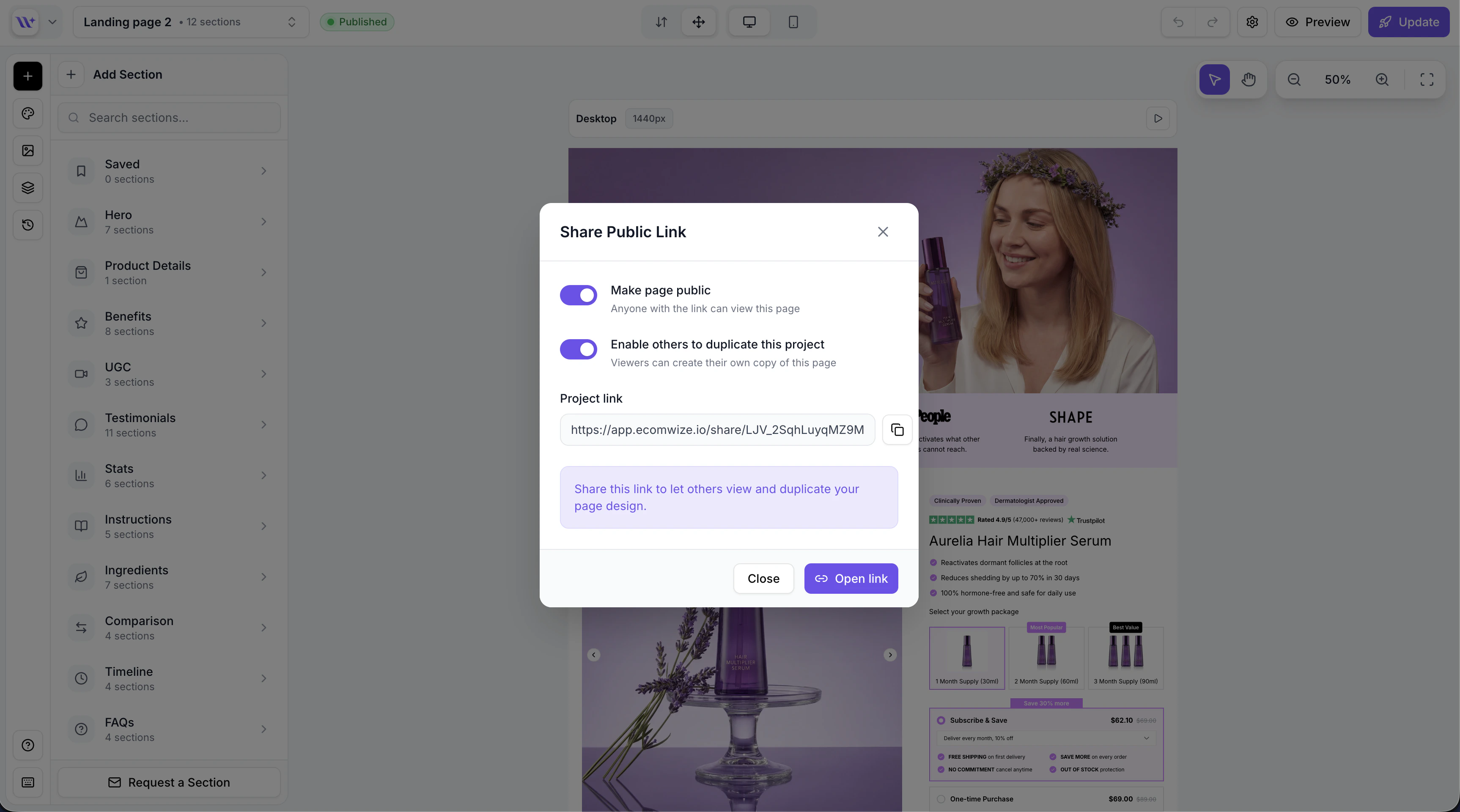
The Share Public Link modal with visibility and duplication toggles.
Enabling Duplication
When sharing is enabled, an additional option appears: Enable others to duplicate this project. Toggling this on allows viewers to create their own copy of your page in their EcomWize account. The info banner at the bottom of the modal updates to reflect the current permission level:- View only: “Share this link to let others view your page design.”
- View and duplicate: “Share this link to let others view and duplicate your page design.”
Revoking Access
To make a page private again, simply flip the Make page public toggle off. Your share link is preserved, so you can re-enable sharing later without generating a new URL. While sharing is disabled, anyone who visits the link will see a “not found” error.How Sharing Works
Each page receives a unique share link the first time you enable sharing. This link is permanent — it stays the same even if you toggle sharing off and back on.Share settings are saved immediately when you toggle them. There is no separate “Save” button — changes take effect in real time.
Sharing Tips
- Always preview your shared page before distributing the link to make sure fonts, images, and product data render correctly.
- Use duplication strategically — if you are sharing a template, enable duplication. If you are sharing a preview for client approval, keep it view-only.
- Combine with brand styles — shared pages include your brand style, so viewers see the same typography, colors, and spacing you designed.