

Overview
The canvas is the central area of the EcomWize page builder. It renders a live preview of your page exactly as it will appear when published to Shopify. You interact with your page directly on the canvas — clicking sections to select them, editing text inline, and dragging sections to reorder them.Selecting sections
Click on any section in the canvas to select it. When a section is selected:- A highlight border appears around the section to indicate it is active
- The config panel opens in the sidebar, showing all editable properties for that section
- A floating toolbar appears near the section with quick actions like duplicate and delete
- A drag handle becomes visible, allowing you to reorder the section
Inline text editing
Most text elements in sections can be edited directly on the canvas. Click on a heading, paragraph, button label, or other text to activate inline editing. A text formatting toolbar will appear, giving you access to:- Bold, italic, underline, and strikethrough
- Text alignment
- Text highlighting
- Links
Adding sections
There are several ways to add new sections to your page from the canvas:- ”+” buttons — Between every pair of sections (and at the top and bottom of the page), you will see a ”+” button. Clicking it opens the sections panel with the insertion point set to that position.
- Sections panel — Open the sections panel from the sidebar and click any section to add it to the end of your page (or at the current insertion point).
-
Copy and paste — Use
Ctrl/Cmd + Cto copy a selected section andCtrl/Cmd + Vto paste a duplicate.
Each page has a maximum of 25 sections. If you reach this limit, you will not be able to add more sections until you remove some.
Section toolbar
When you hover over or select a section, a floating toolbar appears with quick actions:Canvas modes
EcomWize offers two canvas modes to suit different editing workflows.Normal canvas mode
This is the default mode. The canvas behaves like a standard scrolling page:- Scroll up and down to navigate your page
- The canvas width represents the published page width
- Sections are displayed in a single column, top to bottom
- Best for focused editing of individual sections
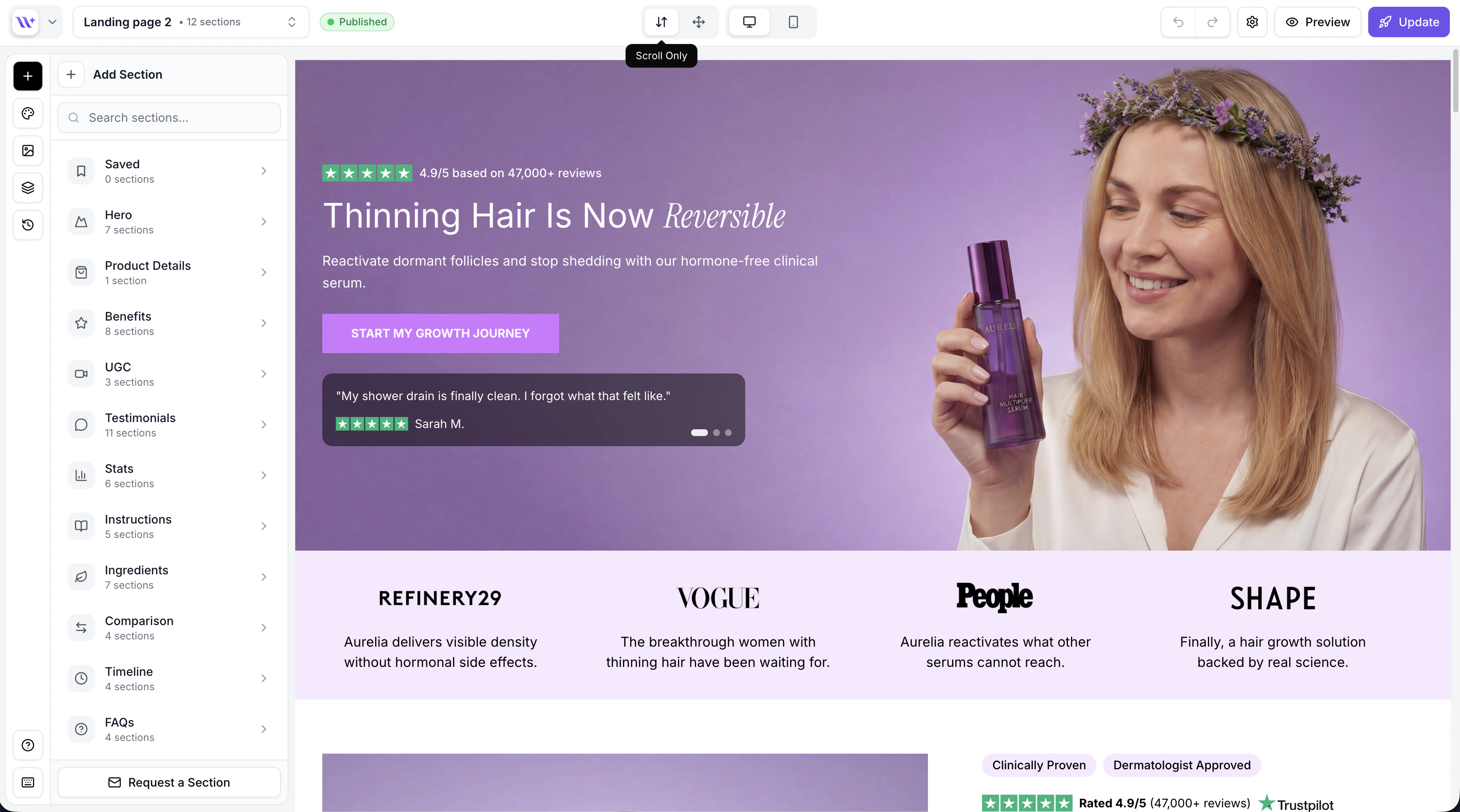
The builder in normal scroll-only canvas mode (desktop).
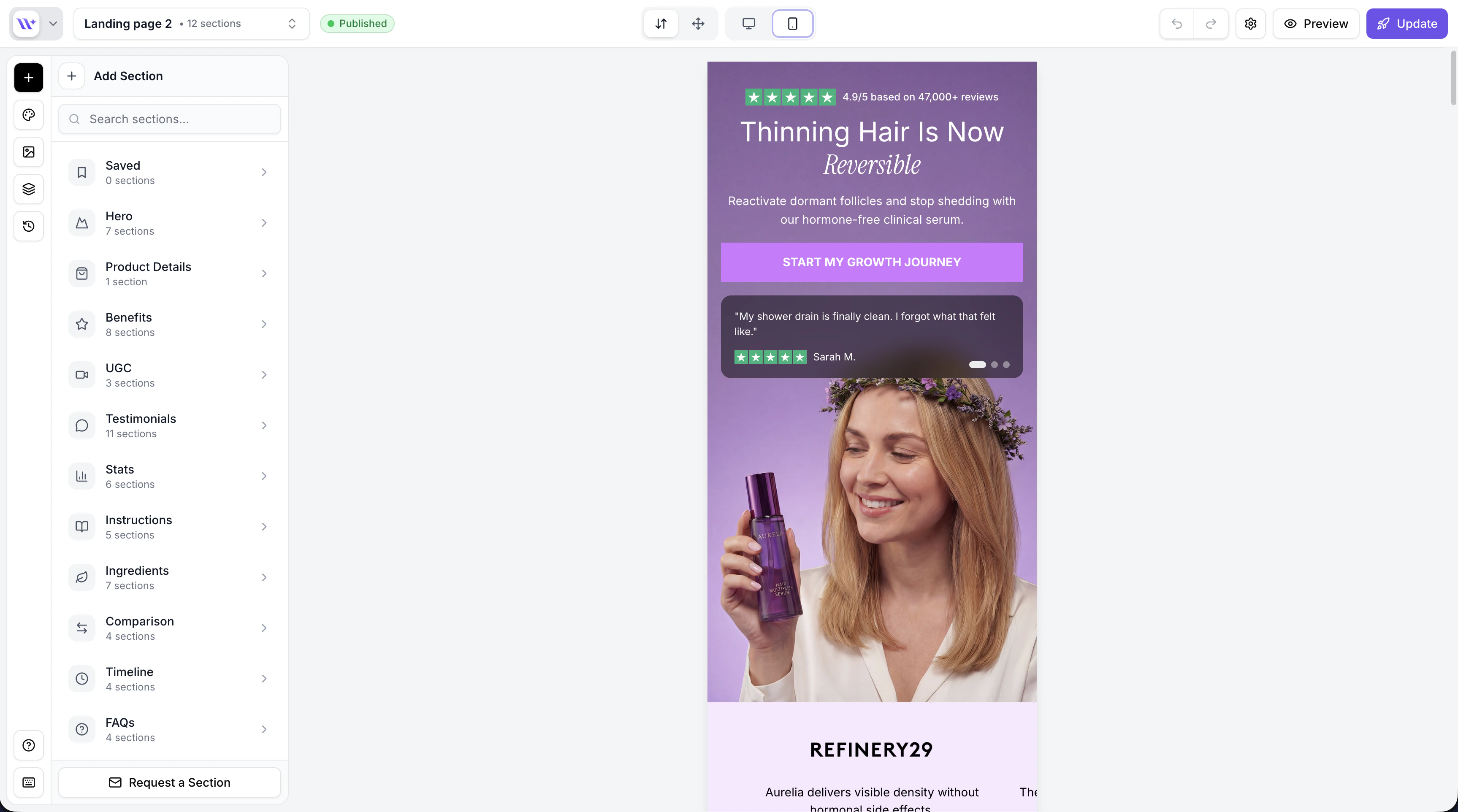
The builder in normal scroll-only canvas mode (mobile).
Free canvas mode
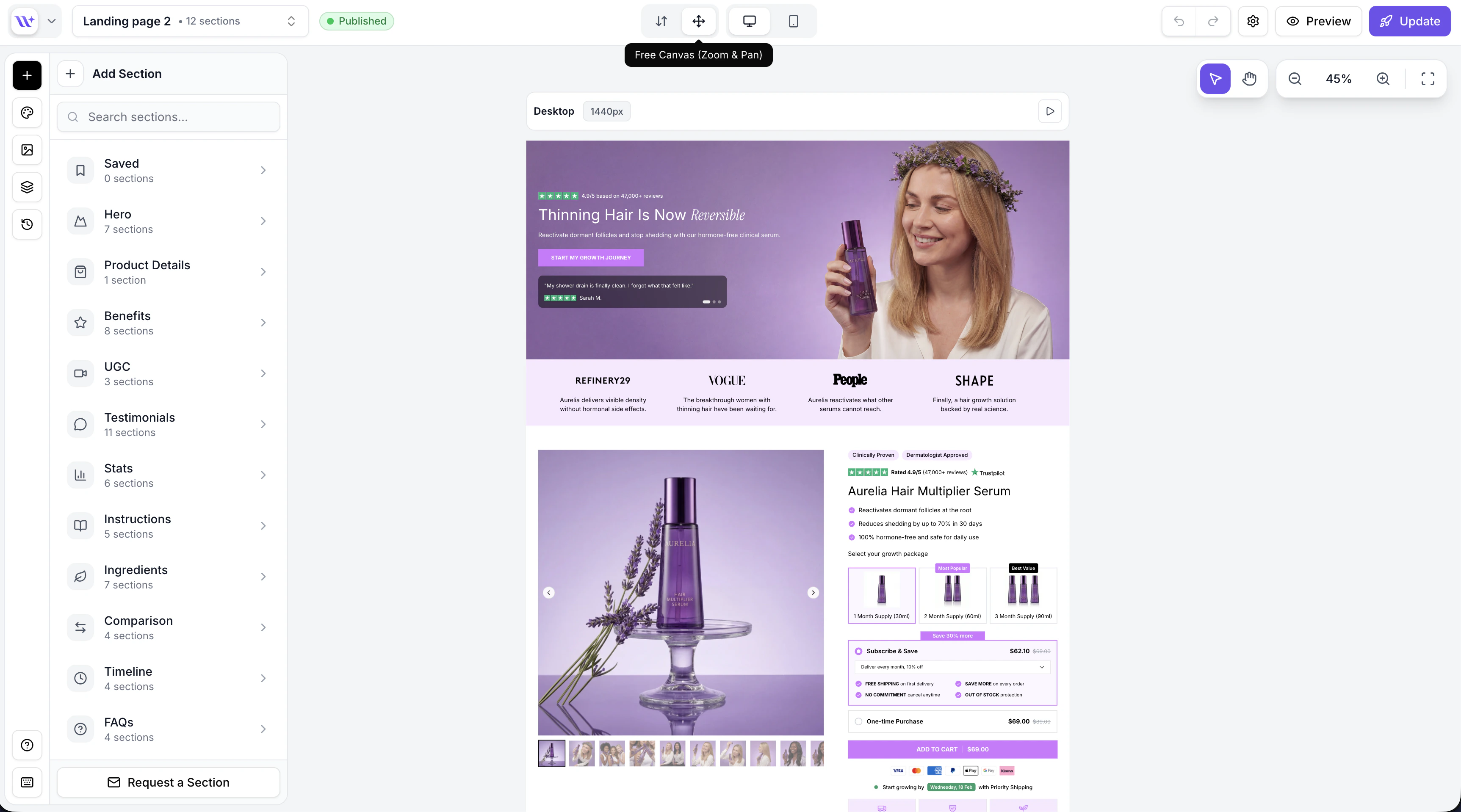
The builder in free canvas mode with zoom and pan controls.
- Zoom in and out using the scroll wheel or the zoom controls in the toolbar
- Pan by clicking and dragging on the background (not on a section)
- Get an overview of your entire page by zooming out
- Focus on details by zooming into a specific section
- Zoom in button
- Zoom out button
- Reset zoom / fit to screen
Switching between modes
You can switch between normal and free canvas modes at any time using the toggle in the top toolbar. Your editing state (selected section, sidebar panel, etc.) is preserved when switching modes.Preview mode
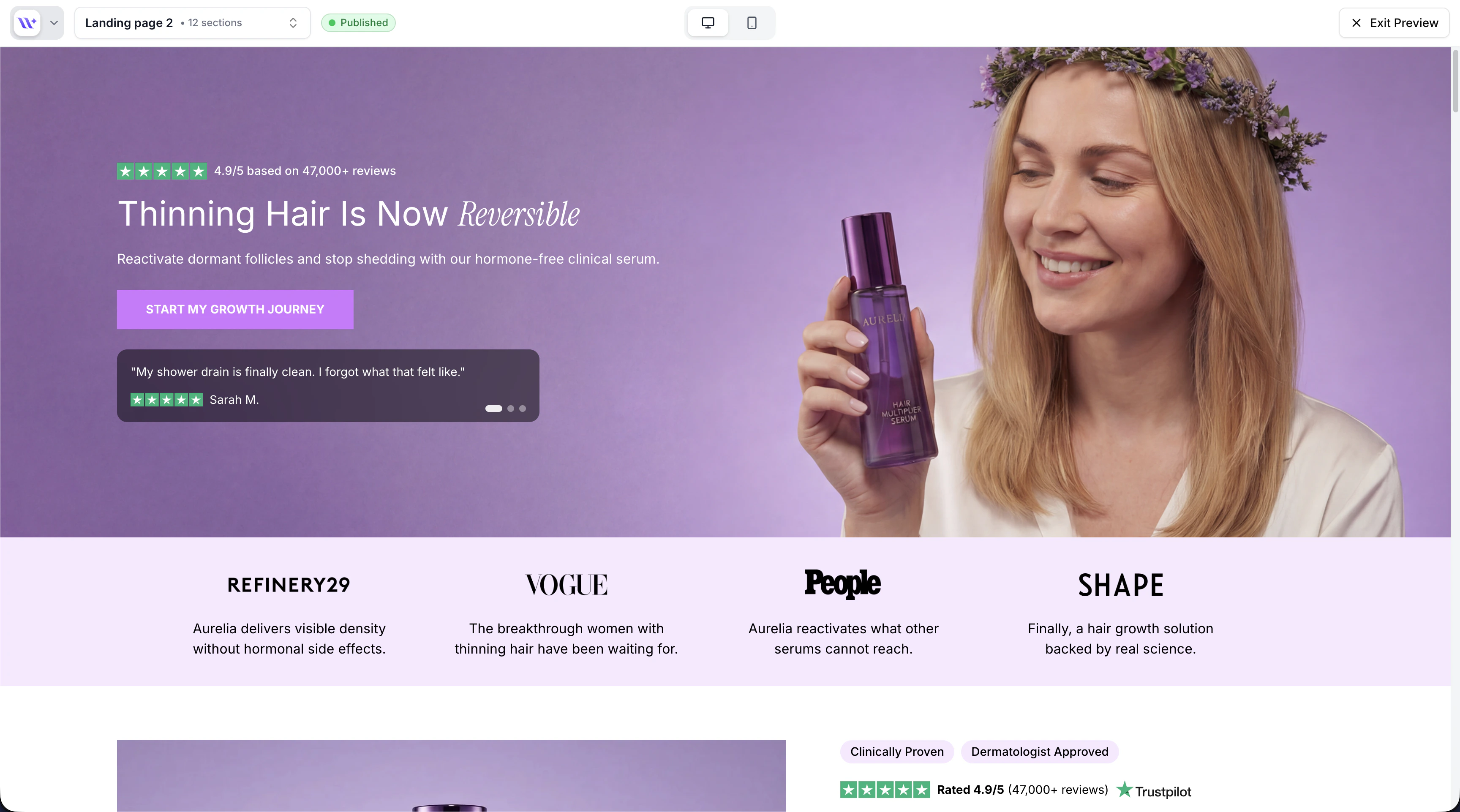
Preview mode shows your page without any editing UI.
- The page renders without any editing overlays
- You can scroll through the page naturally
- Desktop/mobile toggle still works, so you can preview both views
- No editing actions are available until you exit preview mode
Drag and drop
Learn how to reorder sections by dragging.
Desktop and mobile preview
Test your page across device sizes.