

Create your account
Getting started with EcomWize takes just a few minutes. Follow the steps below to create your account and land on your dashboard.1
Go to the signup page
Visit app.ecomwize.io and click Sign Up. You can create an account using your email address.
2
Enter your email
Provide your email address and click Continue. EcomWize uses magic link authentication — you will receive a sign-in link in your inbox. Click the link to log in. No password is needed.
If you do not see the email, check your spam or junk folder. You can request a new magic link from the login page at any time.
3
Complete the onboarding survey
After verifying your email and logging in for the first time, you will be taken through a short 3-step onboarding survey. This helps us personalize your experience.Step 1 — Work type
Select the option that best describes you:
- Agency
- Brand
- Freelancer
- Other
- X / Twitter, LinkedIn, Instagram, TikTok
- Google Search, YouTube, Newsletter, Podcast
- Word of mouth, From a friend / colleague, From a client
- Ad I saw, Other
- Build a new store from scratch
- Improve my store’s conversion rate
- Update existing parts of my store
- Launch faster without developers
- Something else (with a free-text field)
4
Watch the tutorial (optional)
On your first visit to the page builder, a tutorial modal will appear with a short video walkthrough showing you how to use EcomWize. You can watch it to get oriented, or click Skip for now to jump straight into building.
Navigate the dashboard
Once you complete onboarding, you will land on the Dashboard. This is your home base for creating and managing pages.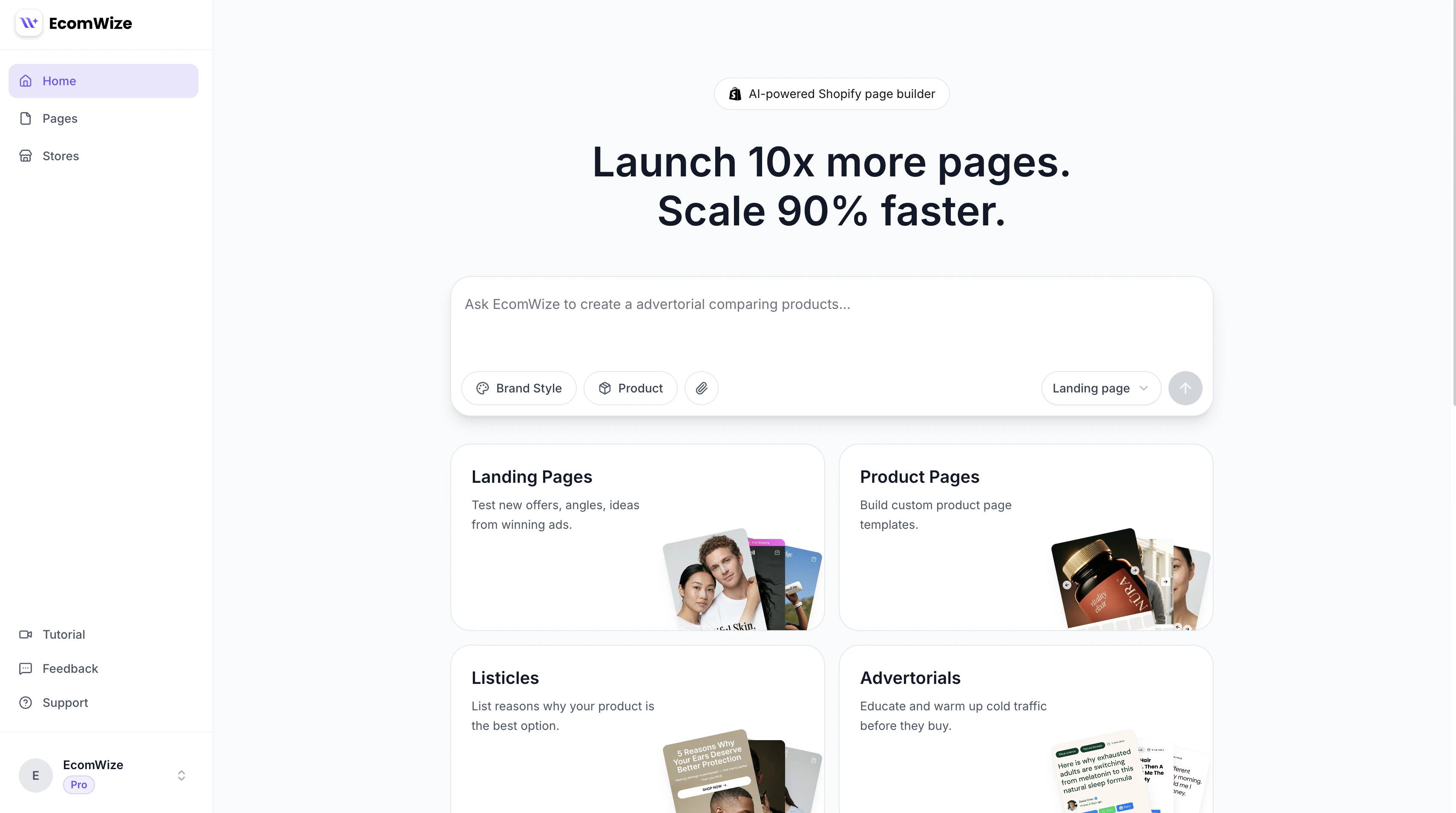
The EcomWize dashboard where you create pages, browse templates, and manage your projects.
- Create a new page using the prompt input or by selecting a page type card
- Browse your existing pages in the pages list
- Connect a Shopify store from the Stores page
- Manage your brand styles for consistent design across pages
- Access account settings including your plan and billing
Connect your Shopify store
Link your store to start publishing pages.
Create your first page
Build a landing page from scratch or from a template.