> ## Documentation Index
> Fetch the complete documentation index at: https://docs.ecomwize.io/llms.txt
> Use this file to discover all available pages before exploring further.
# Template Gallery
> Browse and use pre-built page templates from the EcomWize template gallery to jumpstart your projects.
The template gallery provides a curated collection of professionally designed landing pages that you can use as starting points for your own projects. Instead of building from scratch, pick a template that matches your goals and customize it.
 ## Accessing the Gallery
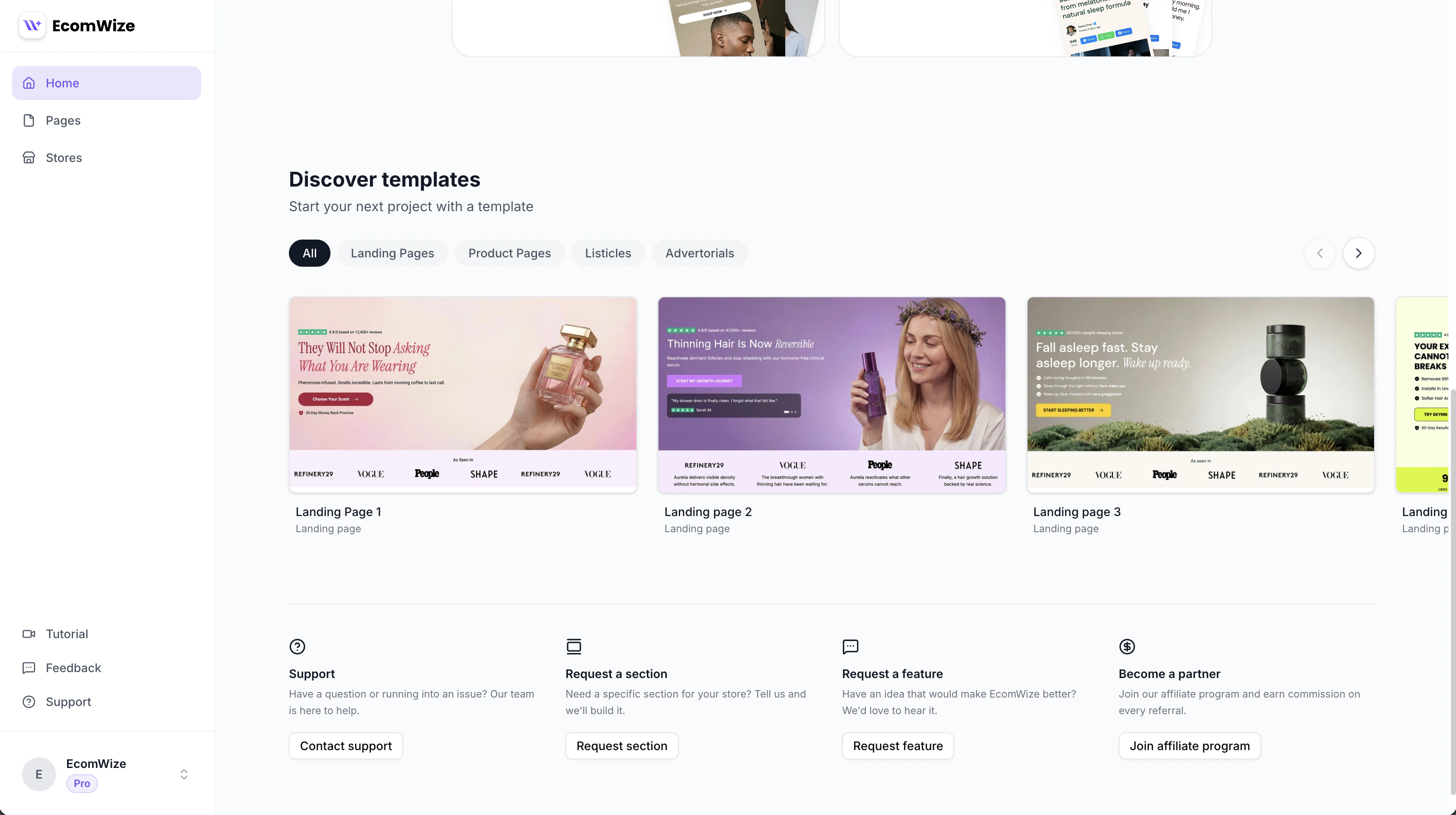
The template gallery appears on the dashboard page below your existing pages. It loads automatically and displays available templates in a horizontal carousel.
## Browsing Templates
### Category Filters
Templates are organized into four categories. Use the filter buttons above the carousel to narrow your view:
General-purpose landing pages for product launches, campaigns, and promotions.
Dedicated product showcase pages with detailed product sections and CTAs.
List-format pages for "Top 10" style content, ingredient breakdowns, and comparison articles.
Editorial-style pages designed to blend advertising with informational content.
Click **All** to view templates from every category at once.
### Preview Images
Each template card displays:
* **Preview image** -- A screenshot of the template that scrolls on hover, giving you a preview of the full page length.
* **Template title** -- The name of the template.
* **Category label** -- The template's category shown below the title.
Hover over a template card to see the preview image scroll automatically, revealing the full page design from top to bottom.
## Previewing a Template
Click on any template card to open its full preview in a new browser tab. This shows the complete page rendered with all sections, brand styling, and responsive layouts -- exactly as it would appear to a visitor.
## Accessing the Gallery
The template gallery appears on the dashboard page below your existing pages. It loads automatically and displays available templates in a horizontal carousel.
## Browsing Templates
### Category Filters
Templates are organized into four categories. Use the filter buttons above the carousel to narrow your view:
General-purpose landing pages for product launches, campaigns, and promotions.
Dedicated product showcase pages with detailed product sections and CTAs.
List-format pages for "Top 10" style content, ingredient breakdowns, and comparison articles.
Editorial-style pages designed to blend advertising with informational content.
Click **All** to view templates from every category at once.
### Preview Images
Each template card displays:
* **Preview image** -- A screenshot of the template that scrolls on hover, giving you a preview of the full page length.
* **Template title** -- The name of the template.
* **Category label** -- The template's category shown below the title.
Hover over a template card to see the preview image scroll automatically, revealing the full page design from top to bottom.
## Previewing a Template
Click on any template card to open its full preview in a new browser tab. This shows the complete page rendered with all sections, brand styling, and responsive layouts -- exactly as it would appear to a visitor.
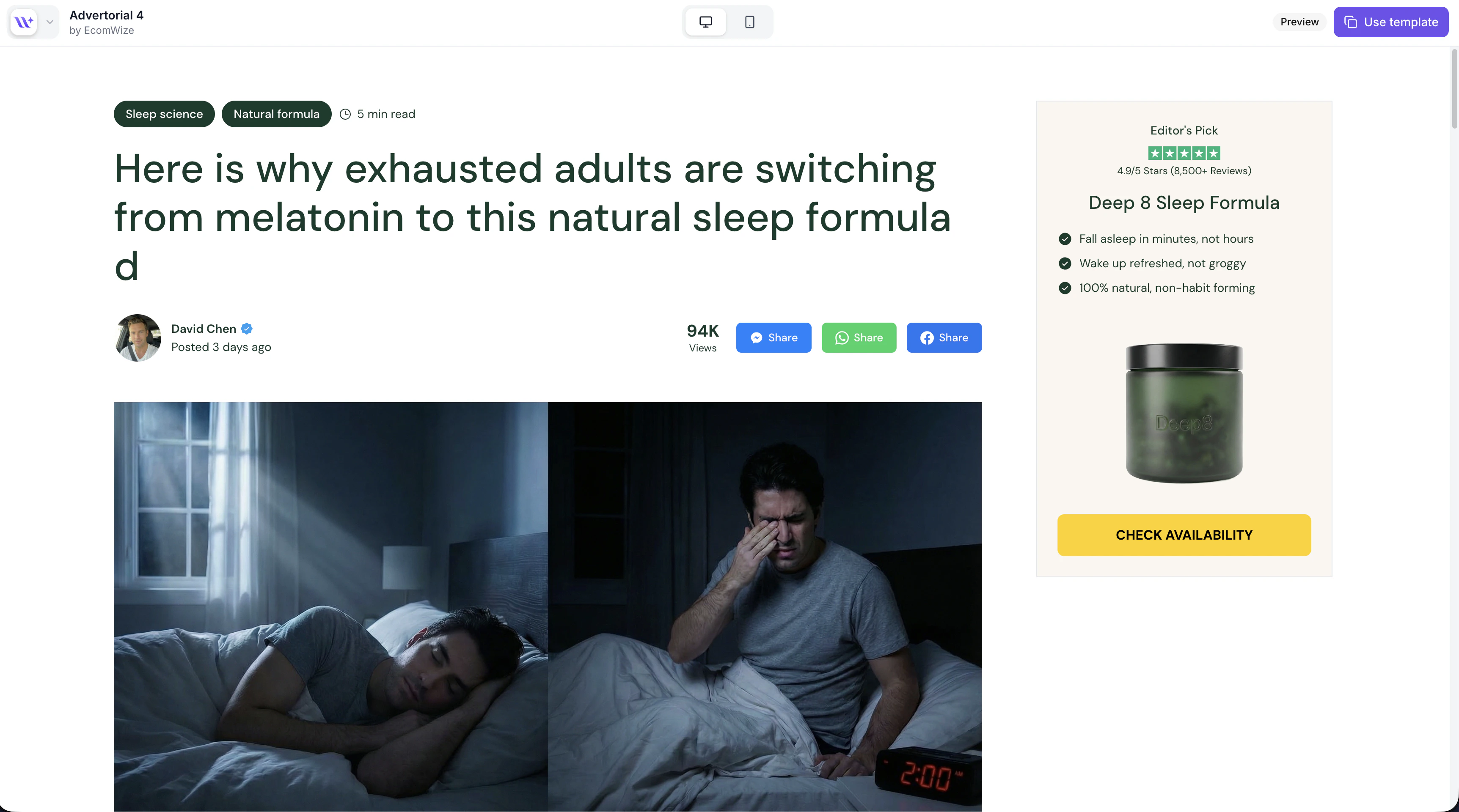 You can also click the **Preview** button that appears when hovering over a template card.
 ## Using a Template
There are two ways to create a page from a template:
### Method 1: Generate from the Gallery
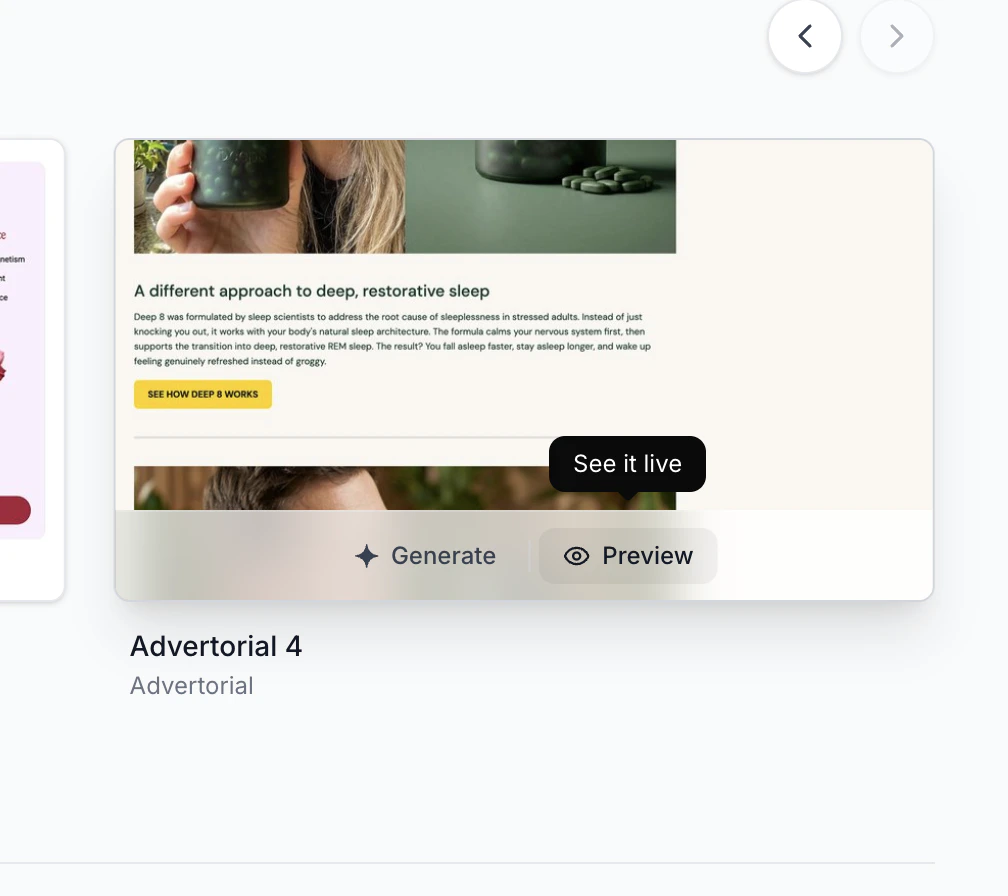
Move your cursor over the template card you want to use.
Click the **Generate** button (with the sparkle icon) that appears in the hover overlay. This selects the template and scrolls you back to the page creation form at the top of the dashboard.
The template information is pre-filled. Add your page name, select a brand style, and create the page. The template's sections and configuration will be duplicated into your new page.
## Using a Template
There are two ways to create a page from a template:
### Method 1: Generate from the Gallery
Move your cursor over the template card you want to use.
Click the **Generate** button (with the sparkle icon) that appears in the hover overlay. This selects the template and scrolls you back to the page creation form at the top of the dashboard.
The template information is pre-filled. Add your page name, select a brand style, and create the page. The template's sections and configuration will be duplicated into your new page.
 ### Method 2: Duplicate from the Preview
Click on the template card to open the full preview in a new tab.
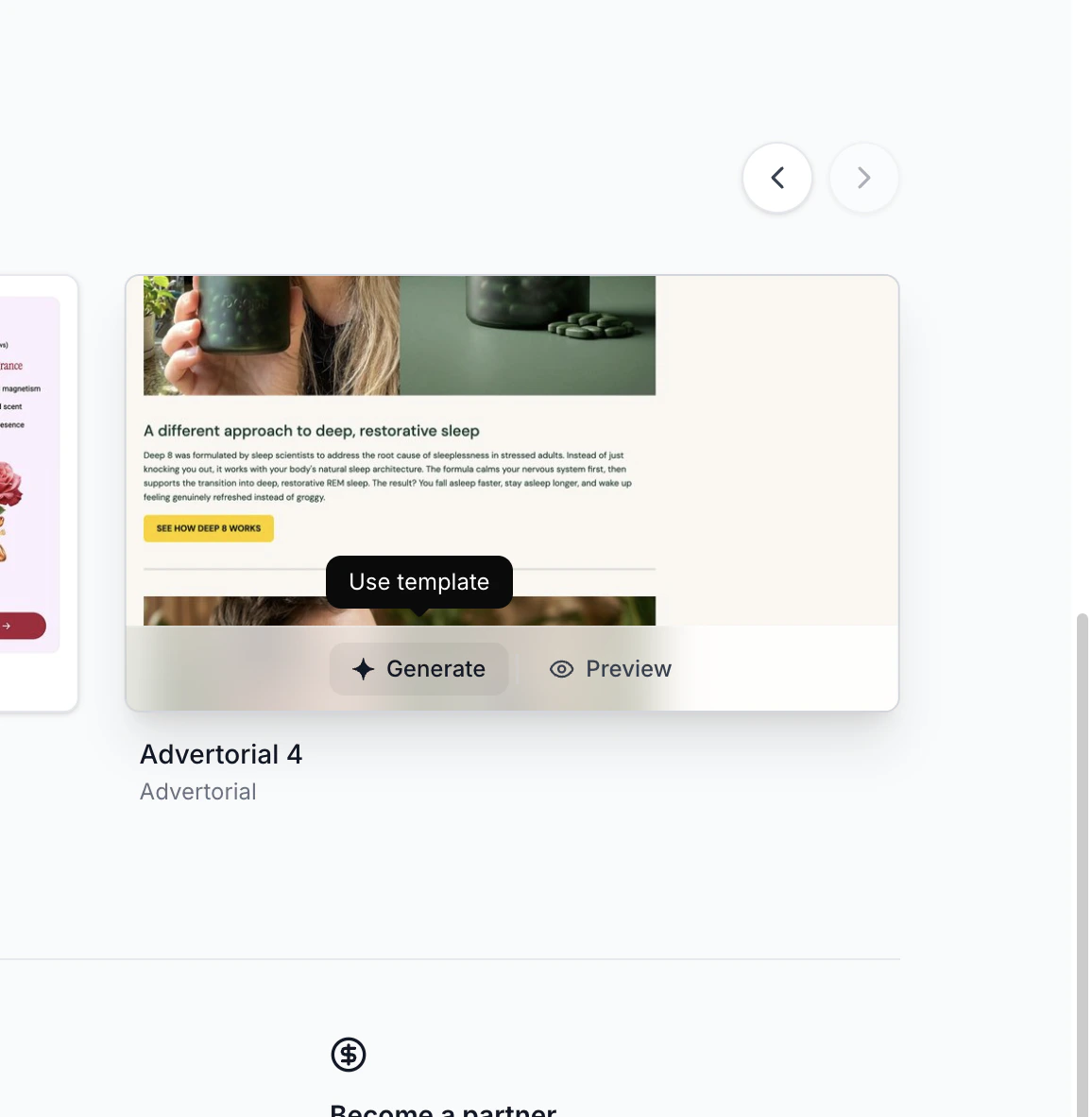
If the template allows duplication, click the **Use template** button in the preview header. This creates a copy in your account and redirects you to the builder.
The "Generate" button only appears on templates that have duplication enabled. If a template is view-only, you can preview it but not copy it.
## What Happens When You Use a Template
When you generate a page from a template:
1. All sections from the template are copied to your new page.
2. A copy of the template's brand style is created in your account (if applicable).
3. The page starts in **draft** status -- it is not published.
4. Store connections and product links are reset -- you need to configure these yourself.
5. You can immediately start editing, adding, removing, or reordering sections.
Templates are excellent starting points, but you should always customize them with your own brand style, product data, and content to make them unique to your store.
### Method 2: Duplicate from the Preview
Click on the template card to open the full preview in a new tab.
If the template allows duplication, click the **Use template** button in the preview header. This creates a copy in your account and redirects you to the builder.
The "Generate" button only appears on templates that have duplication enabled. If a template is view-only, you can preview it but not copy it.
## What Happens When You Use a Template
When you generate a page from a template:
1. All sections from the template are copied to your new page.
2. A copy of the template's brand style is created in your account (if applicable).
3. The page starts in **draft** status -- it is not published.
4. Store connections and product links are reset -- you need to configure these yourself.
5. You can immediately start editing, adding, removing, or reordering sections.
Templates are excellent starting points, but you should always customize them with your own brand style, product data, and content to make them unique to your store.