> ## Documentation Index
> Fetch the complete documentation index at: https://docs.ecomwize.io/llms.txt
> Use this file to discover all available pages before exploring further.
# Page Versions
> Save, preview, and restore page versions to protect your work and experiment safely.
Page versions let you save snapshots of your page at specific points in time. You can preview past versions, restore them, or use them as safety nets while experimenting with major changes.
## Overview
The version system provides two types of saves:
| Type | How It Works | When It Happens |
| ----------------- | ------------------------------------------------ | -------------------------------------------------- |
| **Manual** | You explicitly save a version | When you click "Save Version" in the history panel |
| **Auto-periodic** | The system automatically creates backup versions | At regular intervals while editing |
Both types are stored in the version history panel and can be previewed or restored at any time.
## Opening the Version History Panel
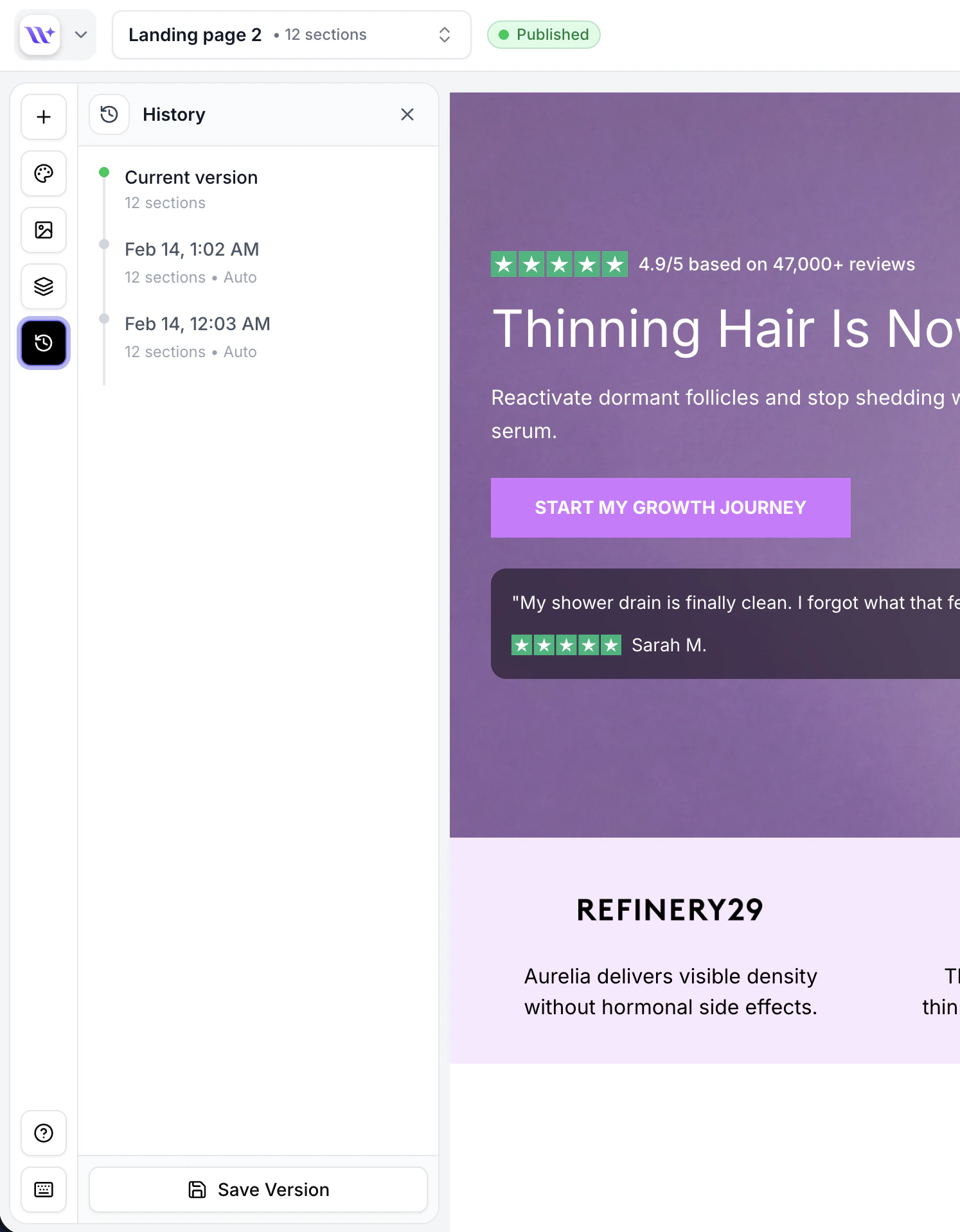
Click the **History** icon (clock icon) in the builder sidebar to open the version history panel. The panel displays all saved versions in reverse chronological order (newest first).
 ## Saving a Version Manually
Click the History icon in the builder sidebar.
Click the **Save** button (floppy disk icon) at the top of the panel. A new manual version is created from the current state of your page.
The new version appears at the top of the list with a timestamp and section count. Manual versions are labeled to distinguish them from auto-periodic backups.
Save a manual version before making major changes like removing sections, restructuring your page layout, or changing brand styles. This gives you a reliable rollback point.
## Auto-Periodic Versions
EcomWize automatically creates periodic backup versions while you work. These are labeled as "auto\_periodic" in the version type and serve as automatic safety nets.
Auto-periodic versions are created in the background and do not interrupt your workflow. They capture the page state at regular intervals.
## Previewing a Version
You can preview any saved version to see how it looked without committing to a restore:
In the history panel, click on the version you want to preview. The system fetches the full version data and loads it into the canvas.
The canvas updates to show the sections from that version. You can scroll through all sections and switch between desktop and mobile views.
After previewing, you can either:
* **Restore** the version to make it your current page state
* **Cancel** the preview to return to your current work
While previewing a version, your current work is temporarily stored in memory. Canceling the preview restores your original sections. However, always save a manual version before previewing to be safe.
## Restoring a Version
To restore a version and make it your current page state:
Click on the version to preview it and verify it contains the content you want.
Click the **Restore** button that appears in the preview controls. This replaces your current page sections with the version's sections on the server.
After restoring, the version's sections become your working page. The undo/redo history is reset. You can continue editing from this restored state.
Restoring a version replaces your current page sections with the version's sections. Your previous state before restoring is not automatically saved as a new version -- save a manual version first if you want to preserve it.
## Deleting a Version
To remove a version from the history:
Locate the version you want to delete in the history panel.
Click the **trash icon** on the version card. A confirmation dialog appears to prevent accidental deletion.
Confirm the deletion in the alert dialog. The version is permanently removed.
Deleted versions cannot be recovered. Only delete versions you are sure you no longer need.
## Version Limits
Each page can have up to **20 versions**. When the limit is reached:
* New manual saves may require deleting an older version first
* Auto-periodic versions may replace the oldest automatic backup
* Manual versions are prioritized and not automatically deleted
## Version Details
Each version in the history panel shows:
| Detail | Description |
| ----------------- | ------------------------------------------------ |
| **Version name** | Custom name (for manual) or auto-generated label |
| **Version type** | "manual" or "auto\_periodic" |
| **Section count** | How many sections the version contains |
| **Timestamp** | When the version was created |
## Versions vs. Undo/Redo
| Feature | Undo/Redo | Versions |
| ----------- | ---------------------------------- | --------------------------------- |
| Scope | Individual actions (50 states max) | Full page snapshots |
| Persistence | Lost when you leave the builder | Saved permanently to your account |
| Use case | Quick corrections while editing | Major checkpoints and backups |
Use **Undo/Redo** (`Ctrl/Cmd+Z` and `Ctrl/Cmd+Shift+Z`) for quick corrections during an editing session, and **Versions** for saving major milestones you might want to return to days or weeks later.
## Best Practices
Always save a manual version before restructuring your page, deleting multiple sections, or changing the brand style. This gives you a reliable fallback.
When saving versions, use descriptive names like "Before hero redesign" or "Client review v2" so you can quickly identify them later.
Periodically delete old versions you no longer need to stay within the 20-version limit and keep your history manageable.
Always preview a version before restoring it. This lets you verify the content without losing your current work.
## Saving a Version Manually
Click the History icon in the builder sidebar.
Click the **Save** button (floppy disk icon) at the top of the panel. A new manual version is created from the current state of your page.
The new version appears at the top of the list with a timestamp and section count. Manual versions are labeled to distinguish them from auto-periodic backups.
Save a manual version before making major changes like removing sections, restructuring your page layout, or changing brand styles. This gives you a reliable rollback point.
## Auto-Periodic Versions
EcomWize automatically creates periodic backup versions while you work. These are labeled as "auto\_periodic" in the version type and serve as automatic safety nets.
Auto-periodic versions are created in the background and do not interrupt your workflow. They capture the page state at regular intervals.
## Previewing a Version
You can preview any saved version to see how it looked without committing to a restore:
In the history panel, click on the version you want to preview. The system fetches the full version data and loads it into the canvas.
The canvas updates to show the sections from that version. You can scroll through all sections and switch between desktop and mobile views.
After previewing, you can either:
* **Restore** the version to make it your current page state
* **Cancel** the preview to return to your current work
While previewing a version, your current work is temporarily stored in memory. Canceling the preview restores your original sections. However, always save a manual version before previewing to be safe.
## Restoring a Version
To restore a version and make it your current page state:
Click on the version to preview it and verify it contains the content you want.
Click the **Restore** button that appears in the preview controls. This replaces your current page sections with the version's sections on the server.
After restoring, the version's sections become your working page. The undo/redo history is reset. You can continue editing from this restored state.
Restoring a version replaces your current page sections with the version's sections. Your previous state before restoring is not automatically saved as a new version -- save a manual version first if you want to preserve it.
## Deleting a Version
To remove a version from the history:
Locate the version you want to delete in the history panel.
Click the **trash icon** on the version card. A confirmation dialog appears to prevent accidental deletion.
Confirm the deletion in the alert dialog. The version is permanently removed.
Deleted versions cannot be recovered. Only delete versions you are sure you no longer need.
## Version Limits
Each page can have up to **20 versions**. When the limit is reached:
* New manual saves may require deleting an older version first
* Auto-periodic versions may replace the oldest automatic backup
* Manual versions are prioritized and not automatically deleted
## Version Details
Each version in the history panel shows:
| Detail | Description |
| ----------------- | ------------------------------------------------ |
| **Version name** | Custom name (for manual) or auto-generated label |
| **Version type** | "manual" or "auto\_periodic" |
| **Section count** | How many sections the version contains |
| **Timestamp** | When the version was created |
## Versions vs. Undo/Redo
| Feature | Undo/Redo | Versions |
| ----------- | ---------------------------------- | --------------------------------- |
| Scope | Individual actions (50 states max) | Full page snapshots |
| Persistence | Lost when you leave the builder | Saved permanently to your account |
| Use case | Quick corrections while editing | Major checkpoints and backups |
Use **Undo/Redo** (`Ctrl/Cmd+Z` and `Ctrl/Cmd+Shift+Z`) for quick corrections during an editing session, and **Versions** for saving major milestones you might want to return to days or weeks later.
## Best Practices
Always save a manual version before restructuring your page, deleting multiple sections, or changing the brand style. This gives you a reliable fallback.
When saving versions, use descriptive names like "Before hero redesign" or "Client review v2" so you can quickly identify them later.
Periodically delete old versions you no longer need to stay within the 20-version limit and keep your history manageable.
Always preview a version before restoring it. This lets you verify the content without losing your current work.