> ## Documentation Index
> Fetch the complete documentation index at: https://docs.ecomwize.io/llms.txt
> Use this file to discover all available pages before exploring further.
# AI Content Rewriting
> Use AI to rewrite and improve your section copy with one click or a custom prompt.
EcomWize Builder includes a built-in AI chatbox that can rewrite any text in your sections. Whether you want to make your copy shorter, more emotional, or packed with social proof, the AI handles it in seconds.
## Opening the AI Chatbox
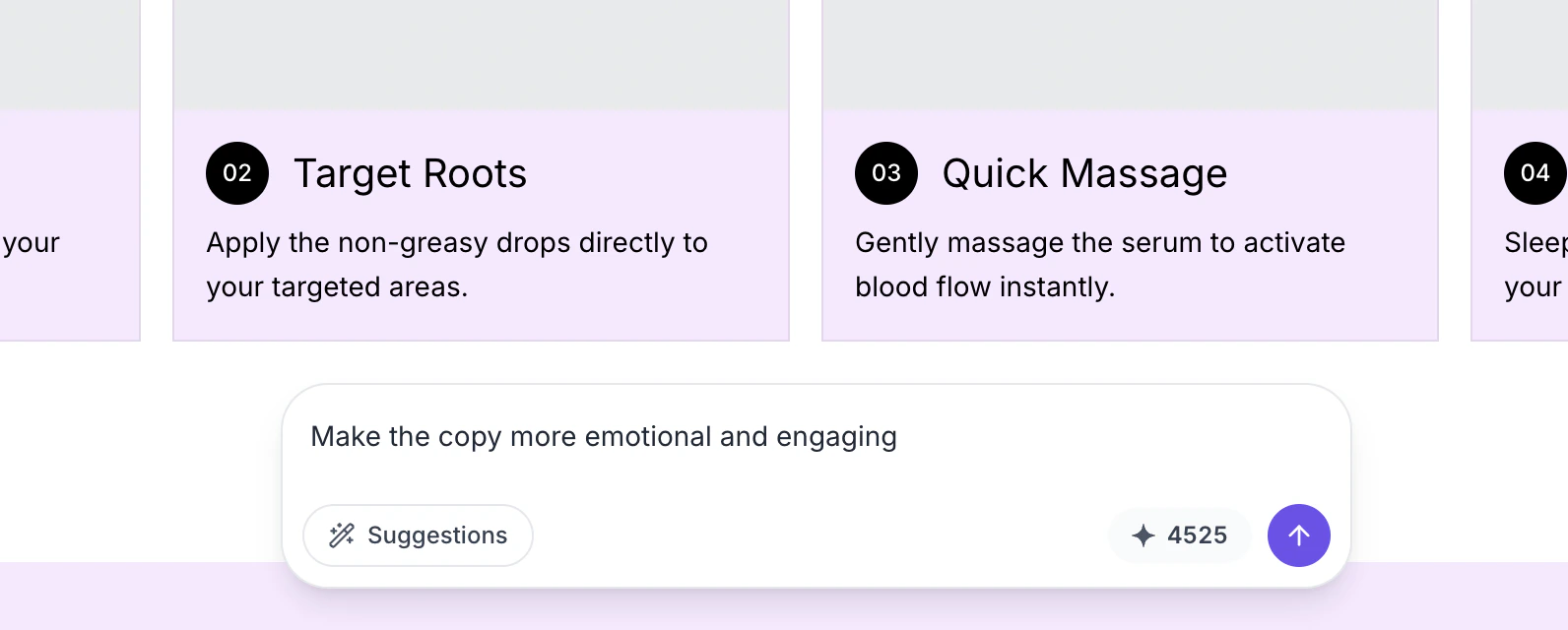
The AI chatbox is always accessible at the bottom of the builder canvas. It appears as a text input bar with a sparkle icon and your current credit balance.
Click on any section in the canvas to select it. The AI chatbox needs a selected section to know which content to rewrite.
Click on any editable text field within the selected section. The text will be highlighted and loaded into the AI chatbox context.
Use one of the quick suggestion buttons or type a custom prompt, then press Enter or click the send button.
 You must have a section selected before the AI chatbox can process a rewrite. If no section is selected, the chatbox will prompt you to select one.
## Quick Suggestion Buttons
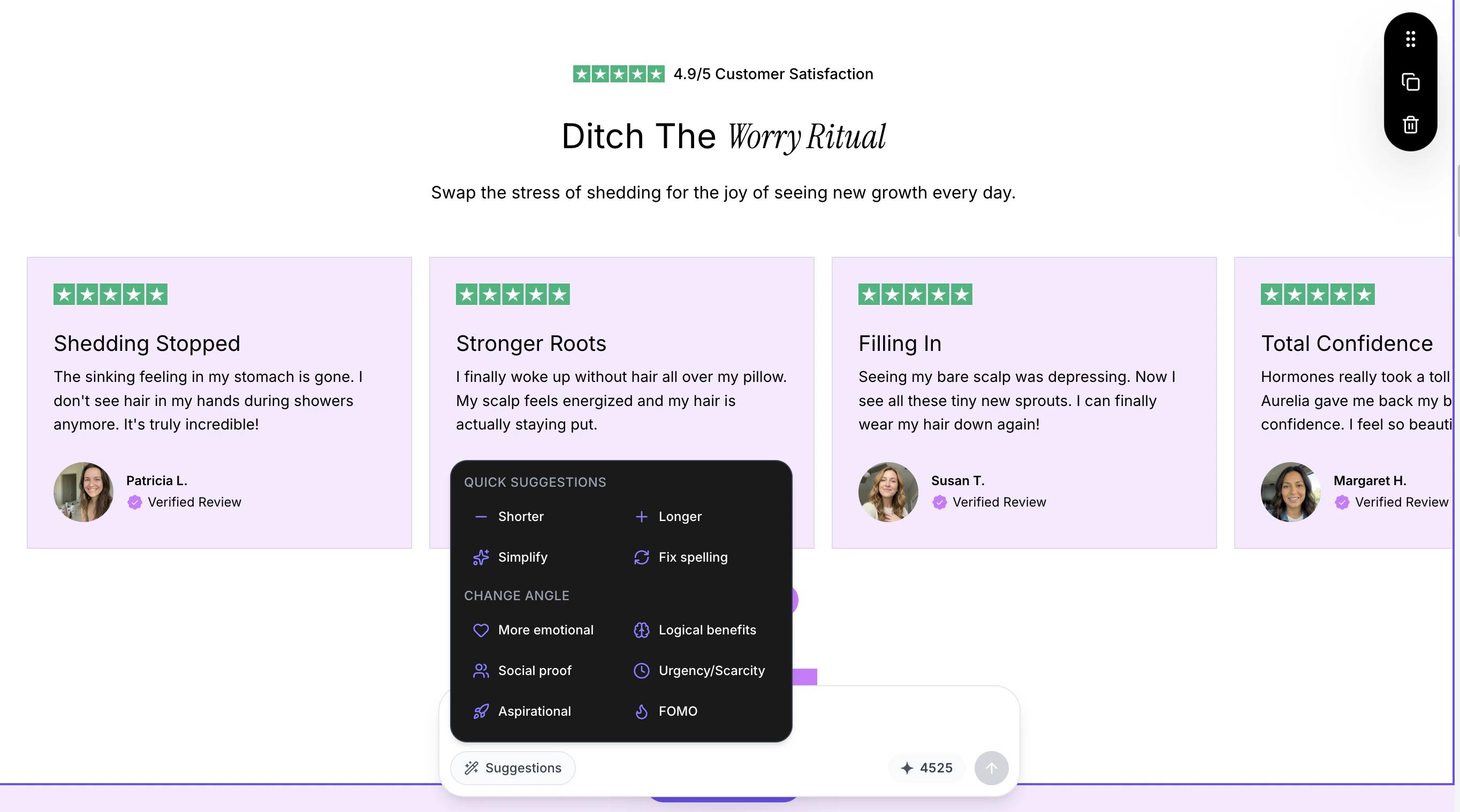
The AI chatbox provides 10 pre-built rewriting styles so you can improve your copy with a single click:
| Button | What it does |
| -------------------- | --------------------------------------------------------- |
| **Shorter** | Makes the text more concise and to the point |
| **Longer** | Expands the text with additional details and depth |
| **Simplify** | Simplifies the language for easier reading comprehension |
| **Fix spelling** | Corrects any spelling and grammar errors |
| **More emotional** | Makes the copy more emotionally engaging and persuasive |
| **Logical benefits** | Shifts the focus to logical benefits and product features |
| **Social proof** | Adds a social proof and testimonials angle to the text |
| **Urgency/Scarcity** | Introduces urgency and scarcity messaging |
| **Aspirational** | Makes the text more aspirational and inspiring |
| **FOMO** | Adds fear of missing out elements to drive action |
You must have a section selected before the AI chatbox can process a rewrite. If no section is selected, the chatbox will prompt you to select one.
## Quick Suggestion Buttons
The AI chatbox provides 10 pre-built rewriting styles so you can improve your copy with a single click:
| Button | What it does |
| -------------------- | --------------------------------------------------------- |
| **Shorter** | Makes the text more concise and to the point |
| **Longer** | Expands the text with additional details and depth |
| **Simplify** | Simplifies the language for easier reading comprehension |
| **Fix spelling** | Corrects any spelling and grammar errors |
| **More emotional** | Makes the copy more emotionally engaging and persuasive |
| **Logical benefits** | Shifts the focus to logical benefits and product features |
| **Social proof** | Adds a social proof and testimonials angle to the text |
| **Urgency/Scarcity** | Introduces urgency and scarcity messaging |
| **Aspirational** | Makes the text more aspirational and inspiring |
| **FOMO** | Adds fear of missing out elements to drive action |
 Quick suggestions are a great starting point. You can always follow up with a custom prompt to fine-tune the result further.
## Writing Custom Prompts
If none of the quick suggestions fit your needs, type a custom instruction in the chatbox input field. You can be as specific as you like.
Examples of effective custom prompts:
* "Rewrite this for a Gen Z audience using casual, fun language"
* "Add a money-back guarantee mention"
* "Make this sound more premium and luxurious"
* "Shorten to under 10 words"
* "Focus on the health benefits of the ingredients"
## How AI Rewriting Works
When you trigger a rewrite, here is what happens behind the scenes:
1. **Text extraction** -- The AI identifies all editable text fields in the selected section (headings, descriptions, button text, bullet points, etc.).
2. **Context building** -- Your prompt and the selected text are sent to the AI model along with the section structure.
3. **Content generation** -- The AI generates rewritten text that matches your instructions while preserving the section's structure and formatting.
4. **Automatic update** -- The rewritten text is applied directly to the section. The change is added to your undo history, so you can always revert if needed.
AI rewriting replaces the text in the selected field. If you want to keep the original text, use **Ctrl+Z** (or **Cmd+Z** on Mac) immediately after the rewrite to undo the change.
## Credit Cost
Each AI content rewrite costs **1 AI credit**. Your current credit balance is displayed next to the AI chatbox input.
If you run out of credits, you will see an error message with an option to upgrade your plan for more credits. See [AI Credits](/ai-features/ai-credits) for details on credit allocation by plan.
## Tips for Best Results
Instead of "make it better," try "make the headline more action-oriented and add a specific benefit." The more context you give, the better the output.
You can run multiple rewrites on the same text. Start with a style change (e.g., "More emotional"), then refine (e.g., "Shorten to one sentence").
Every rewrite is saved to the undo history stack. Press Ctrl+Z / Cmd+Z to step back through changes until you find the version you prefer.
You can target individual text fields (just a headline, just a button label) rather than rewriting the entire section at once for more control.
Quick suggestions are a great starting point. You can always follow up with a custom prompt to fine-tune the result further.
## Writing Custom Prompts
If none of the quick suggestions fit your needs, type a custom instruction in the chatbox input field. You can be as specific as you like.
Examples of effective custom prompts:
* "Rewrite this for a Gen Z audience using casual, fun language"
* "Add a money-back guarantee mention"
* "Make this sound more premium and luxurious"
* "Shorten to under 10 words"
* "Focus on the health benefits of the ingredients"
## How AI Rewriting Works
When you trigger a rewrite, here is what happens behind the scenes:
1. **Text extraction** -- The AI identifies all editable text fields in the selected section (headings, descriptions, button text, bullet points, etc.).
2. **Context building** -- Your prompt and the selected text are sent to the AI model along with the section structure.
3. **Content generation** -- The AI generates rewritten text that matches your instructions while preserving the section's structure and formatting.
4. **Automatic update** -- The rewritten text is applied directly to the section. The change is added to your undo history, so you can always revert if needed.
AI rewriting replaces the text in the selected field. If you want to keep the original text, use **Ctrl+Z** (or **Cmd+Z** on Mac) immediately after the rewrite to undo the change.
## Credit Cost
Each AI content rewrite costs **1 AI credit**. Your current credit balance is displayed next to the AI chatbox input.
If you run out of credits, you will see an error message with an option to upgrade your plan for more credits. See [AI Credits](/ai-features/ai-credits) for details on credit allocation by plan.
## Tips for Best Results
Instead of "make it better," try "make the headline more action-oriented and add a specific benefit." The more context you give, the better the output.
You can run multiple rewrites on the same text. Start with a style change (e.g., "More emotional"), then refine (e.g., "Shorten to one sentence").
Every rewrite is saved to the undo history stack. Press Ctrl+Z / Cmd+Z to step back through changes until you find the version you prefer.
You can target individual text fields (just a headline, just a button label) rather than rewriting the entire section at once for more control.